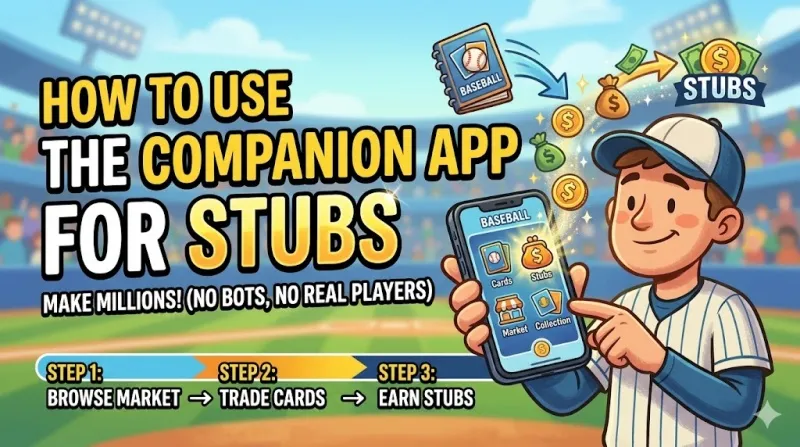
The MLB The Show Companion App is primarily used to earn stubs through flipping cards on the Community Marketplace without needing to be at your console.
Getting Started & Setup
- Download & Sign-In: Search for "MLB The Show Companion App" on the Google Play Store or Apple App Store.
- Platform Linking: Sign in using your PlayStation, Xbox, or Nintendo Switch credentials.
- Nintendo Switch Users: You must first create an account at theshow.com, enable "Cross Play" in your in-game profile, and link your accounts using the provided code.
- Switching Versions: The app supports multiple years (MLB The Show 21–26). Use the year-selection tab at the bottom to ensure you are managing the correct game.
Community Marketplace & Stub Earning
The app is most famous for flipping cards, as the interface allows for much faster order placement than a console.
- Creating Orders: Navigate to the "Community Marketplace." Instead of using "Buy Now," create a Buy Order for 1 stub higher than the current highest bid. Once filled, create a Sell Order for 1 stub lower than the current lowest "Buy Now" price.
- Managing "Dupes": Use the inventory filter to select "dupes" (duplicates). This quickly identifies cards you've recently bought through orders that are ready to be listed for sale.
- Watchlist: Add cards you are monitoring to your Watchlist to track price movements throughout the day.
Core Strategy: Flipping Cards
Flipping involves exploiting the "spread"—the gap between a card's Buy Now and Sell Now prices.
- Find a Card with a "Spread": Look for cards where the Buy Now price is significantly higher than the Sell Now price. Tip: Remember the 10% Marketplace tax on all sales. Your profit is: (Sell Price × 0.90) − Buy Price.
- Place a Buy Order: Do not use "Buy Now." Instead, create a Buy Order for 1 stub more than the current highest Sell Now bid.
- Place a Sell Order: Once your Buy Order is filled, list the card for sale by creating a Sell Order for 1 stub less than the current lowest Buy Now price.
- Rinse and Repeat: The app's interface allows you to quickly cycle through orders, making it more efficient than using a console controller.
Flipping cards is a reliable way to build your bankroll, but it does take a bit of patience and time. If you’re looking to skip the market grind and jump straight into completing collections or picking up your favorite players, you can find cheap MLB The Show 26 stubs for sale at U4N. It’s a straightforward alternative for players who want to focus more on the game and less on monitoring price spreads.
Best Targets for Flipping
- Gold Cards (80–84 OVR): Generally the best starting point for beginners as they move quickly and have enough value to cover the 10% tax.
- Bronze & Silver Cards: Highly effective early in the game cycle (first 1–3 months) due to high demand for collection missions.
- "No-Risk" Flips: Buy cards at or near their Quick Sell value. If the flip fails, you can simply Quick Sell the card to get your investment back.
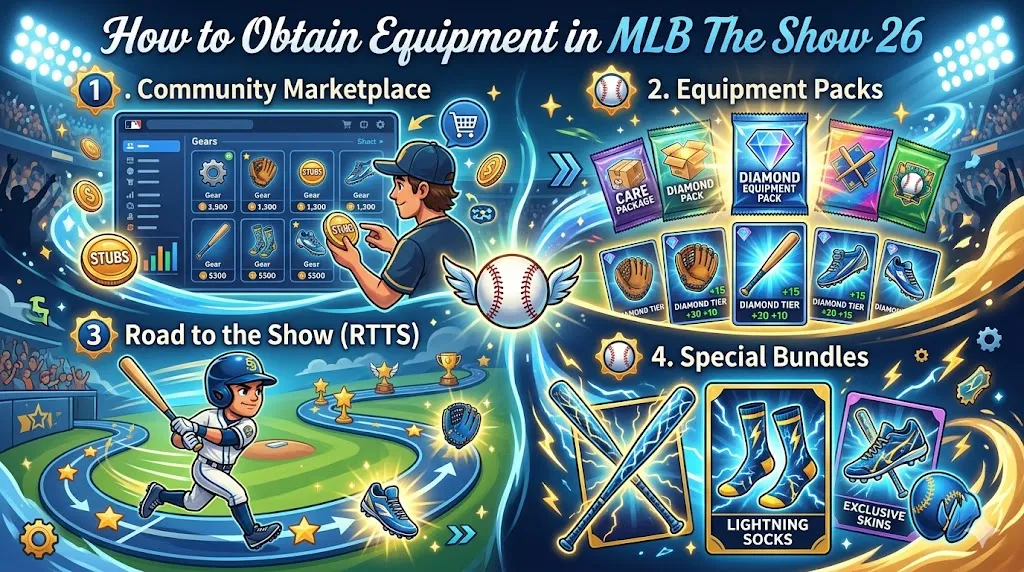
- Equipment: Often has wider profit margins but moves slower than player cards.
Efficiency Tips
- Volume is King: It is better to flip 50 cards for 150 stubs profit each than to wait all day for one card to flip for 2,000 stubs.
- Check "Dupes": Use the app's inventory filter to find "dupes" (duplicates). These are often cards you recently won through buy orders that are ready to be listed for sale.
- App Notifications: Turn on push notifications to know immediately when your orders are outbid or filled.
- Third-Party Tools: Use sites like ShowZone to identify cards with the highest "Profit per Minute".
What You CANNOT Do
- Direct Purchase: You cannot purchase stubs with real money directly through the Companion App; these must be bought via your platform's store (PlayStation/Xbox/Switch).
Squad & Program Management
- Lineup Management: You can adjust your squad, batting order, and rotation directly from your phone.
- Track Progress: Check your progress in current programs like Team Affinity or the XP Reward Path.
- Packs & Collections: You can buy packs in "The Show Shop" and open them immediately. You can also add items to Collections or Exchanges without being on your console.
Notifications
Enable push notifications to stay ahead of the market:
- Order Alerts: Get notified the second a Buy/Sell order is completed or if you've been outbid.
- Friend Activity: Receive alerts when a friend pulls a high-value Diamond card from a pack.
MLB The Show The Companion App Not Working?
As of March 25, 2026, the MLB The Show Companion App is experiencing significant stability issues, particularly for Android users following a recent update on March 24.
Current Known Issues (March 2026)
- Android Keyboard Crashes: Users are reporting that the app immediately shuts down when trying to use the keyboard, such as when searching for players or entering bid amounts in the marketplace.
- Order Placement Loops: Some players can access the app but find it crashes or forces a refresh after placing 3–5 buy/sell orders.
- Login & Sync Errors: Many users are seeing "too many redirects" errors or messages stating they need to "play Diamond Dynasty first" despite having already done so.
Recommended Troubleshooting
- Check for the "Overnight" Update: A fix for the Android crashing issue was reportedly released early on March 25. Check the Google Play Store to ensure you are on the latest version.
- Acquire a Starter Card: If the app says you haven't played Diamond Dynasty, San Diego Studio (SDS) confirmed you must acquire the first card of the Starter Program (via moments or gameplay) for the app to sync your account.
- Clear App Cache: If you are stuck in a login loop, go to your phone's app settings and clear the cache for the Companion App before trying to sign in again.
- Restart Your Device: Several users have found that a simple phone restart resolved "blocked" screens where the app failed to pull up inventory or squads.
- Use the Web Browser: If the app remains broken, the official MLB The Show website offers a marketplace interface that is often more stable during app-specific outages.
MLB The Show Companion App Face Scan Not Working
As of March 25, 2026, many users are reporting that the Face Scan feature in the MLB The Show Companion App is failing during the "processing" stage or not showing up in-game.
Face Scan Feature
Use this to put your own likeness on your Road to the Show (RTTS) Ballplayer.
- Capture Process: Remove hats or glasses and stand in a well-lit area with a neutral expression.
- Importing: After taking the photo and letting it process in the app, you must go to the Appearance/Face menu on your console to "activate" and apply the scan to your player.
Common Fixes for March 2026
- Update the App: San Diego Studio (SDS) recently patched a glitch specifically affecting the sensors on newer iPhones (iPhone 16/17 series). Ensure you have the latest update from the App Store or Google Play.
- The "Delete and Reload" Method: Many players have resolved "processing failed" errors by completely deleting the app and reinstalling it. This often triggers a fresh prompt to "consent to download background apps," which is necessary for the scan to function.
- Keep the Console Menu Open: Some users found the scan only successfully imported when they had the Face Scan menu open on their console while simultaneously taking the photo on the app.
- Check Lighting and Appearance:
- Avoid wearing hats, glasses, or jewelry.
- Use a plain background and ensure your face is well-lit without shadows.
- Maintain a neutral expression (no teeth, no frowning).
Known Technical Obstacles
- Server Load: During the launch window of MLB The Show 26, the servers often experience "heavy load" errors, causing scans to fail even if the photo is perfect. Players have reported success by "spamming" the upload button until it eventually goes through.
- Age Requirements: If you receive an "Unable to use Face Scan technology" error, ensure your account meets the minimum age requirements for likeness features.
- Account Sync: Double-check that your mobile app is signed into the exact same account used on your console.
About the Author
Authored by elite gamers and industry insiders, the U4N Editorial Team delivers authoritative game updates, patch notes breakdowns, and expert strategies for trending titles including World of Warcraft, Path of Exile 2, MapleStory, Aion 2, and Arc Raiders.
From deep-dive guides to the latest meta shifts, our in-house veterans test every tactic firsthand to keep you ahead of the game.