Customizing your hat in MLB The Show 26 is a fun way to make your Diamond Dynasty team stand out. Whether you're creating a team from scratch or adding some flair to your existing squad, the game offers multiple ways to tweak your caps, helmets, and jerseys. Here's how to take full control of your team's look and style your cap just the way you want it.
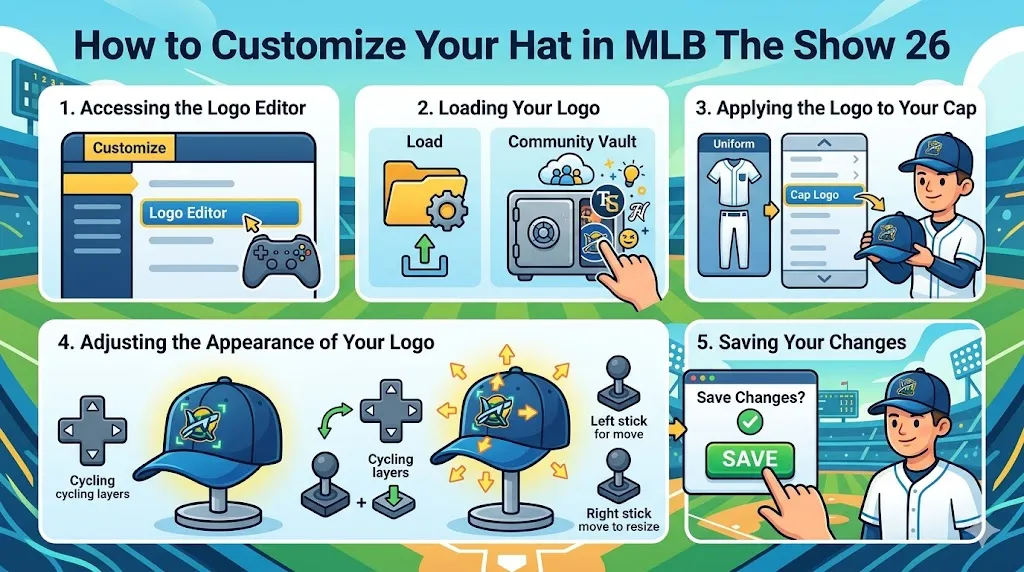
1. Accessing the Logo Editor
To start customizing your hat, you'll first need to enter the Logo Editor. This is where you'll load, create, and edit your designs for various team gear, including hats.
- Navigate to the Customize tab in the main menu.
- Select Logo Editor to open the customization tool. This is where all your logo-related options are stored.
2. Loading Your Logo
Once you're in the Logo Editor, it's time to load your desired logo or create one from scratch.
- Select Load to choose a design from your saved files or from the Community Vault.
- The Community Vault is a great place to find logos created by other players. You can search for specific team logos, unique designs, or even funny and creative custom logos.
- If you've created your own logo before, select it from your saved designs.
3. Applying the Logo to Your Cap
With your logo selected, the next step is to apply it to your team's hat. Here's how to do it:
- Exit the Logo Editor and go to the Edit Uniform menu.
- Scroll to the Cap Logo section, which is located at the bottom of the Edit Uniform options.
- Select the logo you just loaded to apply it to your team's cap.
4. Adjusting the Appearance of Your Logo
Now that your logo is on your hat, it's time to fine-tune its placement and size to get the perfect look.
- Use the D-pad to cycle through all the logo layers on your cap.
- Use the Left Stick to move the logo around and position it perfectly on the hat.
- Use the Right Stick to resize the logo, making it smaller or larger as needed.
- Take your time adjusting until you're happy with how the logo looks on the cap.
5. Saving Your Changes
Once you've finished customizing your hat, don't forget to save your changes to ensure your logo appears in-game.
- Press the Back button to exit the editor.
- Confirm the Save Changes option to make sure your newly customized hat will be applied in your games.
Customizing your hat in MLB The Show 26 adds a personal touch to your Diamond Dynasty team, and it’s easy to make sure your gear stands out. Whether you're choosing a unique logo or adjusting the size and placement for the perfect look, the Logo Editor gives you full control over your team's style. Don’t forget, while you’re customizing, you may want to pick up some MLB The Show 26 Stubs for sale to buy additional items or speed up your customization process. Check out U4N for a secure and reliable source to buy MLB The Show 26 Stubs at the best prices!
Customization Options
MLB The Show 26 offers a variety of additional customization options to further personalize your team's gear beyond just logos.
1. Logo Vault
The Logo Vault is an incredible resource for finding designs created by the community. There are thousands of logos to browse, and you can search for specific teams, brands, or even unique, one-of-a-kind creations.
- You can filter by categories or type to make finding the right design quicker.
- Download logos from the vault to use on your team's caps, helmets, and other gear.
2. Finishes
Beyond the design, you can also choose from different finishes for your equipment.
- For items like batting helmets, you can select from finishes like Shiny or Matte to give your gear a polished or sleek look.
- The finish you choose will impact the overall aesthetic of your uniform and add extra customization layers.
3. Color Matching
The uniform creator allows you to match colors across your entire kit. This feature ensures that all your gear, including the hat, helmet, and jersey, seamlessly blend together.
- You can customize each piece of equipment by adjusting the color scheme.
- Use the color wheel to match your cap's colors with your team's jersey, creating a unified look.
4. Equipment Customization
Customization equipment isn't just about the look – it's also about performance.
- Diamond-tier equipment, earned through packs or specific programs, can be equipped to boost your players' appearance and stats.
- These items offer unique designs and provide additional gameplay advantages, further enhancing your team's performance.