

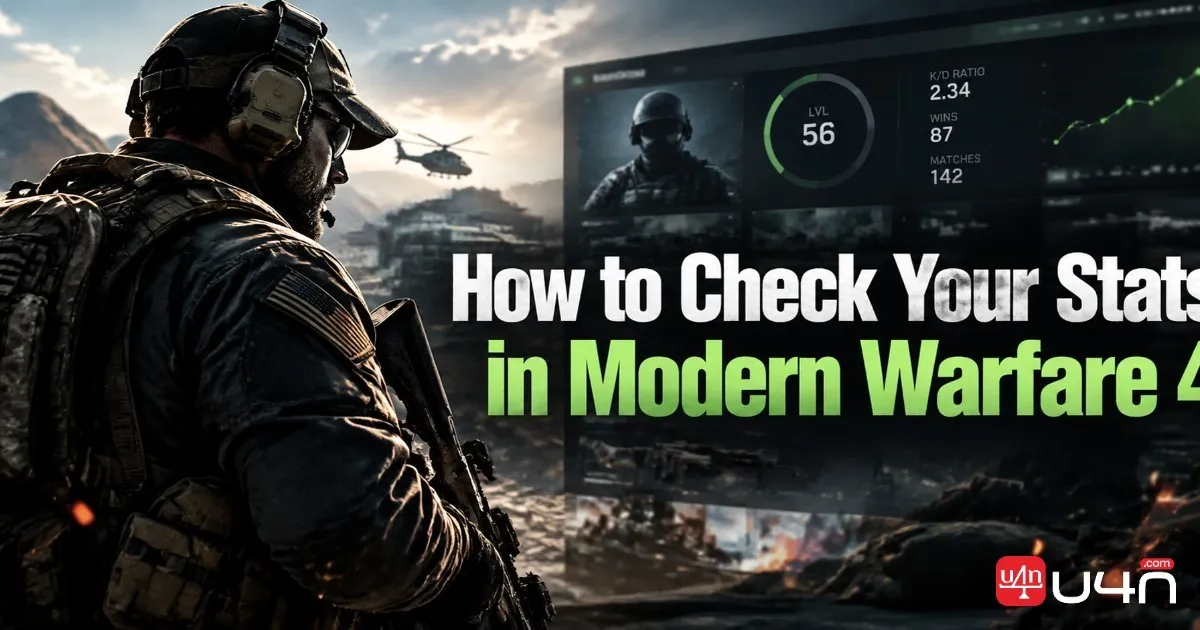
Knowing where to find your stats in Call of Duty: Modern Warfare 4 helps you track improvement without wasting time searching through menus. Whether you want to check your K/D ratio, review recent matches, or see which weapons you use most, our team recommends starting with the Career menu. Even if you're managing your progression alongside your CoD MW4 Cash goals, understanding your actual combat performance gives you a clearer picture of where your time in the game is going.
MW4 tracks several types of progress, and they are not all displayed in the same place. Multiplayer statistics, player levels, Prestige progress, weapon ranks, and camo challenges serve different purposes. Players who also spend time in DMZ should pay attention to its separate progression track rather than assuming every number belongs to the same system. Here's how to find the information that matters and use it to improve your next match.
Where to Find Your MW4 Stats
The Career menu is the best starting point for checking your account progression and Multiplayer performance. Follow these steps:
- Launch Modern Warfare 4 and open the main menu.
- Select Career from the top-left area.
- Open Progression to review your player level, DMZ level, and Prestige-related progress.
- Select Multiplayer Stats to check your K/D ratio, win/loss ratio, recent match performance, and weapon statistics.
- Open Challenges to review camo, Calling Card, and Armory challenge progress.
- Visit Profile to view your emblem, Calling Card, clan tag, and Prestige-related cosmetics.
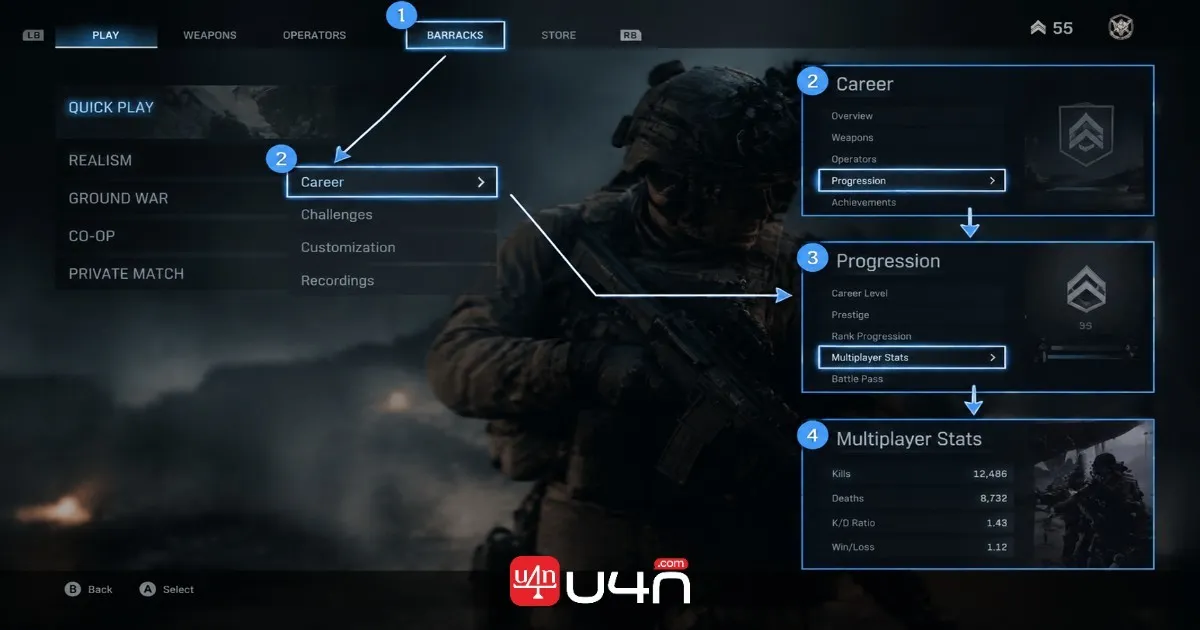
The exact information available may depend on the menu and progression stage you're viewing. If you're looking for a specific number, start with Multiplayer Stats instead of checking every tab individually.
How to Check Your K/D and W/L Ratio
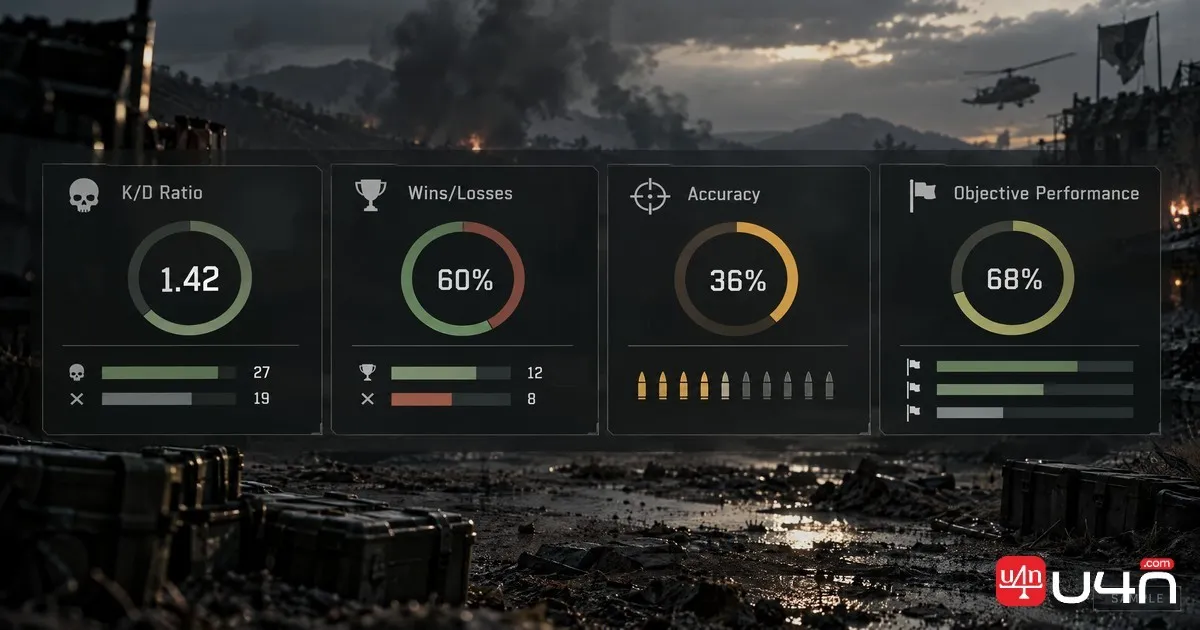
K/D and W/L are two of the most useful indicators for reviewing your Multiplayer performance, but they measure different things.
| Stat | What it tells you | How to use it |
|---|---|---|
| K/D ratio | The relationship between kills and deaths | Review how consistently you win gunfights |
| W/L ratio | The relationship between wins and losses | Evaluate results across your matches |
| Recent match performance | Your latest results and combat output | Identify whether a new strategy is working |
| Weapon statistics | Performance with your most-used weapons | Compare your preferred guns and playstyles |

Our team recommends looking at trends rather than judging your performance from a single match. A lower K/D in an objective-focused game does not automatically mean you played badly. Holding a Hardpoint, defending a flag, or helping teammates control an important lane can be more valuable than chasing kills across the map.
Don't judge your entire Multiplayer performance by K/D alone. Review several matches in the same mode and consider your objective contribution, positioning, and consistency alongside your kill and death totals.
For a more useful comparison, review several matches played in the same mode. This makes it easier to tell whether a change in positioning, weapon choice, or engagement distance is actually helping.
How to Track Weapon Stats and Camo Progress
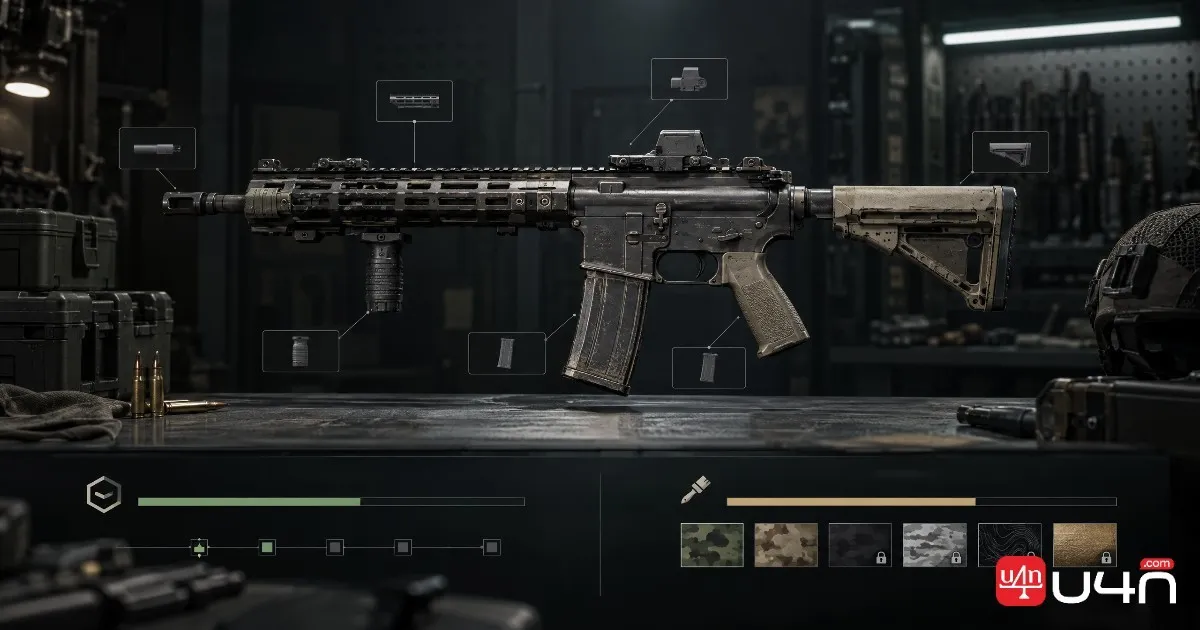
If you're working toward a particular camo or trying to decide which rifle deserves more practice, check the weapon's own progression page.
- Open Gunsmith from the relevant weapon menu.
- Select the weapon you want to review.
- Open its Progression tab.
- Check the available weapon-level information and camo challenges.
- Open Challenges separately when you need to review broader unlock objectives.
Weapon progression is especially useful when you're grinding a specific attachment or camo. Instead of switching between guns without a clear plan, our team recommends choosing one or two weapons and tracking the requirements you can realistically complete during your usual sessions.
Pay attention to the difference between general weapon statistics and challenge requirements. A weapon may have a high kill count while a particular camo challenge remains incomplete because it requires a specific type of elimination or another condition. Always read the challenge description before changing your loadout.
Why Your MW4 Stats May Not Update
Stats do not always refresh immediately after a match. If your latest results or challenge progress appear incorrect, work through these checks before assuming your data has been lost.
- Wait briefly: Return to the relevant menu after a short delay to check whether the results have synchronized.
- Restart the game: Fully close MW4 and launch it again if the displayed numbers remain unchanged.
- Check your account: Make sure you're using the correct Activision account and linked platform profile.
- Check official status updates: Server-side issues may delay data synchronization during busy periods.
- Verify third-party tracker support: External sites may have different update schedules or access limitations. Public-profile settings may matter for some services, but they do not necessarily control the statistics shown inside the game.
DMZ players should also distinguish between account progression and extraction-related results. Your level, weapon progress, and resources earned during a run are not interchangeable measurements. If you're tracking MW4 DMZ Money alongside your extraction performance, review the relevant in-game progression and resource displays instead of relying on a single overall stat.
Our advice is to avoid repeatedly changing account settings or reinstalling the game before checking for a known service issue. Start with the simplest checks and escalate only if the problem continues.
Summary
Checking your Modern Warfare 4 stats is straightforward once you know which menu handles each type of information. Use Career to review Multiplayer performance and account progression, Gunsmith to track weapon levels and camo challenges, and the relevant DMZ screens to understand your extraction-mode progress.
For better results, focus on a few meaningful indicators rather than every number on the screen. K/D helps you review gunfights, W/L provides context for match outcomes, and weapon progression keeps your unlock goals organized. Combine these figures with objective play and positioning, and you'll get a more accurate picture of how you're improving.
FAQ
Where can I check my K/D ratio in MW4?
Open Career and select Multiplayer Stats. Look for your overall K/D ratio and other available Multiplayer performance figures.
How do I check weapon camo progress in MW4?
Open Gunsmith, select your weapon, and visit its Progression tab. You can also use the Challenges menu to review related camo and unlock objectives.
Why are my MW4 stats not updating?
Wait briefly, restart the game, and confirm that you're using the correct account. If the problem persists, check official service updates before troubleshooting further.
Are MW4 Multiplayer and DMZ progression the same?
No. They use separate progression tracks, so check the relevant mode's progression information rather than assuming your level or results are shared across both modes.
Can I use a third-party website to track MW4 stats?
Potentially, but support and update frequency depend on the service. Check whether the tracker supports MW4 and whether its account-access requirements are satisfied before relying on its figures.