For MLB The Show 26 on PS5, the goal is to have settings that improve reaction time, give you full control over the ball's path, and allow for smoother gameplay. Based on feedback from competitive players, here's a guide to the best settings that will help you perform your best on the field.
Hitting Settings
The hitting settings in MLB The Show 26 are crucial for controlling the ball and making consistent contact. Here's what you should set up for a top-tier hitting experience:
Hitting Camera:
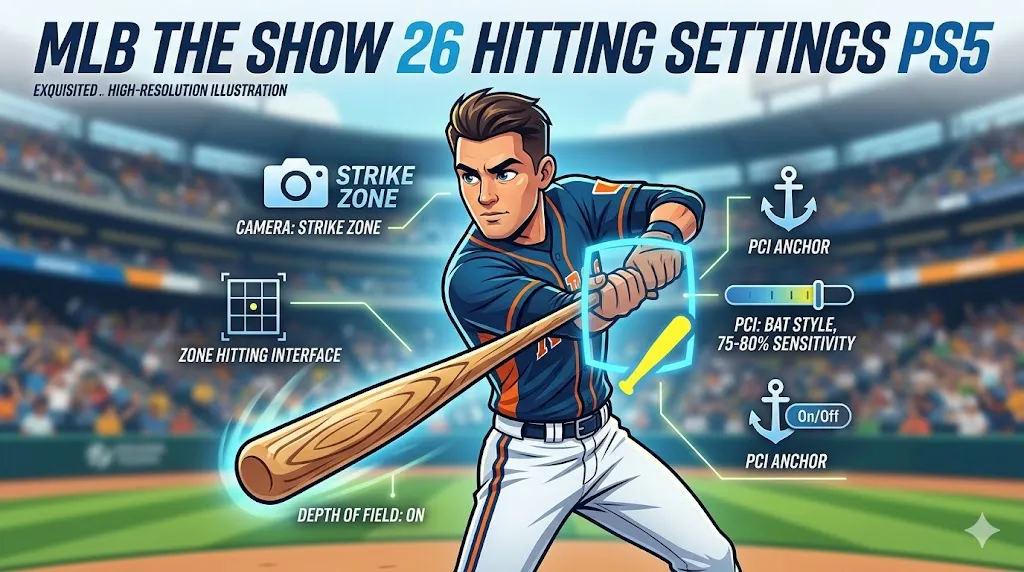
- Strike Zone: This camera is the most recommended for competitive players. It focuses purely on the pitcher's release, removing background distractions. For those who struggle with high velocity, Strike Zone High is another great option.
Hitting Interface:
- Zone: This gives you complete control over your Plate Coverage Indicator (PCI), allowing you to be precise with your swings.
PCI Settings:
- PCI Sensitivity: Start high, around 75-80%, to ensure you can cover the entire strike zone.
- PCI Style: Use the Bat or Diamonds style for better visibility and focus.
- PCI Color/Opacity: Bright colors like Yellow or Sky Blue at 50-70% opacity help keep the PCI clear without being distracting.
- PCI Anchor: Toggle On if you prefer consistency, or Off if you like flexibility.
Hitting Depth of Field:
- On: A new feature in MLB The Show 26 that blurs crowd animations and reduces lag, helping you focus entirely on the ball.
Pitching & Fielding Settings
Pitching Interface:
- Pinpoint: Although it's harder to master, Pinpoint provides the best control and precision when pitching.
Pitching Camera:
- Strike Zone: This matches your hitting view, which helps with better pitch recognition and improves your overall gameplay.
Throwing Interface:
- Button Accuracy: This interface ensures you don't make random throws and improves your accuracy by relying on a timing meter.
Fielding Settings:
- Fielding Camera: Set to High to get the best overhead view of the field. This helps with tracking runners and fly balls more effectively.
- In-Play View: Dynamic adjusts based on the action, offering a versatile view.
Throw Cancel:
- On: Prevents accidental bad throws and helps you stay in control during defensive plays.
For players looking to get the most out of MLB The Show 26 on PS5, optimizing your settings is key to mastering the game. From pitching to fielding to hitting, adjusting these settings will give you better control and reaction time, leading to a more rewarding experience on the field.
If you're focused on progressing quickly, don't forget about the importance of Stubs. Whether you’re grinding for the best cards or improving your squad, buying affordable MLB The Show 26 Stubs is a great way to speed up the process. For the best prices, head over to U4N, where you can easily buy affordable MLB The Show 26 Stubs and take your team to the next level without the grind.
Gameplay & Grinding Optimizations
If you're grinding offline modes like Mini Seasons or Conquest, these settings will help speed things up:
- Quick CPU Pitching: On — Reduces the time the AI takes between pitches.
- Presentation Mode: Fast Play — Skips cutscenes and broadcast animations, cutting down on the downtime.
- Auto Defensive Shift: Off — Gives you manual control over your fielders and helps avoid the AI placing you in bad fielding positions.
General Gameplay Settings
For general gameplay, here are some recommendations that can improve your experience:
- Fast Play: On — Speeds up games, especially helpful for grinding offline.
- Commentary: Off or Low — Reduces audio clutter during long sessions.
- Crowd Volume: Low/Off & Sound Effects: High — Focus more on the game and hear better contact feedback.
- Injuries/Balks/Ejections: Off (optional) — Reduces distractions during offline grinding.
Pro Tips for MLB The Show 26
- If your PCI feels cluttered or you're having trouble with ball recognition, try adjusting the PCI opacity or lowering hit-box highlights.
- For new Zone hitters, start with a lower PCI sensitivity and gradually increase it as you get comfortable.
- Practice Mode is essential. Use it to fine-tune your settings before diving into online or ranked play.
PS5 Performance Tip
For smoother online play, you might want to force your PS5 to output 1080p instead of 1440p. This adjustment can help with tighter input responsiveness. To do this, go to PS5 System → Screen and Video → Resolution settings, then select 1080p.
About the Author
The U4N Editorial Team is made up of dedicated gamers and technical experts. We're not just a trusted marketplace for game assets—we're all about empowering players with top-tier, expert-driven content. Our team produces in-depth guides, strategies, and technical fixes for some of the biggest games out there, like MLB The Show 26, Aion 2, Forza Horizon 6, Arc Raiders, and Path of Exile.
Whether it's mastering market flipping in Diamond Dynasty or optimizing your endgame builds, all of our strategies are tested and proven by in-house experts. At U4N, we don't just follow the meta—we help you stay ahead of it.