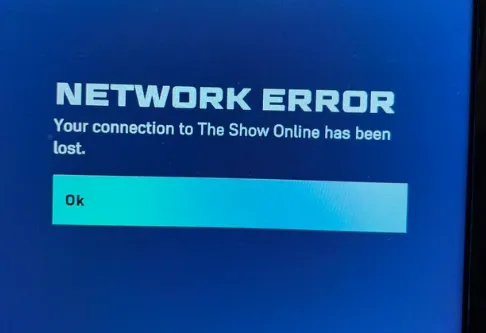
Here's a simpler, more natural version of the solution for the MLB The Show 26 network error on PS5:
Simple Fixes
1. Restart Your Router and PS5
Unplug both for 60 seconds and then plug them back in to help reset the connection.
2. Use a Wired Connection
Switching from Wi-Fi to an Ethernet cable can improve stability and reduce errors.
3. Clear Game Cache
Navigate to Settings > Applications > Manage Installed Applications > MLB The Show 26 and clear the cache.
4. Set Your Account Offline
Go to your profile icon at the top menu, select Account Offline, then try reconnecting.
5. Check for Updates
Ensure that both MLB The Show 26 and your PS5 system software are up to date.
If you're facing network errors while playing MLB The Show 26 on PS5, try these simple fixes to get back on track. Start by restarting your router and PS5, and switch to a wired connection for better stability. Clearing the game cache and setting your account offline may also help resolve the issue. Don’t forget to check for any available updates for both the game and your PS5 system software. And if you're looking to enhance your experience, consider buying MLB 26 Stubs PS5 through reliable platforms like U4N for a smoother in-game progression.
Extra Tips
1. Bypass Error Screen
Instead of restarting the game, go to My Profile, select Account Offline, and return to the main menu. Press any button to try logging in again.
2. Demo Mode Trick
Stay at the main menu and let the game go into demo mode, then quickly exit. This can sometimes bypass the error.
3. Toggle Crossplay
Turn off Crossplay in your profile settings, wait a bit, then turn it back on to reset the connection.
4. Change DNS Settings
Go to Network Settings and set your DNS to 8.8.8.8 (primary) and 8.8.4.4 (secondary) for a more stable connection.
5. Disable 120 Hz Output
In Screen and Video settings, turn off 120 Hz Output and set the game to 60 FPS to fix some connectivity issues.