If you're diving into MLB The Show 26), switching your favorite team is a subtle but impactful customization. It changes your main menu aesthetics, default team selections, and even audio cues.
Step-by-Step Guide
1. Access Settings
From the main menu, locate the Settings option in the upper corner of the screen. This is where all user-specific preferences live.
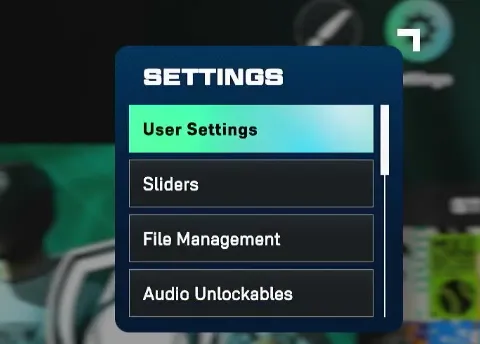
2. Open User Settings
Navigate to User Settings to manage your profile and preferences.
3. Open Settings Preset
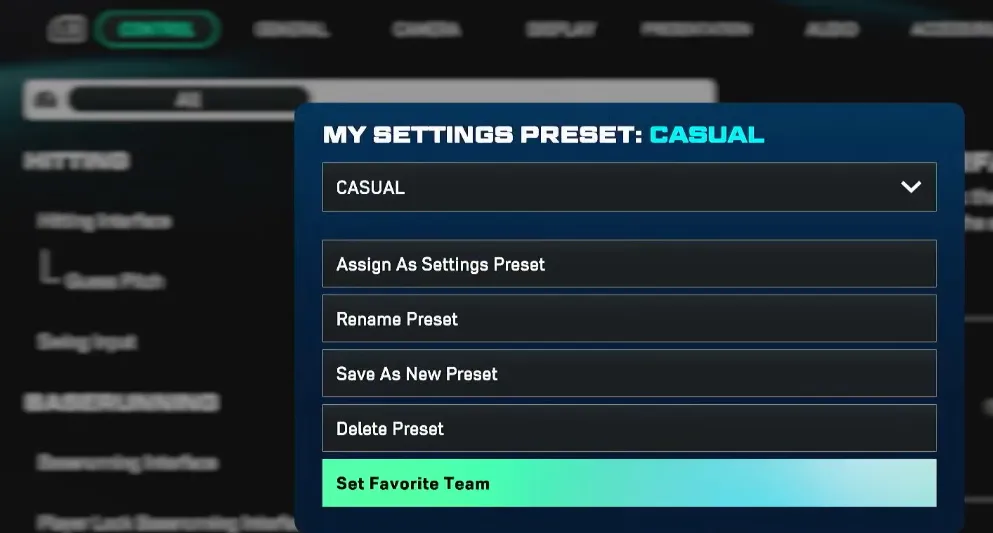
On PlayStation, press Square; on Xbox, press X to enter the Settings Preset menu. This menu houses a variety of customization options, including your favorite team.
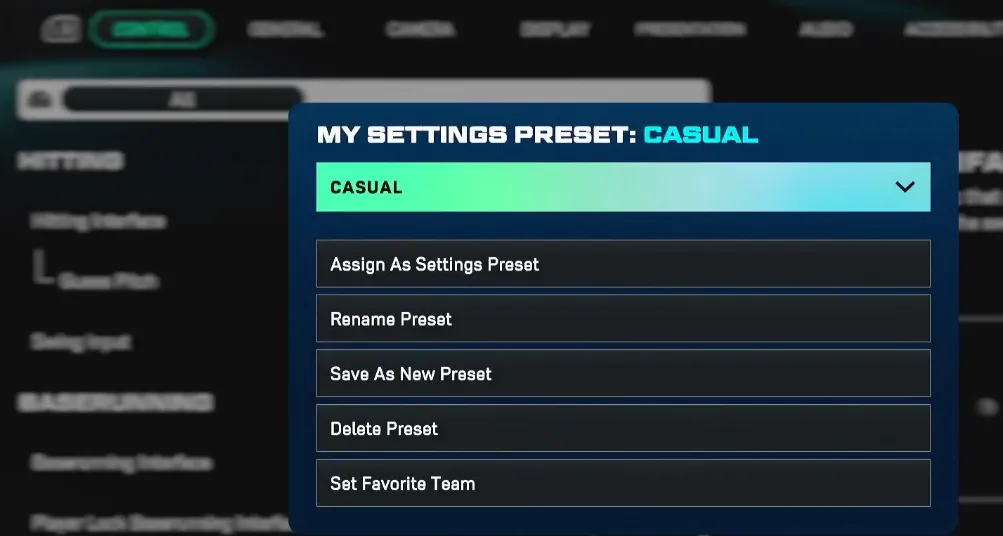
4. Locate Set Favorite Team
Scroll all the way to the bottom of the Settings Preset menu. You'll find the Set Favorite Team option tucked there.
5. Select Your Team
Pick your new favorite team from the list. Confirm the selection, and the game will immediately apply changes across menus and default selections.
For MLB The Show 26 players looking to get the most out of their experience, changing your favorite team is just the beginning—pairing it with quick access to in-game resources can really enhance gameplay. Platforms like U4N make it easy to secure cheap MLB The Show 26 Stubs, letting you unlock packs, customize your roster, and fully enjoy the new team you've chosen without breaking the bank.
Why It's Hard to Find
In MLB The Show 26, the favorite team toggle is hidden deeper than in previous editions. Earlier games placed it under a visible "three dots" (...) menu, but the 26th edition moved it to the Settings Preset submenu. This small change caused confusion for many players who expected a more intuitive path. Once you locate it, however, changing your team updates:
- Main menu backgrounds featuring your team's branding
- Audio themes for in-game menus and highlights
- Default selections in modes like Franchise and Diamond Dynasty
Changing your favorite team is quick once you know where to look. If you want to explore further, you can also change or rebrand your team in Franchise Mode, or customize your logos and branding in Diamond Dynasty, giving your profile a fully personalized feel.