Cart Empty
Continue ShoppingWhen it comes to MLB The Show 26 on Xbox, optimizing your settings can make a huge difference, especially for competitive players looking to enhance their performance. With the right game settings, you can improve precision, control, and reaction times. Here's a breakdown of the best Xbox settings to get the most out of your MLB The Show 26 experience.
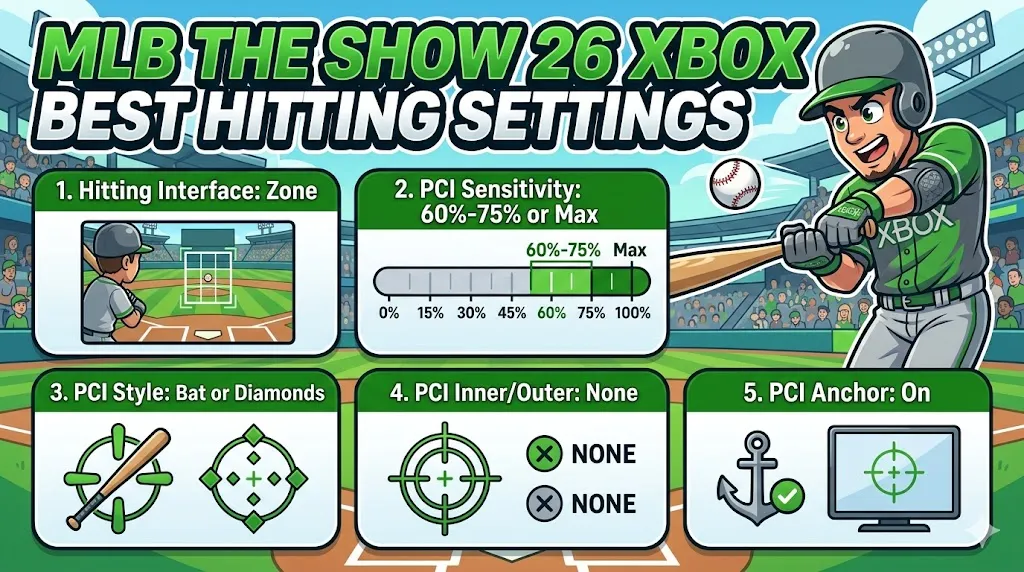
The Zone hitting interface is the go-to choice for most experienced players. This interface gives you full control over the Plate Coverage Indicator (PCI), which lets you adjust the hitting area to square up the ball more accurately. By using the Zone interface, you can make better contact with the ball, increasing your chances of getting base hits and hitting home runs.
The PCI sensitivity affects how quickly you can move the Plate Coverage Indicator (PCI). Higher sensitivity (around 75% or Max) allows you to react faster, but it can also make it harder to control the PCI and lead to overswinging. A 60% setting provides a balance between speed and control, giving you enough responsiveness without sacrificing accuracy. Experiment with different sensitivities to find what feels best for you.
Choosing the right PCI style is a matter of personal preference. Both the Bat and Diamonds styles offer clear visual feedback, which helps you focus on the pitch and track it better. The Diamonds style may be a bit cleaner for some players, while the Bat style can provide a more traditional look. Either option helps keep the view uncluttered, making it easier to focus on your swing.
To reduce distractions, it's best to turn off both the inner and outer PCI. Keeping these off simplifies the view and makes it easier to track the pitch without cluttering your screen with unnecessary markers. This can help you focus purely on timing and pitch recognition.
Having the PCI Anchor setting on is a huge advantage for higher-level players. This feature lets you preset your PCI in a specific location (like the high zone) before each pitch. This way, you'll be ready to react to pitches in that area quickly, improving your response time and making it easier to handle different pitch types.
While Pinpoint pitching has a steeper learning curve than the simpler Classic or Meter options, it offers the most control and precision. With Pinpoint, you can hit the corners of the strike zone and execute perfect pitches with more accuracy. This setting is ideal for players looking to challenge the batter with well-placed pitches.
Using the Strike Zone view for both hitting and pitching is a smart strategy. It allows you to get used to the same view for both roles, making it easier to judge pitch breaks and trajectories. The Strike Zone view helps you visualize the pitch better, giving you more control over both your pitching and batting.
The Button Accuracy throwing interface uses a meter that helps ensure accurate throws. Timing the throw meter properly guarantees a perfect throw, which prevents random fielding errors. This is especially important when playing in high-level online games or in tight offline situations, where errors can be costly.
Turning on Throw Canceling is essential for high-level play. It lets you cancel a throw mid-action, which can be crucial when a runner changes direction, and you need to adjust your throw. This feature prevents unnecessary mistakes and gives you more control over your fielding plays.

The Strike Zone or Strike Zone High views are excellent for hitting, as they zoom in on the pitcher's release point, making it easier to see the ball as it's coming toward you. These views enlarge the ball, allowing you to track it more easily, which can improve your pitch recognition and reaction time.
A new feature in MLB The Show 26, the Depth of Field setting slightly blurs the background, helping you focus more on the pitcher and the ball. This setting reduces distractions, making it easier to track pitches and stay focused on the game.
The Dynamic view is perfect for in-play action on offense. It provides a good angle for seeing where the ball is hit, allowing you to quickly react while running the bases. This view also helps you spot the ball's trajectory better, improving your decision-making when trying to advance on the bases.
When playing in offline modes, enabling Quick CPU Pitching speeds up the time between CPU pitches, making the game flow faster. This setting is especially helpful when playing through longer games or franchise seasons, as it reduces downtime and keeps the action moving at a good pace.
While commentary can add to the atmosphere of the game, many competitive players choose to turn it off or lower the volume. This reduces distractions and lets you focus more on gameplay. It's also helpful if you're playing with a live stream or recording gameplay, as it helps avoid overlap with any commentary you may want to provide yourself.
The U4N Editorial Team is made up of dedicated gamers and technical experts. We're not just a trusted marketplace for game assets—we're all about empowering players with top-tier, expert-driven content. Our team produces in-depth guides, strategies, and technical fixes for some of the biggest games out there, like MLB The Show 26, Aion 2, Forza Horizon 6, Arc Raiders, and Path of Exile.
Whether it's mastering market flipping in Diamond Dynasty or optimizing your endgame builds, all of our strategies are tested and proven by in-house experts. At U4N, we don't just follow the meta—we help you stay ahead of it.