

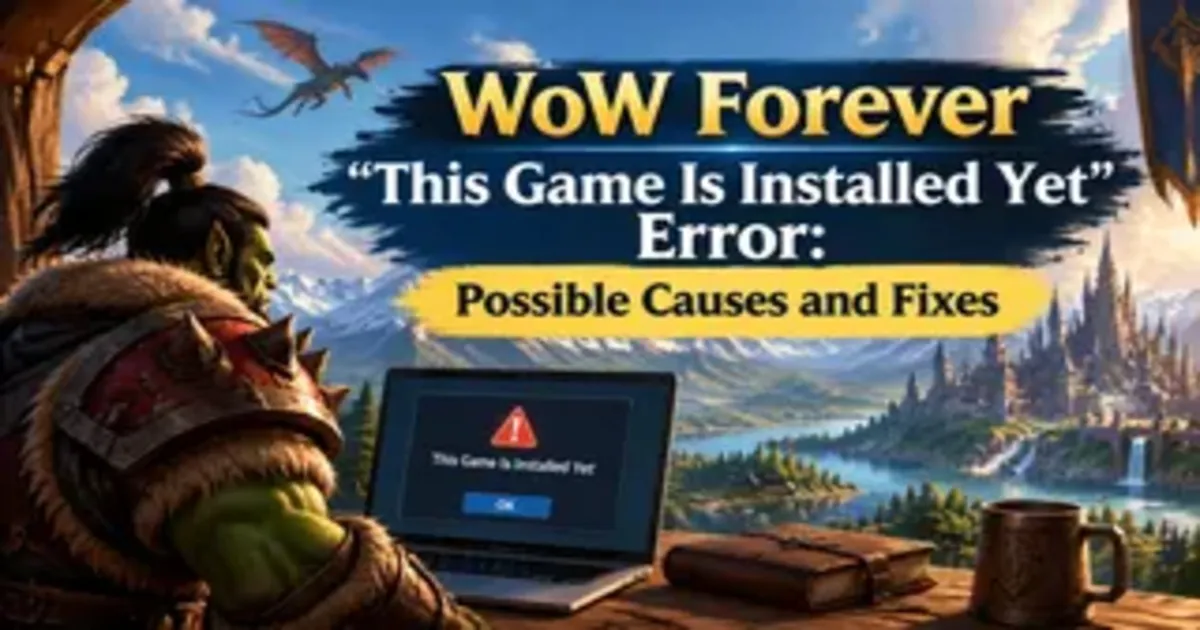
Seeing Battle.net ask you to install WoW Forever when the game is already sitting on your drive is one of those launcher problems that looks more serious than it usually is. In our experience with MMO clients, the key distinction is whether the game files are missing or whether the launcher has simply lost track of where they are.
Blizzard's support documentation confirms that an existing installation does not always need to be downloaded again. When Battle.net shows Install for an already installed game, the official fix is to use Locate the game and point the launcher to the correct installation folder. Blizzard Support's World of Warcraft installation guide documents this behavior.
Why Does WoW Forever Say the Game Is Not Installed?
The most common cause is a mismatch between the game's physical location and the installation information stored by Battle.net. This can happen after moving the game to another drive, changing folders, reinstalling the launcher, or clearing Battle.net data.
There is an important distinction here: a missing installation path is not the same problem as corrupted game files. If the launcher simply cannot find the existing client, reinstalling several gigabytes of data is unnecessary and can waste considerable time.
Battle.net Lost the Installation Location
Battle.net needs to know where the existing game client is located before it can replace the Install button with Play. Blizzard explicitly provides a Locate the game option for this situation. The official troubleshooting instructions confirm that selecting the correct folder should restore the Play option.
The Game Was Moved to Another Drive
Moving WoW Forever from an SSD to another drive without updating Battle.net can produce the same symptom. The files may be completely intact, but the launcher is still looking at the previous installation path.
Battle.net Files Are Corrupted or Outdated
Battle.net's local files can also become outdated or corrupted. Blizzard notes that damaged or missing Battle.net folders can cause problems with the application and game clients, although clearing these files can make the launcher forget previously detected installation locations. Blizzard's Battle.net file-reset procedure explains this trade-off.
How to Fix the WoW Forever Installation Error
We recommend starting with the least destructive solution. Do not uninstall WoW Forever simply because Battle.net displays an Install button; first determine whether the launcher can reconnect to the files already on your drive.
1. Use "Locate the Game"
Open Battle.net and select World of Warcraft. If the launcher displays Install even though WoW Forever is already installed, look for Locate the game below the installation controls.
Select the folder containing the existing game installation. If you choose the correct directory, Battle.net should recognize the files and change the available action from Install to Play. This is Blizzard's recommended approach for an existing installation that is not being detected.
2. Confirm the Installation Path
If locating the game does not work, check the folder manually before making further changes. Make sure you are selecting the actual game directory rather than a parent folder that merely contains several games.
This check is particularly useful after changing storage drives. Blizzard's documentation also notes that Battle.net games can be installed on different drives, but the correct installation location must be selected during setup. Blizzard's guide to installing Battle.net games on another drive provides additional context.
3. Restart Battle.net and Your PC
A full restart is worth trying before deeper troubleshooting. Close Battle.net completely, make sure its background processes have ended, restart Windows, and launch the application again.
This matters because the Battle.net Agent handles parts of the launcher and update process. Blizzard recommends closing Battle.net processes and relaunching the application as part of several troubleshooting procedures. See Blizzard's Battle.net file troubleshooting guidance.
4. Reset Battle.net Files if Detection Still Fails

If the launcher repeatedly forgets the installation, resetting its local files can help. On Windows, Blizzard's procedure involves closing Blizzard processes, opening C:\ProgramData\, and deleting the Battle.net folder before launching the application again.
There is an important catch: this process can cause Battle.net to forget game installation locations. Afterward, you may see Install again even though the game files remain on the drive. Use Locate the game again rather than immediately downloading WoW Forever from scratch.
How to Tell Which Problem You Have
| Symptom | Likely Cause | First Action |
|---|---|---|
| Install appears, but game files are present | Installation path not detected | Use Locate the game |
| Game was recently moved | Old installation path | Confirm the new folder |
| Launcher repeatedly forgets the game | Battle.net local data issue | Reset Battle.net files |
| Files are detected but updates fail | File or update problem | Use the launcher repair options |
We use this distinction because it prevents an unnecessarily destructive fix. If the launcher cannot locate the client, the priority is path detection; if it can locate the client but cannot update or open files, the troubleshooting path changes.
When Should You Reinstall WoW Forever?
Reinstallation should be a later option, not the first response to an Install button. If Battle.net cannot recognize the existing folder after you have verified the path and reset its local data, or if the game files themselves are damaged, a clean installation may become reasonable.
Before taking that step, check for a specific error code and use Blizzard's support documentation for that code. Blizzard also recommends repair and other troubleshooting measures for situations involving damaged files or failed downloads. Its download and patch troubleshooting guidance lists repair, security-software checks, and Battle.net data resets among the available steps. Taking these steps first can help you avoid an unnecessary reinstall and get back into the game faster, whether you're farming WoW Forever Gold, upgrading equipment, or preparing your WoW Forever Items for your next adventure.
Conclusion
The WoW Forever "This game is installed yet" problem is usually a launcher-recognition issue rather than proof that the game has disappeared. Start by locating the existing installation, verify the folder, restart Battle.net, and only then move toward resetting launcher data or reinstalling.
FAQ
Why does Battle.net show Install when WoW Forever is already installed?
Usually, Battle.net has lost or cannot read the game's installation location. Use Locate the game and select the existing game folder.
Do I need to reinstall WoW Forever?
Not necessarily. Blizzard specifically recommends locating an existing installation before downloading the game again.
What if I moved WoW Forever to another drive?
Point Battle.net to the new installation folder. Moving the files does not automatically guarantee that the launcher will update its stored location.
Will resetting Battle.net delete my game?
The Battle.net file-reset procedure is intended to rebuild launcher data, but Blizzard warns that it may make the application forget existing game locations, so you may need to use Locate the game afterward.
When should I reinstall the game?
Consider reinstalling only after verifying the installation path, restarting Battle.net, and completing the relevant repair or launcher troubleshooting steps.