Cart

Cart Empty

Continue Shopping
Total $0.00
Checkout
Home / Blog / Path of Exile 2

PoE 2 How to fix Failed To Connect To Instance When Logging In 2026

Written by:  U4N
Published: Jun 19, 2026
43

To fix the "Failed to connect to instance" 2026 error in Path of Exile 2 , the quickest solution is to force the game to create a brand new zone. This error usually means the specific map server instance you are trying to load is stuck, timed out, or overloaded. Follow these steps from easiest to most advanced to get back into the game.
PoE 2 How to fix Failed To Connect To Instance When Logging In 2026

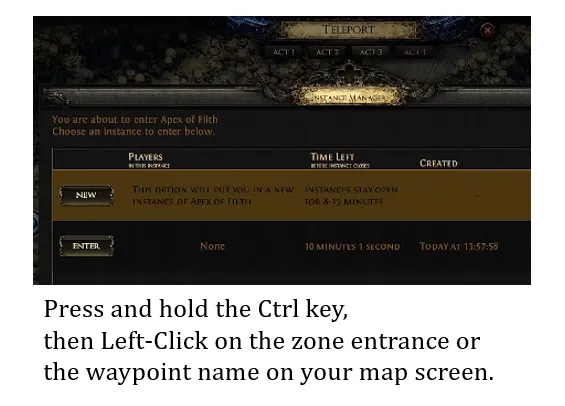
Force a New Instance

If you are stuck trying to enter a map area or a zone from a waypoint, your current instance might be bugged.

PlatformSituationSteps to Force a New Instance
PCStuck entering a map area or zone from a waypoint (bugged instance)
  • 1. Hold Ctrl
  • 2. Left-click the zone entrance or waypoint name on the map
  • 3. Instance manager opens
  • 4. Click “New” to create a fresh zone instance
Console (PlayStation / Xbox)Stuck entering a map area or zone from a waypoint (bugged instance)
  • 1. Open map
  • 2. Highlight the zone
  • 3. Press X (PlayStation) or A (Xbox)
  • 4. Hold the same button to open instance manager
  • 5. Select New Instance

If you still can’t enter a zone or the map feels stuck, forcing a new instance is usually the fastest fix. It simply resets the area and gives you a clean version of the zone, which often resolves waypoint or loading issues without any further troubleshooting. For players who want a smoother overall experience and faster progression, it can also help to prepare resources in advance and manage your build more efficiently, including the option to buy PoE 2 currency directly from our website for convenience and steady progression.

Unstick Your Character at Login

If the error pops up immediately after you select your character and hits you with a loading screen, your character might be trapped in a bugged town or hideout instance.

  • Log into a different server : On the main login screen, click the gateway drop-down menu. Choose a completely different server region (for example, swap from US East to US West, or London to Frankfurt).
  • Use the Ctrl trick on character select : Hold Ctrl while clicking Play on your character. Some players report this forces the game to load you straight into a fresh town instance instead of trying to resume the broken one.
  • Play an alternate character : Log into a different character if you have one. Move around a bit, log out, and then try logging back into your main character. This can force the server to refresh your account data.

Check Your Firewall Rules

Sometimes Windows Firewall mistakenly blocks the specific server ports Path of Exile 2 uses to open new zones.

  • Open your Windows Start Menu , type Firewall , and select Windows Defender Firewall .
  • Click Allow an app or feature through Windows Defender Firewall .
  • Click Change settings , find Path of Exile 2 in the list, and make sure both the Private and Public boxes are checked.

Repair Corrupted Game Files

Corrupted map assets can cause connection drops every time the game tries to load them.

  • On Steam : Right-click Path of Exile 2 in your library -> Select Properties -> Go to Installed Files -> Click Verify integrity of game files .
  • On the Standalone Launcher : Click the small arrow icon underneath your account name and choose Integrity Check .
PREVIOUS Next
About the Author

The U4N Editorial Team is made up of dedicated gamers and technical experts. We're not just a trusted marketplace for game assets—we're all about empowering players with top-tier, expert-driven content. Our team produces in-depth guides, strategies, and technical fixes for some of the biggest games out there, like MLB The Show 26, Aion 2, Forza Horizon 6, Arc Raiders, and Path of Exile.

Whether it's mastering market flipping in Diamond Dynasty or optimizing your endgame builds, all of our strategies are tested and proven by in-house experts. At U4N, we don't just follow the meta—we help you stay ahead of it.

Related Articles