Cart Empty
Continue ShoppingSince its release on March 17, 2026, MLB The Show 26 has had some early stability issues. Crashes are not constant for every player, but enough reports have come in to show clear patterns. Most problems happen in menus or specific game modes rather than during normal gameplay.
This guide explains the common triggers and gives practical steps you can take to reduce or fix crashes.
Players have reported crashes in a few repeat situations:
Opening the Progress tab, XP reward path, or Collections screen can sometimes cause the game to freeze or close. These areas load a lot of data at once, which may be part of the issue.
Editing lineups or using the Squad Builder tool can trigger crashes, especially when switching players quickly or loading large inventories.
Mini Seasons has been one of the most reported problem areas. Crashes may happen:
This is especially frustrating because it can interrupt rewards or progress.
Players have reported crashes during the transition from the draft to meeting the coach, and during gameplay such as fielding.
Freezes have been noted when playing with out-of-position players in online head-to-head matches or during defensive plays in RTTS.
Some users report persistent crashes when attempting to load specific franchise save files.
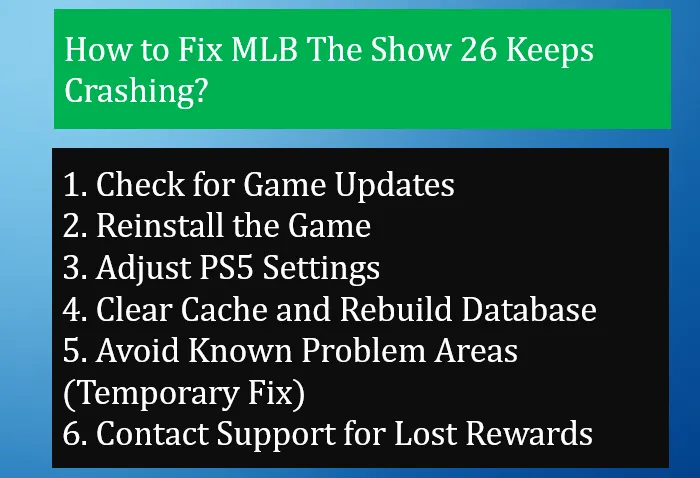
These steps are simple, practical, and based on what has worked for many players so far.
Install the Latest Updates: Check for and install the most recent game updates (e.g., Update 2 or 3), which include stability improvements for Player Lock and specific mode fixes.
Make sure the game is fully updated.
Game Update 2 was released shortly after launch and addresses several:
If you are running an older version, crashes are much more likely.
If you are still dealing with crashes, it can also help to keep your progress steady and avoid relying too much on one session. Some players choose to build their team gradually outside of longer grind sessions, especially while stability is still improving. If you decide to go that route, looking for an MLB 26 stubs discount from a reliable source like U4N can be a simple way to stay on track without adding extra pressure during unstable periods.
If crashes happen often or the game fails to launch:
This helps fix corrupted files that can cause repeated crashes.
For players on PlayStation 5, some crashes—especially online—may be linked to display settings.
Try this:
These changes can improve stability during online games.
System-level cleanup can help if the issue is not directly tied to the game files.
Hard reboot:
PS5 Safe Mode option:
This can remove corrupted cached data that may be causing crashes.
Until more patches are released, it can help to limit time in unstable menus.
Try to avoid:
This is not a real fix, but it reduces the chance of triggering a crash.
If the game crashes while navigating Diamond Dynasty, try accessing Moments directly from the main game screen instead.
Some players have found that turning off Cross-Play can reduce disconnects and stability issues in online modes.
Until a permanent fix is confirmed, avoid rapidly switching between high-latency tabs like the Progress and Collection screens.
If a crash causes you to lose rewards—especially in Mini Seasons—you can contact MLB The Show Support.
Provide:
In many cases, support can manually grant missed rewards.
The U4N Editorial Team is made up of dedicated gamers and technical experts. We're not just a trusted marketplace for game assets—we're all about empowering players with top-tier, expert-driven content. Our team produces in-depth guides, strategies, and technical fixes for some of the biggest games out there, like MLB The Show 26, Aion 2, Forza Horizon 6, Arc Raiders, and Path of Exile.
Whether it's mastering market flipping in Diamond Dynasty or optimizing your endgame builds, all of our strategies are tested and proven by in-house experts. At U4N, we don't just follow the meta—we help you stay ahead of it.