Cart

Cart Empty

Continue Shopping
Total $0.00
Checkout
Home / Blog / MLB The Show 26

MLB The Show 26 Companion App Not Working, Crashing, Face Scan: How to Fix It

Written by:  U4N
Published: Apr 21, 2026
42

If you're facing issues with the MLB The Show 26 companion app, you're not alone. Many players are experiencing problems such as app crashes, face scan failures, and general connectivity issues. These issues can be frustrating, but don't worry – here are the most common problems and their solutions.
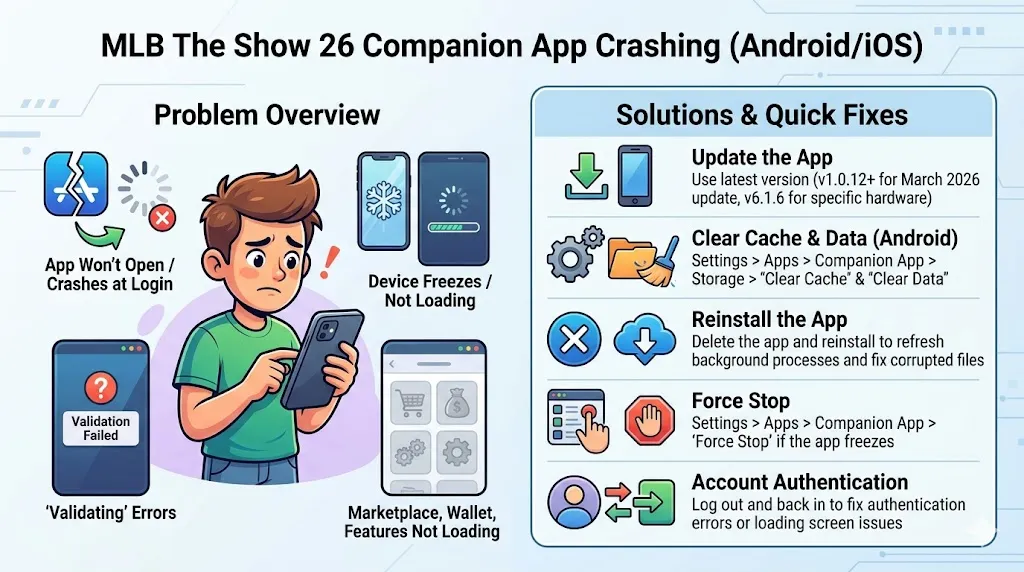
MLB The Show 26 Companion App Crashing (Android/iOS)

1. Companion App Crashing (Android/iOS)

Problem: The app won't open, crashes during login, or causes the device to freeze. Players also report issues like "validating" errors and pages not loading (marketplace, wallet, features).

Solution:

  • Update the App: Make sure you are using the latest version. A March 2026 update (v1.0.12+) was released to address crashes on devices like the S26 Ultra. Always check the App Store or Google Play Store for updates.
  • Reinstall the App: Delete the app and reinstall it. This can help refresh background processes and fix any corrupted files.
  • Clear Cache & Data (Android): Go to Settings > Apps > MLB Companion App > Storage, then select "Clear Cache" and "Clear Data." This won't affect your game progress but may log you out, so be sure to log back in.
  • Force Stop: If the app freezes, go to Settings > Apps > MLB Companion App and select "Force Stop" to close the app.

Quick Fixes for App Crashing:

  • Clear App Cache: Navigate to Settings > Apps > MLB The Show 26 > Storage and select "Clear Cache." Don't clear data unless necessary, as it may log you out.
  • Update to Version 6.1.6: A patch for newer hardware (like iPhone 17 series) was released specifically to fix crashes.
  • Reinstall the App: Uninstalling and reinstalling the app can often fix issues like getting stuck on loading screens.
  • Account Authentication: If you see an "authentication error" despite having played the game, log out from the app's account settings and log back in.

2. Face Scan Not Working / Processing Failed

Problem: Many players have reported issues with the face scan feature. These include "Processing Failed" errors, particularly on newer phones with advanced sensors (like iPhone 17 Pro Max). Other issues include the scan freezing or not showing up in-game.

Solution:

  • Update the App: Ensure your companion app is updated. San Diego Studio (SDS) has released a specific patch to fix face scan issues, particularly on newer iPhones with extra sensor issues.
  • Lighting and Background: Make sure you're in a well-lit room with no strong backlighting or shadows on your face. Strong shadows can cause glitches like "two-tone" skin on your character's neck. Use a solid-colored background with even, direct lighting.
  • Keep Trying: Some players reported success by repeatedly pressing the scan button, even after several failed attempts.
  • Restart the App: If the scan freezes or gives an error, close and reopen the app, then try again.
  • Update OS: Some users found that updating their phone's operating system (e.g., to the latest iOS version) fixed the scanning glitch.
  • Start a New RTTS Save: Sometimes, applying a face scan to an existing character doesn't work. Try starting a new Road to the Show career and then applying the scan.

If you're struggling with the face scan feature in MLB The Show 26, try these solutions to get it working properly. Make sure to update your companion app to the latest version and ensure you're in a well-lit room without any strong shadows or backlighting. Some players have found success by repeatedly pressing the scan button or restarting the app. If you're still having issues, try updating your phone's OS or starting a new Road to the Show career file.

While you're working through these technical glitches, if you're looking to boost your progress in MLB 26, you can always head to U4N. They allow you to purchase MLB 26 stubs instantly, so you can get the in-game currency you need to level up and grab new gear without waiting.

3. General Connectivity Issues

Problem: Some players experience connectivity problems with the app, including issues accessing the web portal or syncing with the game.

Solution:

  • Re-login: Log out of your account and sign back in to refresh connectivity and sync with your console.
  • Check Platform Connection: Ensure your console (PlayStation, Xbox, Switch) is connected to the same account as your companion app. Make sure you've played the game on your console first.
  • Restart Network: If the app is having issues with the web portal or general connectivity, restarting your modem/router might resolve the problem.

While the MLB The Show 26 companion app may have some bugs, the solutions above should help you get back on track. If problems persist, make sure you keep an eye out for future updates from SDS to address lingering issues.

PREVIOUS Next
About the Author

The U4N Editorial Team is made up of dedicated gamers and technical experts. We're not just a trusted marketplace for game assets—we're all about empowering players with top-tier, expert-driven content. Our team produces in-depth guides, strategies, and technical fixes for some of the biggest games out there, like MLB The Show 26, Aion 2, Forza Horizon 6, Arc Raiders, and Path of Exile.

Whether it's mastering market flipping in Diamond Dynasty or optimizing your endgame builds, all of our strategies are tested and proven by in-house experts. At U4N, we don't just follow the meta—we help you stay ahead of it.

Related Articles