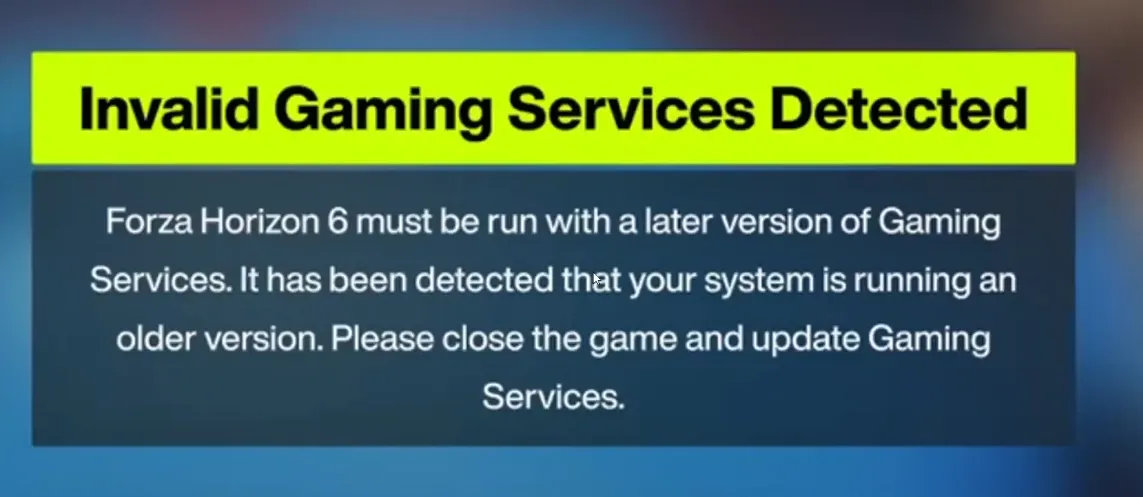
To resolve the early access launch and crash issues for Forza Horizon 6 on PC, you must update or reinstall your Xbox Gaming Services. The vast majority of startup crashes, save failures, and "Invalid Gaming Services Detected" bugs stem from outdated Microsoft background components.
Fix "Invalid Gaming Services Detected" & Launch Failures
The "Invalid Gaming Services Detected" error in Forza Horizon 6 occurs when your Xbox app or Microsoft Store Gaming Services are outdated or corrupted. To fix it, reinstall Gaming Services, update Windows, and repair the game files.
Step-by-Step Fixes
1. Reinstall Gaming Services (Primary Fix)
Because Forza on PC relies heavily on the Xbox ecosystem, a glitched Gaming Services component triggers this specific error.
Right-click the Start button and select Terminal (Admin) or PowerShell (Admin) .
Copy and paste the following command, then hit Enter:
Get-AppxPackage *GamingServices* | Remove-AppxPackage -AllUsers -Force
Once that finishes, copy and paste this command and hit Enter to reinstall the latest version:
start ms-windows-store://pdp/?productid=9MWPM2CQNLHN
2. Update Microsoft Store & Xbox App
The game mandates the newest environment, and outdated Store apps will cause launch failures.
Open the Microsoft Store .
Click on Library on the bottom-left sidebar.
Click Get Updates to ensure Gaming Services and the Xbox App are on their latest versions.
3. Reset the Game & Store
If the files are cached incorrectly, resetting the app cache helps resolve instant crashes.
Open Windows Settings (Windows Key + I).
Go to Apps > Installed apps (or Apps & features ).
Search for Forza Horizon 6 .
Click the three dots, select Advanced options , and click Reset .
Repeat this process for the Xbox app.
4. Verify System Requirements & Drivers
Ensure your PC hardware meets the demanding baseline of current-gen Forza titles.
Ensure your CPU has at least four logical cores, which is the minimum requirement for recent Forza games.
Update your graphics drivers via NVIDIA GeForce Experience or AMD Software: Adrenalin Edition . [1, 2]
5. Clean Up Third-Party Software
Certain antivirus programs or background overlays flag Xbox services incorrectly.
Temporarily disable third-party antivirus software like Bitdefender, Avast, or Kaspersky to see if the game launches.
Close overlay applications like RivaTuner Statistics Server, MSI Afterburner, or Discord overlays during launch, as they frequently cause immediate crashes in Forza.
If you’re having persistent issues with Forza Horizon 6 launching due to “Invalid Gaming Services Detected” or other Xbox app-related errors, using a trusted platform like U4N can help you not only secure reliable game access but also conveniently buy FH6 Credits to accelerate your progression and enjoy the festival without technical interruptions.
Fix Error Code E:0-e9 "Load Failed"
If you’re trying to start Forza Horizon 6 on your PC via Steam and see the dreaded Error E:0-e9 “Load Failed”, don’t panic. This issue usually happens when Gaming Services are missing or not properly registered on your system. Follow this step-by-step guide to get back on the road.
Step 1: Open PowerShell as Administrator
Click the Start Menu.
Search for PowerShell.
Right-click and select Run as Administrator.
Step 2: Open Gaming Services in the Microsoft Store
In PowerShell or your browser, enter the link below to open the Microsoft Store directly:
start ms-windows-store://pdp/?productid=9MWPM2CQNLHN
If Gaming Services is not installed, install it.
If it says Installed, continue to Step 3.
Step 3: Re-register Gaming Services
In the Administrator PowerShell, run:
Get-AppxPackage -allusers *gamingservices* | Foreach {Add-AppxPackage -DisableDevelopmentMode -Register "$($_.InstallLocation)AppXManifest.xml"}
This re-registers the services for all users.
Step 4: Start the Services Manually
Open a Command Prompt as Administrator and run:
sc.exe start GamingServices
sc.exe start GamingServicesNet
Note: Some services like Xbox Game Save and Xbox Live Networking Service might not show up in services.msc, but they run in the background.
Step 5: Restart Forza Horizon 6
After performing the above steps:
Make sure your Xbox app is up to date.
Ensure you are logged in.
Launch Forza Horizon 6 again.
This should resolve the E:0-e9 Load Failed error, letting you jump back into the festival without issues.
Fix Crashing to Desktop & Game Freezes
To fix Forza Horizon 6 crashing to desktop (CTD) and freezing on PC, you must disable conflicting third-party background software and ensure your system time and region settings are sync-locked.
Follow these steps to eliminate crashes during launch, cutscenes, or gameplay.
Core Crash Fixes
- Disable Overlays: Close GeForce Experience / NVIDIA App, Discord, and Steam overlays. The game has a severe conflict with active overlay rendering pipelines.
- Uninstall / Close MSI Afterburner & RivaTuner: These specific hardware monitoring tools trigger instant startup crashes. Fully exit them from your system tray.
- Sync Windows Time Zone: Go to Windows Settings > Time & Language > Date & Time. Toggle Set time automatically to ON. An out-of-sync system clock will instantly crash the game due to Xbox live synchronization errors.
- Open Xbox App & Microsoft Store: Keep both the Xbox App and Microsoft Store apps running in the background, logged into the exact same account, even if you are launching the game via Steam.
- The Alt+Tab Trick: If the game crashes right after the Playground Games or Turn 10 logo splash screens, press Alt + Tabto leave the active window immediately as it boots. Wait 5 seconds, then click back into the game screen.
System and File Stability
- Verify Game Files: Right-click Forza Horizon 6 in your Steam Library > Properties > Installed Files > Verify integrity of game files. For Xbox App/Game Pass, go to Manage > Files > Verify and Repair.
- Clean Install GPU Drivers: Download the latest release from the NVIDIA Driver Directory or AMD Support Page. Use Display Driver Uninstaller (DDU) to completely wipe old, corrupted driver remnants before installing the new software.
- Move to an SSD: Ensure the game folder sits entirely on an internal solid-state drive. Running this game on an older HDD causes assets to fail to load, resulting in hard freezes and desktop drops.
- Disable ReBar / SAM: If you experience persistent micro-freezes or severe stutters, boot into your computer's BIOS and turn off Resizable BAR (Intel/NVIDIA) or Smart Access Memory (AMD).
Common Error Codes & Requirements
The game uses a specific string to signal exactly why it crashed:
- FHE01 / Game Crash: A core game engine file error. Fixed by verifying file integrity or a full reinstallation.
- FHC / Video Card Failure: The GPU or driver crashed. Drop graphic preset levels and disable ray tracing (RTX).
- FHD / Out of VRAM: Your hardware ran out of dedicated video memory. The game requires a bare minimum of 4GB VRAM to boot. Lower the resolution to 1080p and drop your texture settings.
- FHF / Out of System RAM: Drop background tasks or scale back memory-intensive settings. Ensure you have at least 6 physical CPU cores and threads active