One of the small but satisfying touches in Forza Horizon 6 is the ability to switch between the game's radio stations while driving. Whether you want to blast electronic beats through Tokyo City streets or enjoy chill tunes while cruising the Alpine passes, knowing how to manage your in-game radio makes the ride much more immersive.
Default Controls
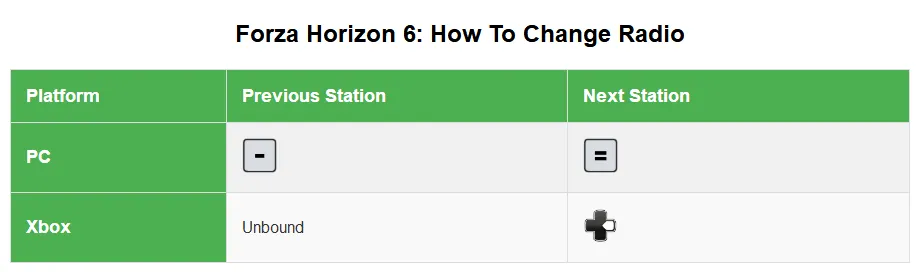
Changing radio stations in FH6 is straightforward if you know the controls:
- Xbox / Controller: Press D-pad Right to cycle forward through stations. Keep pressing until you reach your favorite station or "Radio Off."
- PC Keyboard: Press Equals (=) to go to the next station, or Hyphen (-) to move to the previous one.
- Turn Radio Off: Simply cycle through all available stations until the HUD reads "Radio Off."
This simple control allows you to quickly switch between stations without pulling up menus mid-drive, perfect for races or free-roam cruising.
Customizing Radio Controls
If you prefer a custom button layout, FH6 allows full remapping:
- Press Pause and open Settings.
- Select Controls → Change Input Mapping.
- Scroll down to Radio Previous or Radio Next.
- Map these functions to your preferred buttons, like D-pad Left for previous station.
By default, only the “Radio Next” action is mapped, so adding a “Radio Previous” shortcut makes switching stations much faster and more intuitive.
For those looking to fully unlock the game and focus on seamless exploration and racing without limits, U4N offers a safe, fast, and reliable way to buy FH6 credits online, giving you instant access to cars, upgrades, and more ways to enjoy every station in the game.

Adjusting Volume and Audio Settings
Sometimes the radio might seem unresponsive or too quiet. Here's what to check:
- Music Volume: Open Settings → Audio and make sure Music Volume is not at 0%.
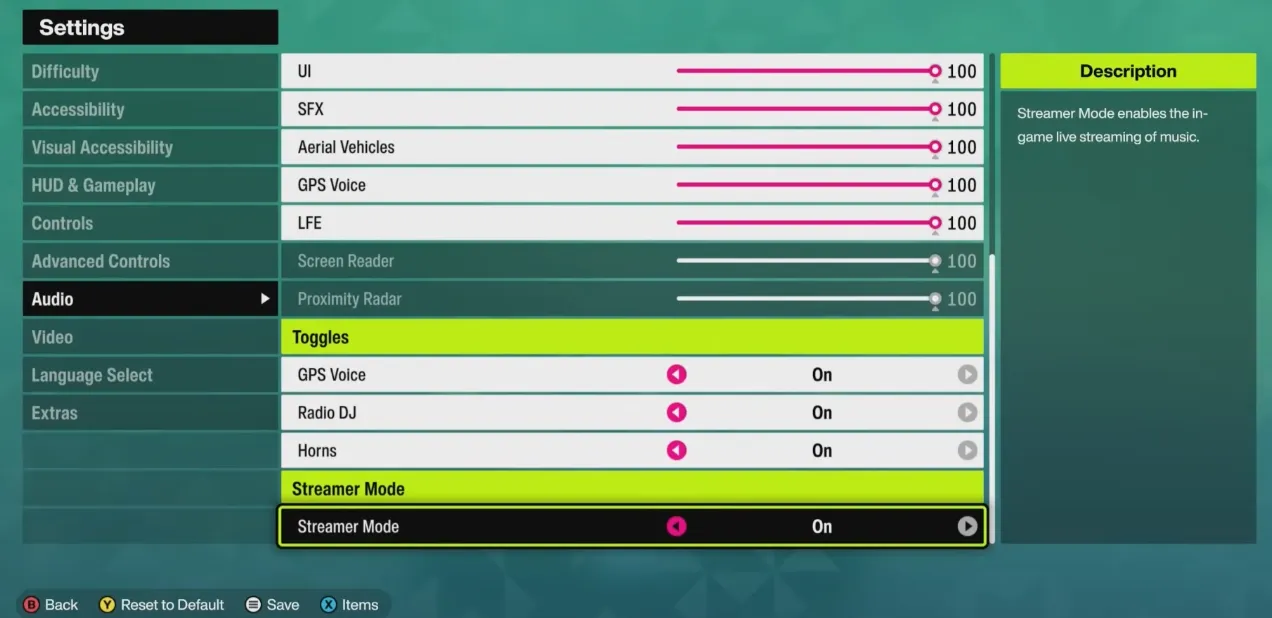
- Streamer Mode: When turned on, this blocks copyrighted music to prevent streaming issues. Toggle it off if you want all stations available.
- Other Audio Tweaks: Adjust SFX and Voice sliders if needed to balance in-game sounds with your radio.
These tweaks ensure the music comes through clearly, whether you're tackling the Bandai‑Azuma Skyline or cruising Tokyo highways.
Tips for Enjoying Your FH6 Radio
- Plan your playlist: Some stations are better suited for speed challenges; others are great for relaxed exploration.
- Quick switch: For racing, mapping both forward and backward radio buttons lets you skip tracks efficiently.
- Streamer Mode awareness: If you plan to stream your gameplay, leaving this on keeps your broadcast copyright-safe.
Changing the radio in Forza Horizon 6 is a minor detail that enhances the overall driving experience. With these controls and customizations, you can always keep the right soundtrack for your adventure, whether you're drifting through Yuki no Otani or speeding along coastal highways.