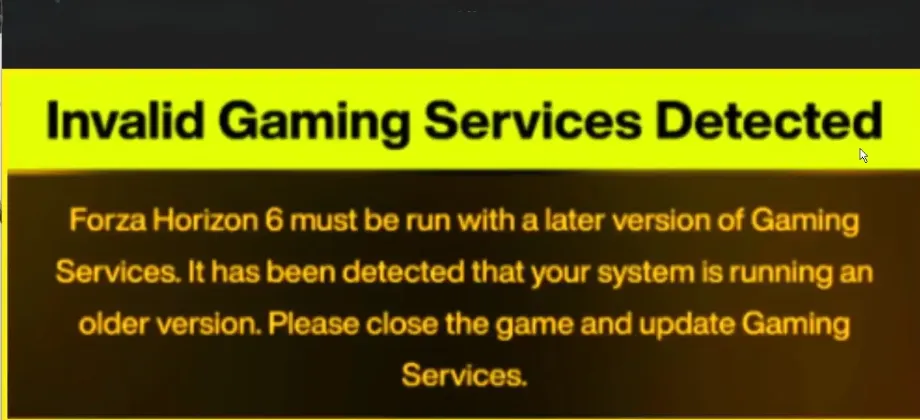
If you're seeing the “Invalid Gaming Services Detected” error in Forza Horizon 6 on Steam, don't panic. Even though you launch the game through Steam, FH6 still depends on Windows Xbox services for things like cloud saves, multiplayer, and profile syncing. This error usually pops up when your Gaming Services app is outdated or corrupted—specifically, the game requires version 36.113.2002 or higher. Here's how to get back on track quickly.
1. Update Through the Microsoft Store
The easiest fix for most players is updating directly via the Microsoft Store.
- Close Steam and make sure FH6 isn't running.
- Open the Microsoft Store from the Start Menu.
- Click Library (or Downloads) in the bottom-left corner.
- Select Check for updates at the top right.
- Find Gaming Services in the list and click Update.
Once updated, restart your PC and try launching FH6 again.
2. Run the Xbox App Repair Tool
If the update fails or Gaming Services refuses to work, Microsoft provides a repair utility.
- Download the Xbox Support Gaming Services Repair Tool.
- Open it and click Start Troubleshooting.
- The tool will detect and fix broken Xbox components automatically.
- Restart your computer and launch FH6 via Steam.
This usually resolves any corrupted service files or missing dependencies.
3. Force Reinstall Gaming Services Using PowerShell
For stubborn cases, you can fully remove and reinstall Gaming Services.
- Right-click the Start button and select Windows Terminal (Admin) or PowerShell (Admin).
- Run the command to uninstall the app:
get-appxpackage Microsoft.GamingServices | remove-AppxPackage -allusers - Then run this to open the Microsoft Store page directly:
start ms-windows-store://pdp/?productid=9MWPM2CQNLHN - Click Install on the page to get a fresh version.
After installation, restart your PC before launching FH6.
4. Link and Sync the Xbox App
Steam and FH6 need a valid Xbox account linked to your profile:
- Open the Xbox App (download it from the Microsoft Store if you don't have it).
- Sign in with the same Microsoft account tied to your Forza profile.
- Keep the Xbox app running in the background while launching FH6 from Steam.
This ensures FH6 can access your cloud saves, achievements, and multiplayer without triggering errors.
Once your Gaming Services are updated and synced, you can get back to racing across Japan without interruptions, and for players looking to quickly boost their FH6 experience, platforms like U4N let you buy low cost FH6 credits safely and instantly, so you can unlock cars, upgrades, and Wheel Spins while focusing on the fun parts of the game.
Following these steps should clear the “Invalid Gaming Services Detected” message and get you back on the road in Japan's open world. Keeping Gaming Services up to date and properly linked is crucial, even if you primarily play through Steam, because FH6 relies on it under the hood.