If you're aiming to get the best performance in MLB The Show 26 on your Xbox Series X|S, optimizing your settings is essential. From hitting to pitching to fielding, every little adjustment can improve your gameplay. Whether you're grinding in Diamond Dynasty or focusing on Franchise Mode, fine-tuning your settings will give you the edge you need.
Hitting Settings: Control & Precision
To excel at hitting, you'll need precise control over your swing, especially when you're facing top-tier pitchers in Diamond Dynasty or Ranked Seasons.
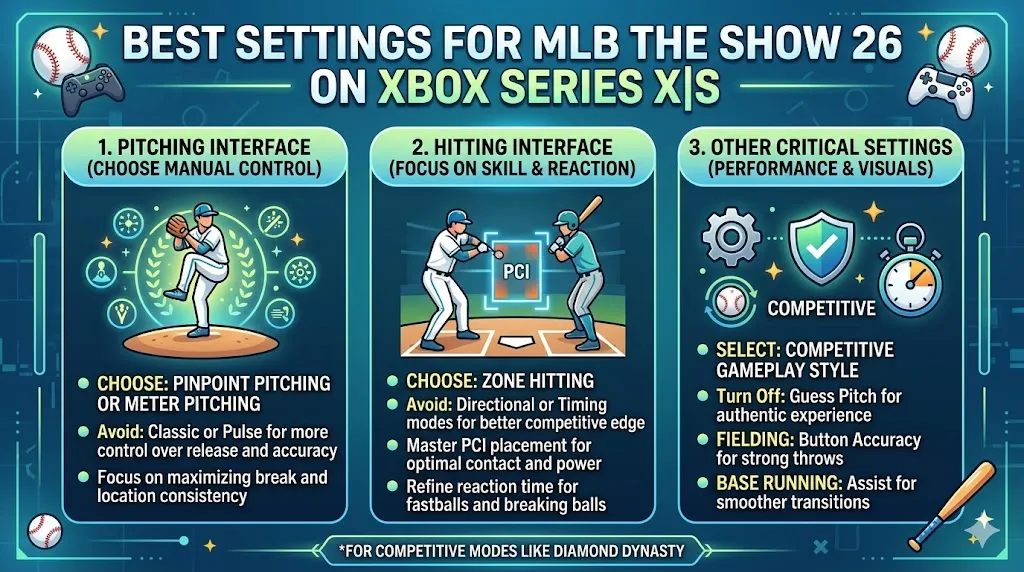
- Hitting Interface: Zone: Zone is the most recommended interface for competitive play. It allows you to manually move your Plate Coverage Indicator (PCI) to the ball, providing the most control over your swing. This ensures you can make contact with pitches more accurately, especially in tough situations.
- Swing Input: Buttons: While the analog stick might seem intuitive, most competitive players prefer buttons for more consistent timing. Buttons provide quicker, more responsive inputs and eliminate some of the variability of using the analog stick.
- Hitting View: Strike Zone: The Strike Zone camera is the most popular choice for hitting. It offers the clearest view of the pitcher's release point and gives you a better perspective on the ball's path. This view allows you to react faster and more precisely to different pitch types.
- PCI Style: Bat or Diamonds (Center): The Bat or Diamonds (Center) PCI styles are often chosen for their visibility and ease of use. These styles give you the best understanding of where the ball is in relation to the PCI.
- Basic (Inner) and None (Outer) are other viable options depending on your preference and comfort level.
- PCI Color & Opacity: Yellow or Cyan at 60-70% Opacity: A bright color like Yellow or Cyan stands out against most stadium backdrops. Setting your Opacity to around 60-70% ensures the PCI is visible without being too distracting, helping you focus on the ball rather than the indicator.
Pitching & Fielding Settings: Accuracy & Speed
Mastering pitching and defense is just as important as your offense. Being able to throw accurate pitches and field effectively will help you get outs and shut down your opponent's offense.
- Pitching Interface: Pinpoint: Pinpoint pitching may have a steeper learning curve, but it offers the highest level of control and accuracy. It allows you to place pitches exactly where you want, making it ideal for players looking to gain an edge with pitch location. The extra precision comes in handy during crucial moments, especially in Diamond Dynasty games.
- Pitching View: Strike Zone: Just like in hitting, using the Strike Zone view for pitching allows you to track the ball's trajectory more effectively. This helps with pitch recognition and timing, particularly when facing tough hitters or pitchers with big breaking balls.
- Throwing Interface: Button Accuracy: With Button Accuracy, you get a "meter" for throws, ensuring that your throws to bases are as accurate as possible. This reduces the risk of errors and allows you to make tight plays at second, third, or home.
- Throw Canceling: On: Throw Canceling is a must for high-level play. This setting allows you to stop a throwing animation in the middle if a runner stops or changes direction. It's crucial in preventing unnecessary errors or throws that could cost you a play.
Xbox Series X|S Specific & Performance Tips
To get the most out of the Xbox Series X|S hardware, follow these recommendations to optimize your system's performance:
- Refresh Rate: Set your Xbox to 120Hz Output: If your monitor supports it, switch your Xbox settings to 120Hz output. While the game may still be capped at 60 FPS, the higher refresh rate reduces input latency and offers smoother gameplay, especially in fast-paced moments.
- VRR (Variable Refresh Rate): Off: Some competitive players recommend turning VRR off when playing MLB The Show 26. While VRR helps eliminate screen tearing, it can also introduce minor micro-lag that could affect your reaction time. Test this on your system and see which setting works best for you.
- Controller Vibration: Off: Vibration can be a major distraction, especially when you need precise control for things like Pinpoint pitching or moving the PCI. Turning off vibration lets you focus more on your gameplay without any unnecessary distractions.
- Auto Bullpen Warm-Up: On: This setting automates the task of warming up your bullpen, which can be tedious during long games. By having your pitchers ready when needed, you'll always be prepared to make a pitching change without delay.

General Quality of Life
To make your experience smoother, here are some additional quality-of-life settings that improve overall gameplay:
- Quick CPU Pitching: On (Offline only): This setting speeds up the game by cutting down the time the CPU takes between pitches. It's particularly helpful if you're playing solo or in modes like Franchise or Road to the Show, where time is often a factor.
- Auto Defensive Shift: Off: Auto defensive shifts can leave gaps in your defense if the game automatically moves your players. For better control, turn this off and manually adjust your defense as needed, allowing you to cover the field in a more strategic manner.
About the Author
The U4N Editorial Team is made up of dedicated gamers and technical experts. We're not just a trusted marketplace for game assets—we're all about empowering players with top-tier, expert-driven content. Our team produces in-depth guides, strategies, and technical fixes for some of the biggest games out there, like MLB The Show 26, Aion 2, Forza Horizon 6, Arc Raiders, and Path of Exile.
Whether it's mastering market flipping in Diamond Dynasty or optimizing your endgame builds, all of our strategies are tested and proven by in-house experts. At U4N, we don't just follow the meta—we help you stay ahead of it.