

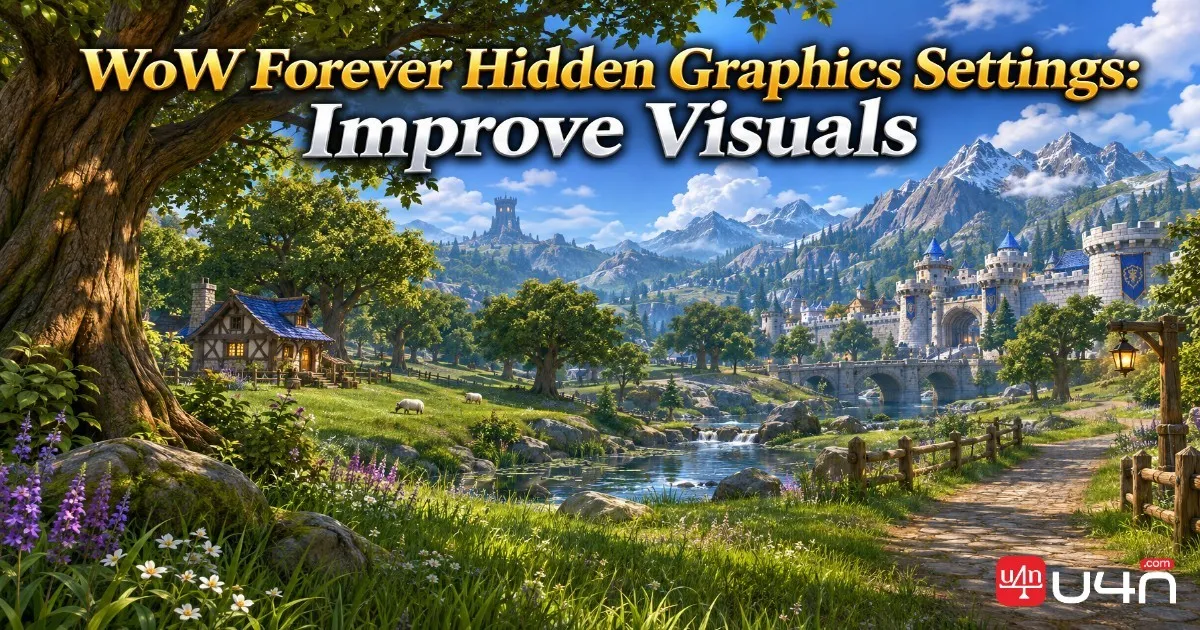
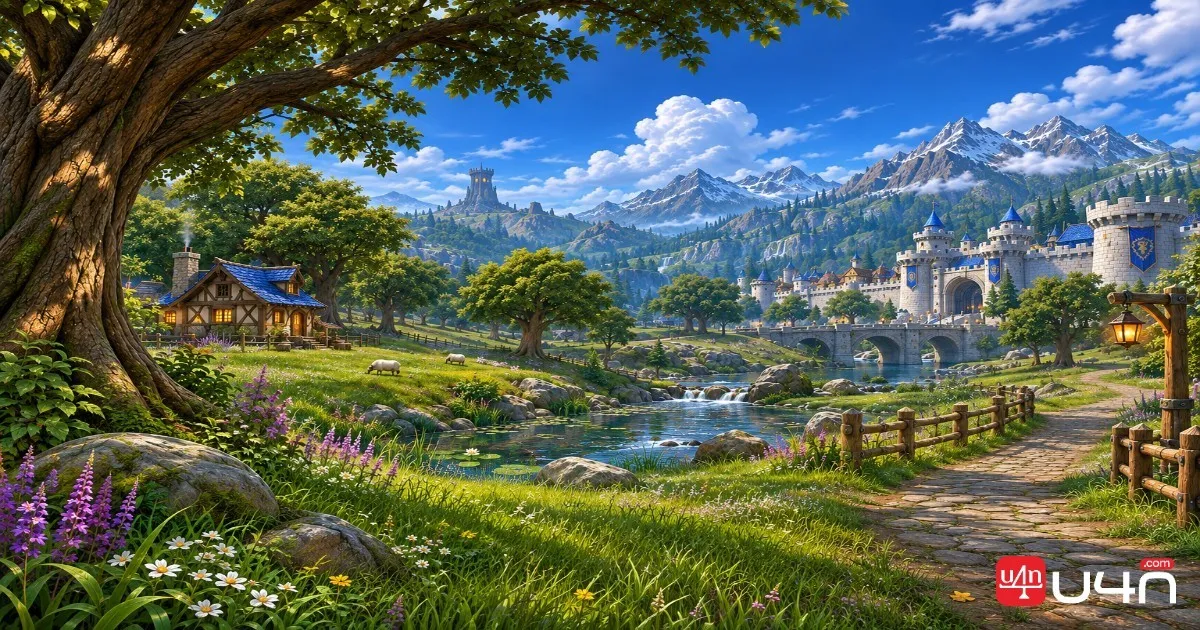
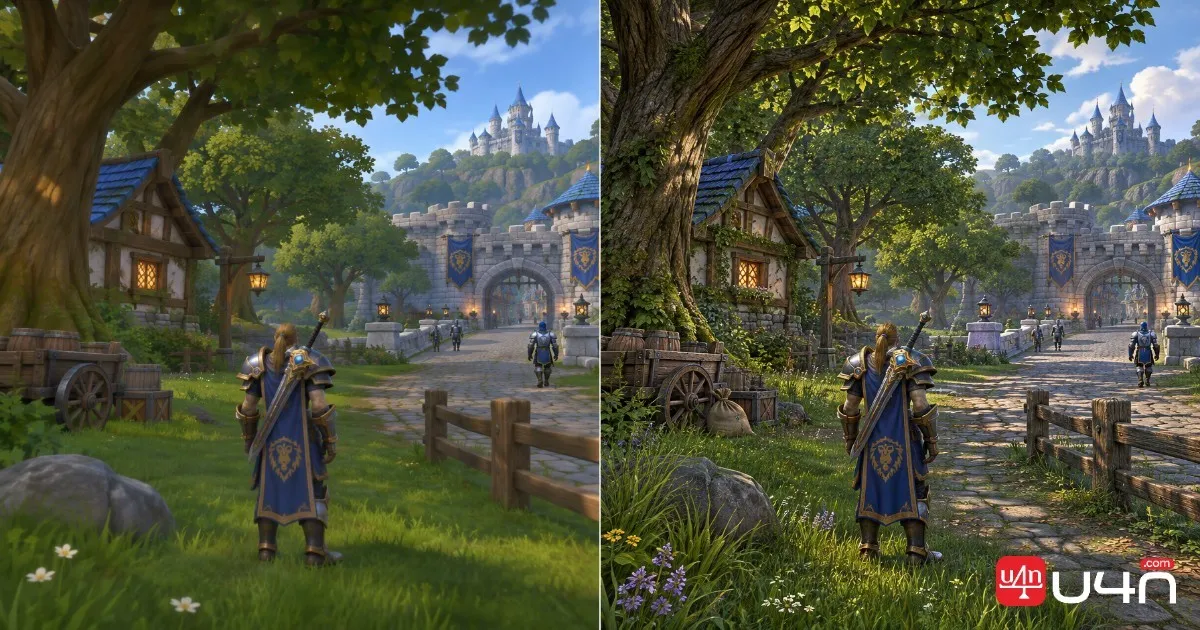
WoW Forever offers more graphics customization than many players initially realize. Beyond the standard options menu, several hidden console variables allow players to adjust image sharpening, ground clutter, draw distance, and distant object visibility. These settings are worth exploring if you want a more detailed view of Azeroth without simply pushing every graphics preset to its maximum. Whether we are exploring new zones, gathering materials, or spending time on WoW Forever Gold farming, a clear and comfortable visual experience can make long sessions more enjoyable.
However, better graphics do not always mean better performance. Some commands increase the number of environmental objects being rendered, while others change how distant scenery appears. Our team recommends adjusting these values individually, checking the results in familiar locations, and keeping frame rates stable before moving on to the next setting.
Which Hidden Graphics Commands Should You Try?
The most useful hidden settings focus on five areas: image sharpness, ground detail, world visibility, object culling, and fading distance. Each command changes a different part of the visual experience, so understanding its purpose is more important than copying every suggested value at once.
Here is a quick reference to the commands worth testing:
| Graphics Feature | Console Command | Suggested Value | Main Benefit |
|---|---|---|---|
| Image Sharpening | ResampleAlwaysSharpen | 1 | Makes edges and details appear sharper |
| Ground Clutter | groundEffectDensity | 256 | Adds more grass and environmental details |
| Draw Distance | farclip | 5000 | Extends distant world visibility |
| Object Culling | lodObjectCullSize | 8 | Changes when small objects disappear |
| Object Fading | lodObjectFadeScale | 200 | Adjusts distant object fading |
These values are starting points rather than universal recommendations. The actual result can depend on the client version, hardware, and scene being rendered.
Improve Image Sharpness
/console ResampleAlwaysSharpen 1
This command enables image sharpening even when the game is not using an upscaling method. It can make edges, character outlines, and environmental details look more defined, especially if the image appears slightly soft.
We would try this setting before making more demanding changes. Sharpening does not increase the actual rendering resolution or add new texture details, but it can improve the perceived clarity of the image without requiring a major graphics adjustment.
Increase Grass and Ground Clutter
/console groundEffectDensity 256
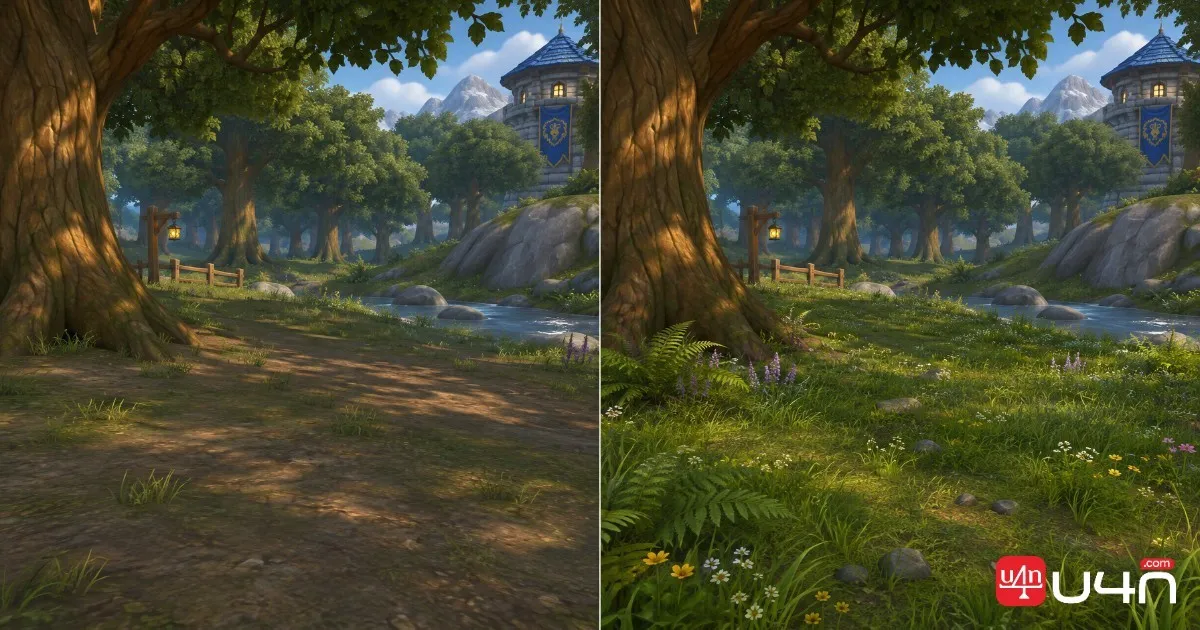
Ground Effect Density controls environmental details such as grass, flowers, ferns, and small rocks. Increasing the value can make outdoor areas feel fuller and more natural.
The suggested value of 256 represents the maximum documented setting for this variable in the reference guide. However, maximum density is not necessarily the right choice for every computer. More visible environmental objects can increase rendering demands, particularly in heavily vegetated areas.
If your frame rate becomes unstable, try a lower value between 48 and 80 first, then increase it gradually. This is a more practical approach than immediately selecting the highest setting.
Extend World Draw Distance
/console farclip 5000
The farclip variable controls how far terrain and major world objects can be rendered. Increasing it can make distant mountains, buildings, and other landscape features more visible.
The suggested value is 5000, although some players may prefer to experiment with 4000 or 7000 depending on their hardware and visual preferences.
There is one important compatibility detail: farclip is a legacy graphics variable, and its behavior can differ between client versions. If the command produces no visible change, check the modern alternative:
/console graphicsViewDistance 9
The graphicsViewDistance setting controls the modern view-distance slider, with a documented range of 0–9. We recommend using whichever variable is supported by your current client rather than assuming both commands behave identically.

Adjust Small Object Visibility
/console lodObjectCullSize 8
Games commonly use Level of Detail (LOD) systems to reduce rendering demands by simplifying or removing objects that are far away. Small environmental details may disappear when they fall below a particular visibility threshold.
This command adjusts that culling behavior. A suitable value can help retain more small objects in distant scenery, making forests and outdoor landscapes appear less empty.
The visual difference may be subtle in some locations, so test it in an area containing plenty of environmental objects rather than judging the result from a simple open field.
Delay Distant Object Fading
/console lodObjectFadeScale 200
This variable adjusts how distant objects transition between visibility and lower-detail representations. With the suggested value, buildings, trees, and other environmental elements may retain their appearance for longer.
Combined with object culling adjustments, it can help create a more consistent distant landscape. However, these commands do not add higher-resolution textures or completely new models. They mainly change how existing game assets are displayed at different distances.

How to Apply and Reset Hidden Graphics Settings
You do not need a separate graphics modification tool to try these commands. Players can enter supported console variables directly through the in-game chat interface.
Our recommended process is straightforward:
- Enter the game and open the chat input box.
- Type one console command, including the
/consoleprefix. - Press Enter to execute it.
- Move to a familiar location and compare the visual result.
- Check your FPS before entering the next command.
- Keep the setting only if the improvement is noticeable and performance remains stable.
Avoid pasting all five commands at once when you are testing them for the first time. Changing one variable at a time makes it easier to identify which adjustment produces a useful improvement.
How to Restore Default Values
If a setting causes visual problems, unexpected behavior, or performance drops, you can attempt to restore its client-defined default value.
Enter the following commands individually:
/console cvar_default ResampleAlwaysSharpen
/console cvar_default groundEffectDensity
/console cvar_default farclip
/console cvar_default lodObjectCullSize
/console cvar_default lodObjectFadeScale
These commands restore the corresponding console variables to their default values. They do not automatically reset unrelated graphics options.
Brightness and contrast must be adjusted separately through the standard graphics menu. If a command is unsupported by your client, do not assume that repeating it or forcing a different value will solve the problem.
Recommended Brightness and Contrast Adjustments
Hidden console commands are not the only way to improve the game's appearance. Standard brightness and contrast options can also make a noticeable difference, particularly when exploring areas with changing lighting conditions.
The original visual comparison used the following settings:
| Graphics Option | Suggested Value |
|---|---|
| Brightness | 45 |
| Contrast | 60 |
We would treat these numbers as a reference rather than a fixed recommendation. Monitor calibration, room lighting, display technology, and personal preference all influence how the final image looks.
For example, excessive contrast may make dark areas harder to distinguish, while too much brightness can wash out environmental details. Try a few combinations in the same location and compare them under similar lighting conditions.
A useful approach is to make small adjustments instead of changing both sliders dramatically. The goal is to improve visibility while preserving the atmosphere and recognizable visual style of Azeroth.
How Much Performance Do Hidden Settings Affect?
Not every graphics command places the same demands on your computer. Image sharpening mainly changes image processing, while ground density and extended visibility can increase the amount of environmental detail being rendered.
Here is how we would prioritize the settings when balancing visual quality and performance:
| Setting | Potential Performance Impact | Our Recommendation |
|---|---|---|
| Image Sharpening | Generally limited | Try it first |
| Ground Density | Potentially noticeable | Start with a lower value |
| Draw Distance | Can be significant | Increase gradually |
| Object Culling | Depends on scene complexity | Test in outdoor areas |
| Object Fading | Depends on visible object density | Compare different values |
Forests, crowded settlements, and areas containing many environmental objects are useful places to test these changes. An open landscape may look excellent with maximum visibility settings, but a densely populated area could produce a different result.
Our team recommends comparing FPS before and after each adjustment. If possible, use the same location, camera angle, and approximate activity level to make the comparison more consistent.
Players using older GPUs or gaming laptops should prioritize stable frame rates over maximum environmental detail. There is little benefit in making distant scenery more detailed if the overall experience becomes noticeably less responsive.
Summary: Finding the Right WoW Forever Graphics Balance
Hidden console commands provide another way to customize WoW Forever beyond the standard graphics menu. Image sharpening can improve perceived clarity, ground density can make outdoor environments richer, and visibility-related variables can change how distant scenery appears.
We recommend starting with image sharpening, then testing ground density and draw distance separately. Object culling and fading adjustments are worth exploring afterward, particularly if you notice small environmental details disappearing too quickly.
Most importantly, do not treat the highest available values as an automatic upgrade. The right configuration depends on your hardware, client compatibility, and the locations where you spend the most time. Players who also spend time collecting materials, upgrading equipment, and preparing their WoW Forever Items should aim for a setup that remains comfortable throughout longer gameplay sessions.
FAQ: WoW Forever Hidden Graphics Settings
Do Hidden Graphics Commands Improve FPS?
Not necessarily. Some commands mainly change image presentation, while others increase the rendering workload. Image sharpening may have a relatively limited impact, but higher ground density and longer draw distances can reduce FPS on certain systems.
What Is the Best Ground Effect Density Setting?
There is no single ideal value for every player. The suggested maximum is 256, but starting around 48–80 and increasing gradually is a more cautious approach for systems that experience frame-rate drops.
Why Is the Farclip Command Not Working?
Farclip is a legacy graphics variable, so its behavior may differ between client versions. Check whether your client supports the command and test graphicsViewDistance as an alternative if the standard view-distance slider is available.
Can I Reset All Hidden Graphics Commands?
You can restore the listed console variables individually using the cvar_default commands. Standard brightness and contrast adjustments must be reset separately through the graphics options menu.
Should I Use Every Hidden Setting at Its Maximum Value?
No. Higher values may increase environmental rendering demands without producing a meaningful visual improvement on every system. Test each setting individually and keep the combination that delivers the best balance between image quality and smooth gameplay.