


World of Warcraft: Forever offers more flexibility for players who prefer using a gamepad instead of a traditional keyboard and mouse. Its controller support introduces dedicated HUD elements, improved targeting, spell controls, and easier menu navigation. Although the feature is still in functional Beta, players can already use a compatible controller for much of their everyday gameplay. For those preparing their characters with WoW Forever Gold, understanding the new control system can also make the overall leveling experience more comfortable.
Does WoW Forever Support Controllers?
Yes. WoW Forever supports XInput-compatible controllers, giving players another way to explore Azeroth, fight enemies, interact with NPCs, and manage their abilities. The interface also includes Xbox and PlayStation button icons, making it easier to understand the displayed controls.
However, controller support is still in Beta rather than a fully completed feature. Blizzard has improved several important systems, including targeting, spell casting, looting, and menu navigation, but some interface elements are still being adjusted.
Controller support is still in functional Beta. Players can already use a compatible controller for many everyday gameplay activities, but some interface elements and keyboard-dependent functions are still being improved.
For players familiar with older versions of World of Warcraft, this is a meaningful change. Traditional WoW gameplay relies heavily on keyboard shortcuts and mouse targeting. The new gamepad interface provides a different approach, allowing players to perform many common actions without constantly reaching for their keyboard.
How to Enable Controller Support in WoW Forever
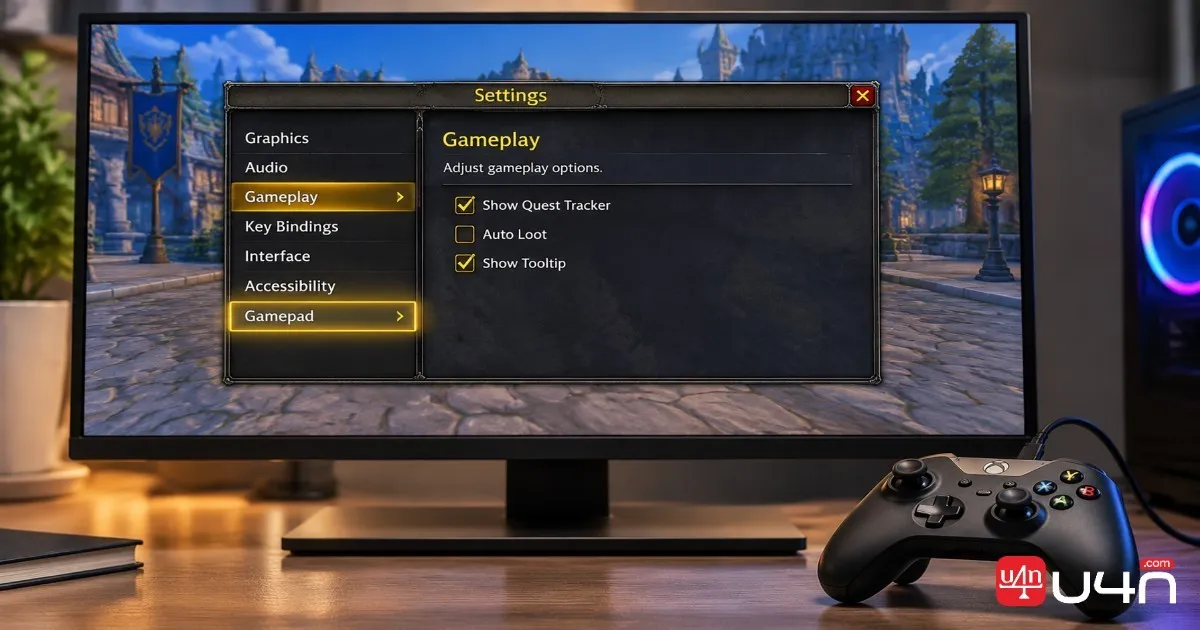
Getting started is relatively straightforward. Before changing any in-game settings, connect an XInput-compatible controller to your computer and make sure the operating system recognizes it.
Once the controller is connected, follow these steps:
- Press Escape to open the Game Menu.
- Select Options.
- Find Gameplay and open the Gamepad section.
- Switch from keyboard-and-mouse input to gamepad controls.
- Review the available settings and adjust them to match your preferences.
The Gamepad settings include several important options:
- Camera: Adjust how the camera responds to controller input.
- HUD Modifier: Configure the modifier used for additional HUD interactions.
- Frame Focus Style: Customize how interface focus is handled.
- Action Bars: Manage your available ability layouts.
- Targeting: Adjust how you select friendly and hostile targets.
- Raid Targeting Options: Configure targeting behavior for group content.
We recommend spending a few minutes testing these options before starting a dungeon or entering a difficult combat encounter. A comfortable camera setting and predictable targeting behavior can make a noticeable difference during longer play sessions.
WoW Forever Controller Controls and Keybinds
The controller system uses familiar Xbox button names for its control explanations. Players using other compatible controllers can follow the corresponding button prompts displayed by the game.
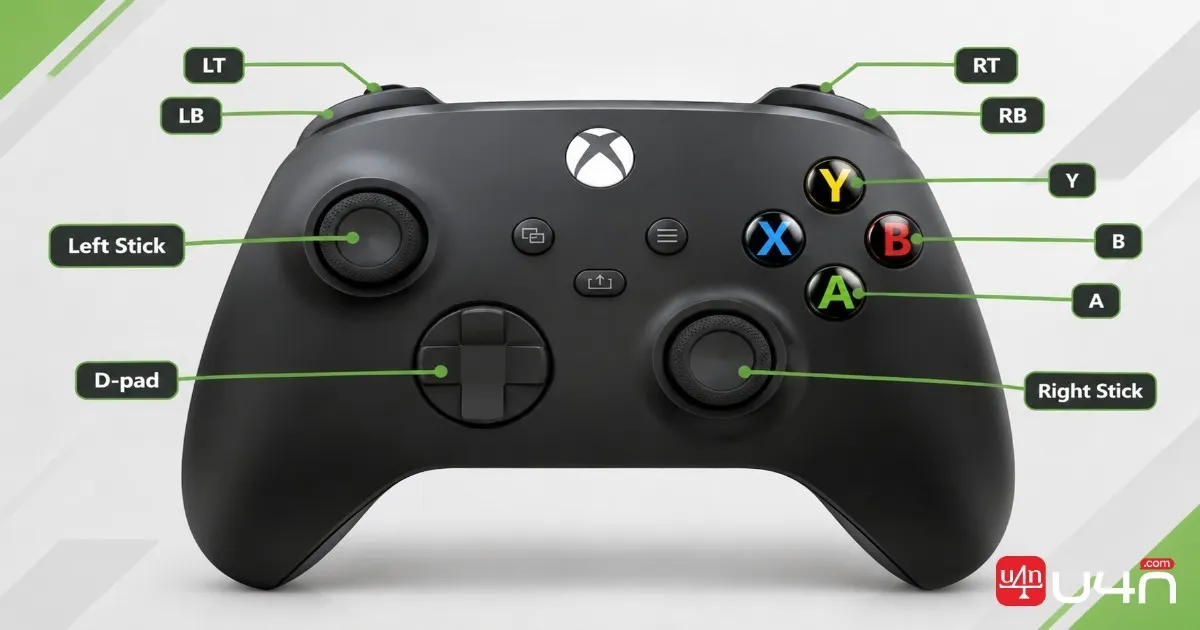
Here is a quick reference to the basic controls:
| Action | Xbox Controller Input |
|---|---|
| Move character | Left Stick |
| Adjust camera | Right Stick |
| Select friendly target | LB |
| Select hostile target | RB |
| Interact | X |
| Jump | A |
| Go back | B |
| Inspect target | Y |
| Open Main Menu | Menu |
| Change Focus Frame | View |
These buttons also have spell functions depending on the active action bar. This means players should become familiar with the HUD instead of assuming every button always performs the same action.

Switching Between Action Bars
One of the most useful features is the ability to access different abilities without assigning a separate physical button to every spell.
Hold the following triggers to access different action bars:
- LT: Access an alternate action bar.
- RT: Access another action bar.
- LT + RT: Access an additional action bar.
Releasing the triggers returns you to the default action bar. The HUD updates to display the abilities associated with the active bar.
For example, a Mage could assign Polymorph, Fireball, Frostbolt, and Blizzard to the same directional button using different trigger combinations. These are customizable assignments rather than mandatory spell bindings.
Managing Action Bar Sets
Players can also switch between three separate action bar sets. Hold LB + RB and press Left or Right on the D-pad to change sets.
Each set provides four action bars with a combined total of 28 slots. Across all three sets, players have 84 customizable spell and ability slots.
Three action bar sets provide 84 customizable spell and ability slots, giving players more flexibility when organizing their controller layouts.
We recommend organizing these sets around different gameplay situations:
| Action Bar Set | Suggested Purpose |
|---|---|
| Set 1 | Main combat abilities |
| Set 2 | Defensive and utility skills |
| Set 3 | Situational abilities and other actions |
This arrangement is only a starting point. Your ideal setup depends on your class, specialization, and preferred combat style.
Using a Controller for Combat and HUD Navigation
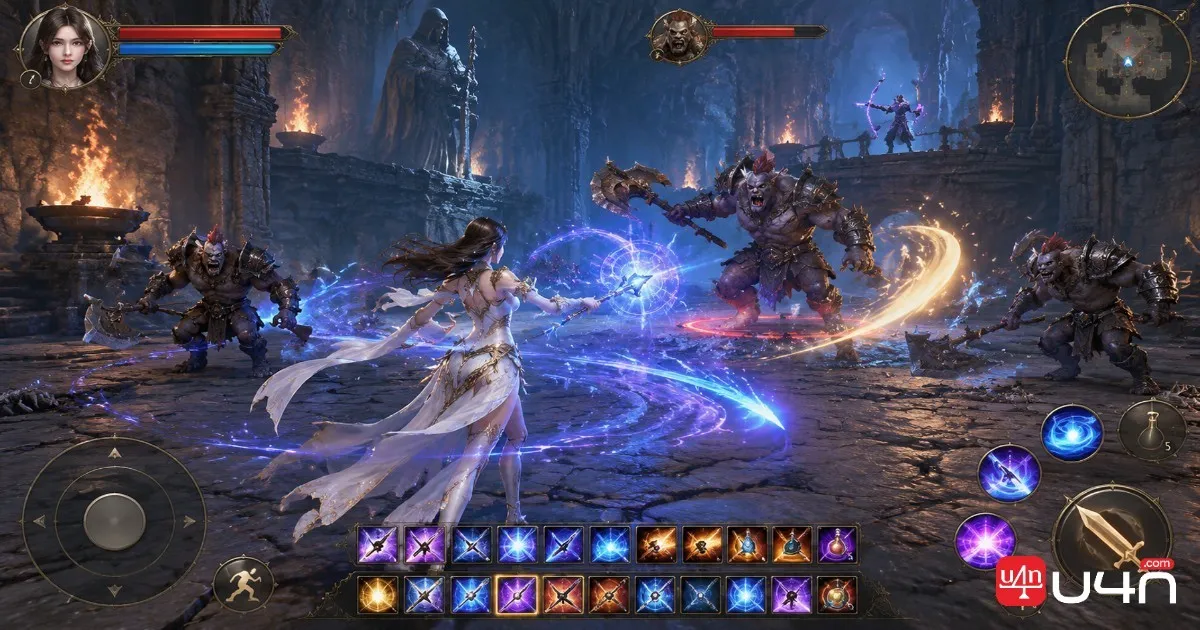
Movement and basic combat are only part of the experience. The redesigned gamepad HUD also helps players manage targets, access important interface panels, and use their abilities more efficiently.
Targeting and Spell Management
Target selection is especially important in group content. LB selects friendly targets, while RB selects hostile targets. These controls give players a straightforward way to switch between party members and enemies.
For damage dealers, we suggest keeping frequently used offensive abilities easy to reach. Defensive cooldowns, interrupts, and crowd-control abilities should also have predictable positions so you can activate them without searching through multiple action bars.
Healers and tanks may need a different arrangement. Healers should prioritize friendly targeting and essential healing spells, while tanks benefit from keeping defensive abilities and threat-management tools readily accessible.
Useful Gamepad HUD Shortcuts
The game also provides shortcuts for accessing frequently used interface elements. Hold LB + RB and press the corresponding button:
| Controller Shortcut | Function |
|---|---|
| LB + RB + B | Open Backpack |
| LB + RB + Up | Access Quest Tracker |
| LB + RB + Down | Access Chat |
| LB + RB + Y | Manage Buffs |
Players can also access these features through the main radial menu. The gamepad legend in the upper-left corner of the screen provides additional control information, while supported interface panels display gamepad footers to explain available interactions.
These features make everyday navigation more convenient, especially when managing quests, checking inventory, or moving between different interface panels.
Known Limitations of WoW Forever Controller Support
Although the current system offers a useful alternative to keyboard-and-mouse controls, players should understand that some limitations remain.
The biggest restriction is that controller support is still in functional Beta. Not every screen currently provides complete gamepad navigation, and some interface elements, including bags and menus, are still receiving improvements.
Another important limitation involves text input. Players can access the Chat interface through the controller shortcut, but typing messages still requires a keyboard. Blizzard has identified reducing keyboard dependence as a longer-term development goal, not a feature that is already fully implemented.
If your controller does not respond correctly, we recommend checking a few basic things:
- Confirm that your device is XInput-compatible.
- Make sure your computer recognizes the connected controller.
- Check that Gamepad controls are enabled under Gameplay settings.
- Review your Action Bar and targeting configurations.
- Check the on-screen gamepad legend for available interactions.
- Keep a keyboard nearby for chat and unsupported interface actions.
It is also worth testing your configuration in a safe area before relying on it during group activities. This gives you time to identify awkward button combinations and rearrange important abilities.
Is Playing WoW Forever With a Controller Worth It?
WoW Forever controller support provides a practical alternative for players who prefer gamepads. Its dedicated HUD, customizable action bars, targeting controls, and menu shortcuts already make many everyday activities more accessible.
However, the experience is not completely keyboard-free yet. Some interface elements remain under development, and chat input still requires a keyboard.
Our recommendation is to start with basic movement and targeting, then gradually customize your action bars as you become familiar with the system. Players who want to prepare their characters with WoW Forever Items should also remember that comfortable controls are only one part of building an efficient character. Class knowledge, ability management, and combat awareness remain just as important.
Overall, the current Beta is worth trying, especially if you enjoy playing MMORPGs with a controller. As Blizzard continues improving the interface, gamepad gameplay should become a more complete option for exploring Azeroth.
WoW Forever Controller Support FAQ
Can I use an Xbox controller in WoW Forever?
Yes. WoW Forever supports XInput-compatible controllers, including compatible Xbox controllers. Connect your device and enable Gamepad controls through the Gameplay settings.
Does WoW Forever support PS5 controllers?
The game includes PlayStation button icons alongside Xbox icons. However, this does not guarantee that every PS5 controller connection method is officially supported. Check that your particular device is recognized as an XInput-compatible controller.
How many abilities can I assign to a controller?
There are three action bar sets, each containing four action bars with 28 combined slots. This provides 84 customizable ability slots in total.
Can I play WoW Forever without a keyboard?
You can perform many gameplay and interface actions with a controller, but a keyboard is still needed for typing in-game chat. A completely keyboard-free experience remains a longer-term development goal.
How do I switch action bars?
Hold LT, RT, or both triggers together to access different action bars. Release the triggers to return to the default bar. You can also switch between action bar sets using LB + RB and the D-pad.
Is controller support fully finished?
No. Controller support remains in functional Beta, and Blizzard is continuing to improve interface navigation, menus, and other gamepad interactions.