

ARC Raiders rewards players who can react quickly, read their surroundings, and move efficiently under pressure. If we want to improve our PvP performance, changing a few graphics options is not enough. Crosshair visibility, mouse sensitivity, keybinds, audio settings, and skill tree choices all influence how comfortably we fight and move. In this guide, we break down a complete setup based on a player's current configuration, including practical adjustments for players browsing ARC Raiders Items and preparing for more demanding raids.
The goal is not to make everyone copy the same settings. Instead, we'll explain why each choice can help, where personal preference matters, and which parts are worth testing first. The skill build is particularly important because it focuses on mobility, carrying capacity, and survival rather than investing everything into one narrow playstyle.
Best Crosshair and Mouse Sensitivity Settings
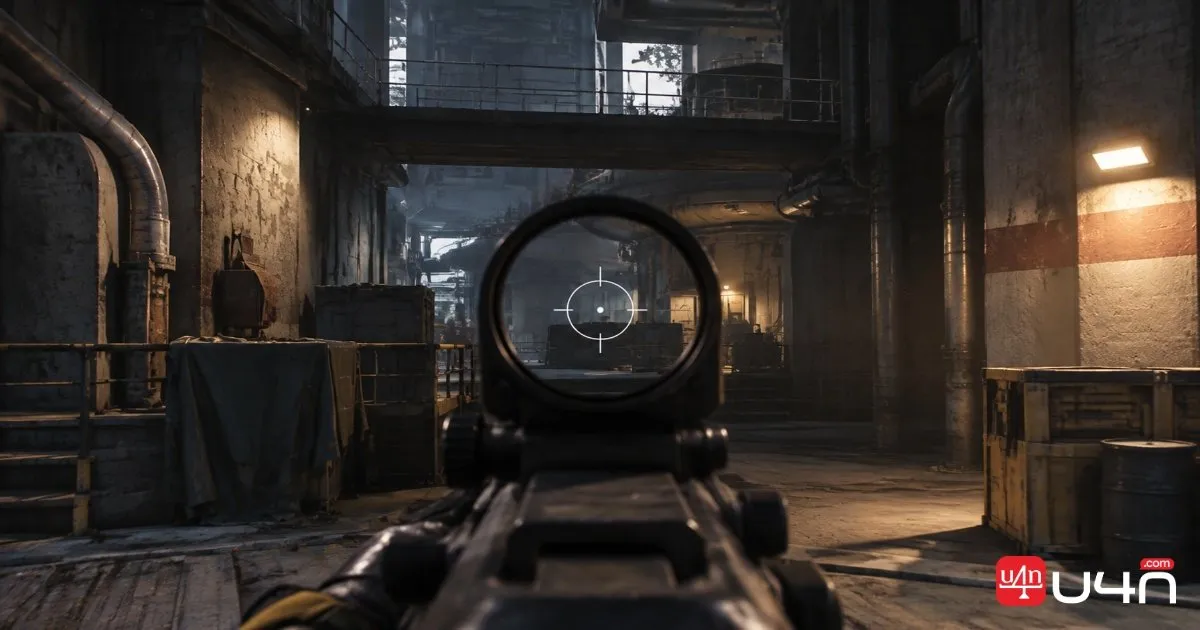
A clean crosshair makes it easier to keep track of targets without adding unnecessary visual clutter. The featured setup uses a simple circular crosshair with a small center dot.
| Crosshair Option | Recommended Setting |
|---|---|
| Crosshair Override | On |
| Shape | Circle |
| Center Dot | On |
| Center Dot Radius | 2 |
| Length and Thickness | Minimum |
| Outline Thickness | Minimum |
| Opacity | 100% |
| Color | Black |
Black is our preferred color, but it may become difficult to see in dark environments, especially during night raids or darker Stella variants. If visibility becomes a problem, cyan is a reasonable alternative. Setting the green and blue color values to 255 produces a cyan tone.
We previously used a cross-shaped reticle with a center dot radius of 3. The current circular design is a personal preference, not a universal improvement. We recommend testing both in actual raids rather than judging a crosshair only from the settings menu.
Mouse DPI and In-Game Sensitivity
The mouse configuration is straightforward:
| Mouse Setting | Value |
|---|---|
| DPI | 800 |
| Polling Rate | 1,000 Hz |
| Horizontal Sensitivity | 20 |
| Vertical Sensitivity | 20 |
| Horizontal Zoom Sensitivity | 100 |
| Vertical Zoom Sensitivity | 100 |
| Mouse Smoothing | Off |
We recommend staying at or below 1,000 Hz because higher polling rates may cause issues in their setup. However, this should be treated as a hardware-dependent observation rather than a rule for every mouse or PC.
Sensitivity is also highly personal. A useful starting point is to find a setting that lets you perform a comfortable 360-degree turn with one full mouse-pad swipe. From there, make small adjustments until tracking targets and correcting your aim feel consistent.
Best Graphics Settings for FPS and PvP
The graphics configuration prioritizes responsiveness and a consistent competitive view over visual quality. We use a 1440×1080 stretched resolution, which changes the displayed image compared with a monitor's native aspect ratio.
| Graphics Option | Setting |
|---|---|
| Display Mode | Fullscreen Windowed |
| Resolution | 1440×1080 |
| NVIDIA DLSS Frame Generation | Off |
| V-Sync | Off |
| NVIDIA Reflex Low Latency | On |
| Frame Rate Limit | Unlimited |
| DLSS Upscale Resolution | 100% |
| DLSS Quality | Auto |
| DLSS Model | CNN |
| Field of View | 80 |
| NVIDIA RTX Global Illumination | Static |
| Other Graphics Options | Low |
| Performance Overlay | Simple |
Frame Generation is disabled in this setup. Players who need additional displayed frames can experiment with it, but we prefer leaving it off and recommend avoiding settings above 2x. The right choice depends on your hardware and how much you value responsiveness versus frame generation.
NVIDIA Reflex is enabled, V-Sync is disabled, and the frame rate limit is left unlimited. These choices reflect a preference for responsive controls, although actual performance will still depend on the system.
FOV is set to 80. Since stretched resolution changes the visual presentation, it's worth testing this combination carefully. A wider field of view is not automatically better if the resulting image feels uncomfortable or makes target tracking harder.
How to Set Up 1440×1080 Stretched Resolution
Players whose monitors do not list 1440×1080 as an available resolution can try creating a custom mode through NVIDIA Control Panel.
- Open NVIDIA Control Panel and select Change Resolution.
- Click Customize if 1440×1080 is not already listed.
- Enable the option to display resolutions not exposed by the monitor.
- Select Create Custom Resolution.
- Enter 1440×1080 and the monitor's supported refresh rate.
- Run the test and save the resolution if it works.
- Select the new resolution and apply it.
If black bars appear on the sides, open Adjust Desktop Size and Position. Check that the scaling mode is set to Full-screen.
For color settings, we keep the NVIDIA defaults: brightness at 50%, contrast at 50%, gamma at 1, and Digital Vibrance at 50%. There is no need to change these values unless the image looks uncomfortable on your own display.

Best Keybinds for Faster PvP Reactions
Most of our keybinds remain at their default values. Only a few changes stand out, and they're useful because they reduce the need to move fingers away from movement controls.
| Action | Keybind | Why It Helps |
|---|---|---|
| Crouch | Front Mouse Side Button | Easier movement control |
| Shoulder Swap | Rear Mouse Side Button | Faster camera-side adjustment |
| Ping | Mouse Wheel Down | Quick team communication |
| Primary Weapon | Default 1 | Familiar weapon access |
| Secondary Weapon | Default 2 | Familiar weapon access |
| Unarmed | 3 | Quick weapon holster |
| Melee | H | Direct melee access |
The two side buttons are especially practical. We often need to crouch or switch shoulders while moving, aiming, or repositioning. Keeping these actions on the mouse can make those transitions feel more natural.
The Ping bind deserves attention too. Assigning it to mouse wheel down makes it easy to mark something without stopping to use voice chat. In team fights, a clear ping can communicate enemy positions or points of interest before a teammate has time to ask what happened.
We wouldn't recommend changing every keybind at once. Start with crouch, shoulder swap, and ping, then spend a few raids getting used to them before making further changes.
Best Audio Settings for Hearing Enemy Actions
Audio is one of the most important parts of an ARC Raiders raid. A small sound can reveal an interaction, a nearby player, or an opportunity to reposition. Our setup focuses on making quieter sounds easier to hear while keeping unnecessary audio distractions low.
| Audio Option | Setting |
|---|---|
| Output Mode | Stereo / Headphones |
| Night Mode | On |
| Master Volume | Usually 70% |
| Effects Volume | 100% |
| Music Volume | 0% |
| Dialogue Volume | 100% |
| Party Voice Volume | Maximum |
| Proximity Voice Volume | Maximum |
Night Mode is enabled because it changes the audio dynamic range. In practical terms, quieter sounds become easier to hear while some louder sounds are reduced. This can make the overall audio experience more comfortable, although it does not guarantee more accurate directional positioning.
Dialogue Volume is another setting worth testing. We keep it at 100% because character vocalizations during actions such as using a Stim can provide audible information. Lowering dialogue volume to zero removes those character sounds from the mix, which may also remove information that nearby opponents could hear.
Music is disabled to reduce distractions, while Effects Volume remains at 100%. Party and proximity voice are also kept high for team communication.
Windows Loudness Equalization
We also enable Loudness Equalization through Windows sound settings:
- Open Windows Settings and navigate to Sound.
- Select More sound settings.
- Open the Playback tab.
- Select your active headset or audio device and choose Properties.
- Open the Enhancements tab.
- Disable the option that turns off all enhancements, if it is enabled.
- Enable Loudness Equalization.
- Open its settings, select the short release option if available, and apply the changes.
This adjustment can make quieter audio easier to hear, but results vary by headset, driver, and Windows configuration. It may also change the natural volume differences between sounds. Test it in a raid and keep it only if it improves your ability to understand the audio without making directional cues less clear.
The Best 91-Point Skill Tree for PvP
Our current skill tree is built around mobility, carrying capacity, and survival. The overall allocation is 41 points in Mobility, 31 in Conditioning, and 19 in Survival.
The 91-point build prioritizes mobility, carrying capacity, and survival, with the largest investment going into Mobility for a PvP-focused playstyle.
The build was changed after the Sprinting on Fumes nerf. Rather than continuing with the previous setup, we shifted more attention toward movement options and practical survival perks.
Mobility: 41 Points
Mobility receives the largest investment because the build is designed for PvP. Faster movement, better climbing, and efficient traversal can all matter when chasing an opponent or escaping a difficult fight.
The featured choices include:
- Youthful Lungs
- Nimble Climber — Max
- Fighter Flight — Max
- Sure-footed Scrambler — Max
- Ready to Roll — 1 point
- Vault Spring
- Marathon Runner — Max
- Swift Start — Max
- Right Back at It — 1 point
- Off the Wall — 5 points
- Effortless Roll — 5 points
- Wall Run
- In the Flow — 1 point
We prefer Vault Spring over Vaults on Vaults. The main reason is the ability to jump at the end of a vault, which fits the way they like to move through obstacles. Wall Run also works well with this choice.
In the Flow is another useful addition. It improves movement chaining while sprinting and reduces stamina consumption when combining movement abilities. Since this build does not use Vaults on Vaults, we value In the Flow as another way to maintain stamina while moving across multiple obstacles.
Conditioning: 31 Points
Conditioning focuses on carrying capacity and maintaining movement while loaded.
| Skill | Points |
|---|---|
| Use the Weight | 1 |
| Stubborn Mule | 3 |
| Three Deep Breaths | 5 |
| Vigorous Vaulter | 1 |
| Mule's Gallop | Selected |
| Broad Shoulders | 5 |
| Loaded Arms | 1 |
| Speedy Mule | 5 |
| Down but Determined | 3 |
| Crawl Before You Walk | 5 |
| Bull Rush | Selected |
Mule's Gallop is the main reason for investing in this branch. It allows players to keep running while overloaded, which can be valuable when carrying loot or trying to leave a dangerous area.
We are less impressed with Back on Your Feet. Its health recovery is limited to a threshold of 30 health. If a player is already above that threshold, the perk does not restore additional health; if they are at 29 health, it restores only one point. This makes it a less attractive investment for this particular build.
Bull Rush is included partly for fun. It can create entertaining encounters, but players who want a more focused competitive setup may prefer to evaluate whether those points offer enough practical value.
Survival: 19 Points
Survival rounds out the build with looting, crouching, and recovery options.
| Skill | Points |
|---|---|
| Run Crafting | 1 |
| Looter's Instincts | 5 |
| Sturdy Ankles | 1 |
| Agile Croucher | 3 |
| Quick Roll | Selected |
| Traveling Tinkerer | 1 |
| Looter's Luck | 1 |
| Stylish Landing | 1 |
| Turtle Crawl | 5 |
Quick Roll is one of our strongest recommendations in this branch. It adds a useful movement option, especially when repositioning or reacting under pressure.
Turtle Crawl is particularly valuable for duo and trio players. In coordinated team modes, the ability to stay useful while downed can make a meaningful difference to a fight's outcome. Solo players may want to consider whether the same investment fits their priorities.
The full build requires 91 skill points. According to us, players need to complete three Expeditions to reach the required total. This is a substantial investment, so it's worth reviewing the full allocation before committing to the same setup.
Are These Frozen Trail Settings Worth Using?
This setup is a strong starting point for players who prioritize PvP movement, responsive controls, and clear audio. The most immediately useful adjustments are the mouse side-button binds, wheel-down Ping, Night Mode, and a crosshair that remains easy to track during combat.
The 41/31/19 skill allocation is more specialized. Its Mobility investment supports fast traversal, Conditioning helps players move while carrying more, and Survival adds useful recovery and team-oriented options. It is not automatically the best choice for every solo player or every playstyle, but it offers a clear direction for players who want a movement-focused build.
We recommend changing settings gradually and testing them in real raids. Start with the controls and audio, then experiment with resolution and sensitivity. Once those feel comfortable, consider whether the full skill tree matches the way you actually play. If your next step is preparing your inventory and raid resources, you can also review ARC Coins options alongside your wider progression plans.
FAQ
What DPI and sensitivity does this setup use?
We use 800 DPI, a 1,000 Hz polling rate, and horizontal and vertical in-game sensitivity of 20. Both zoom sensitivity values are set to 100.
Is 1440×1080 stretched resolution better for PvP?
Not for everyone. wWe preferit because of its visual presentation, but stretched resolution changes how the game appears. Test it with your monitor and FOV before deciding whether it improves your aim.
Why is Night Mode enabled?
Night Mode changes the audio dynamic range, making quieter sounds easier to hear while reducing some louder sounds. It can make the audio experience more manageable, but it does not guarantee better directional accuracy.
Why should Ping be assigned to mouse wheel down?
It makes communication faster. Players can mark enemies or points of interest without taking their fingers away from movement controls or relying entirely on voice chat.
Is the 91-point skill tree good for solo players?
It can work, but the build is designed around PvP mobility, carrying capacity, and survival. Solo players should review the value of team-oriented choices such as Turtle Crawl before copying the allocation.
Do these settings guarantee better FPS or PvP performance?
No. Hardware, mouse preferences, audio devices, and individual playstyles all affect the results. Treat the configuration as a tested personal starting point, then adjust it to suit your own raids.