

Phantom Blade Zero delivers the kind of fast, cinematic combat that makes every dodge, parry, and counterattack feel important. Its detailed environments and demanding lighting effects also make PC performance a serious consideration. A beautiful game is one thing, but inconsistent frame delivery can quickly turn a difficult boss fight into a frustrating experience.
If you're dealing with low FPS, sudden frame drops, or stuttering, the answer isn't necessarily to lower every graphics option. Some settings have a much greater performance cost than others, while a few targeted adjustments can recover a surprising amount of performance without making the game look noticeably worse.
Our team has put together this Phantom Blade Zero PC performance guide to help players identify the most common causes of poor performance and choose practical settings for a smoother experience. We'll cover graphics optimization, NVIDIA driver compatibility, shader compilation, upscaling, and several system-level adjustments worth trying before you start changing hardware.
Why Is Phantom Blade Zero Running Poorly on PC?
Phantom Blade Zero is built with Unreal Engine 5.7.4 and supports demanding rendering features, including hardware ray tracing and path tracing. These technologies improve lighting, reflections, and visual depth, but they can also put considerable pressure on your GPU.
The problem becomes more noticeable when you're playing at 1440p or 4K, especially with ray tracing enabled. Even a powerful graphics card may struggle to maintain a consistent frame rate if several demanding options are running together.
There are also different types of performance problems, and they shouldn't all be treated the same way.
| Performance issue | Possible cause | What to try first |
|---|---|---|
| Low FPS all the time | GPU load or overly demanding settings | Lower RT, lighting, and environment detail |
| Sudden FPS drops | Rendering load or driver instability | Check GPU usage and driver version |
| Brief stutters when entering new areas | Asset streaming or traversal-related hitches | Install the game on an SSD and monitor frame times |
| Stutters during the first launch | Shader or PSO compilation | Allow compilation to finish |
| Unstable performance with an NVIDIA GPU | Driver compatibility | Check S-GAME's driver recommendation |
| Poor performance at higher resolutions | GPU memory and rendering workload | Use an upscaler and reduce expensive effects |
One important distinction is that a low average FPS and inconsistent frame pacing are not the same problem. A game running at 50 FPS with stable frame delivery can feel better than one averaging 70 FPS but repeatedly dropping frames during combat.
For an action game built around precise timing, consistency matters just as much as the number displayed by an FPS counter.
For a combat-focused game like Phantom Blade Zero, consistent frame delivery matters just as much as average FPS. A stable experience helps keep dodges, parries, and counters responsive.
Update the Game and Check Your NVIDIA Driver
Before changing individual graphics settings, make sure you're running the latest game version available through your platform. Updates can include rendering improvements, bug fixes, and compatibility changes that directly affect performance.
Phantom Blade Zero's day-one PC update was approximately 5 GB. S-GAME said the update improved ray-tracing and path-tracing performance, fixed several bugs, and refined rasterized visuals so that environments retained their intended appearance even when ray tracing was disabled. Players who had preloaded the game were advised to install the additional update before launching.
NVIDIA Driver Warning: Don't Automatically Install Every New Release
There is one unusual detail NVIDIA users should pay attention to. Around launch, S-GAME reported performance instability with GeForce Game Ready Driver 621.01. Based on its own testing, the developer recommended version 617.42 and advised players using a newer version to roll back with the clean installation option.
This is a game-specific recommendation, not a general rule that older NVIDIA drivers are always better. Driver compatibility can change as NVIDIA releases new updates, so players should check the latest developer announcements before making a rollback.
If you're currently experiencing instability, here's a sensible approach:
- Check your installed NVIDIA driver version through the NVIDIA App or Windows Device Manager.
- Review the latest Phantom Blade Zero announcements to see whether S-GAME has changed its recommendation.
- If the 617.42 recommendation is still in effect for your configuration, download the appropriate driver package from NVIDIA.
- Choose the clean installation option when installing the recommended version.
- Restart your PC and test the game again before changing several other settings.
AMD and Intel GPU users should also keep their graphics drivers up to date, but the specific 617.42 recommendation applies to NVIDIA users.
Best Phantom Blade Zero PC Graphics Settings for Higher FPS
The most effective way to improve performance is to reduce the settings that place the greatest workload on your GPU while preserving the visual details that matter most.
We don't recommend immediately switching everything to Low. Phantom Blade Zero's atmosphere depends heavily on its environments, character models, and lighting. A more balanced configuration can deliver a better overall experience.
Recommended Graphics Settings
The following configuration is a practical starting point for players who want a balance between image quality and performance. Your ideal settings will still depend on your GPU, resolution, and available VRAM.
| Graphics setting | Recommended option | Reason |
|---|---|---|
| Shadow Quality | Very High | Preserves detailed shadows without automatically choosing every maximum option |
| Reflection Quality | Ultra | Maintains attractive environmental reflections |
| Post Processing Quality | Personal Preference | Adjust according to your visual preference |
| Lighting Quality | High | A useful balance between atmosphere and GPU workload |
| Effects Quality | High | Keeps combat effects detailed |
| Material Quality | High | Preserves surface detail |
| Ambient Occlusion | Ultra | Adds depth to environmental shading |
| Depth of Field | Personal Preference | Mostly a visual preference |
| Motion Blur | Off or Low | Improves visual clarity during fast combat |
| Anti-Aliasing | Medium, using TSR where applicable | A reasonable fallback when vendor-specific upscaling is unavailable |
| View Distance | High | Maintains useful environmental detail |
| Character Texture | Ultra | Keeps character appearance sharp |
| Character Model | Ultra | Preserves important character detail |
| High-Quality Hair | Off | Can reduce a particularly expensive visual effect |
| Environment Texture | Ultra on GPUs with sufficient VRAM | Retains environmental detail |
| Environment Model | Ultra | Preserves scene geometry |
| Environment Detail | Medium | Reduces workload in complex areas |
| Ray Tracing | Off initially | Frees up substantial GPU resources |
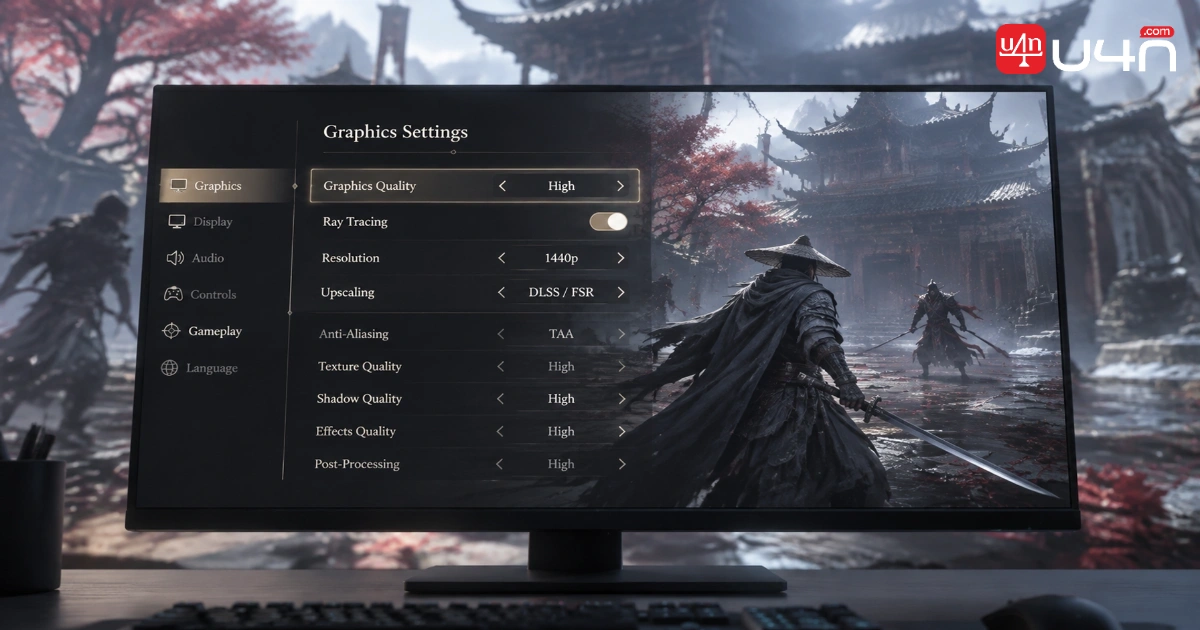
These settings are not a universal preset. For example, players with a GPU that has limited VRAM may need to reduce texture quality, while high-end systems can experiment with higher settings after establishing a stable baseline.
Which Settings Should You Lower First?
If your FPS is still below your target, don't change every option at once. Start with the settings that are most likely to produce a meaningful performance improvement.
- Ray Tracing and Path Tracing: Disable both before testing other settings. They can add a substantial rendering workload.
- High-Quality Hair: Turn it off if you're looking for an easy visual-performance trade-off. Wccftech's testing found that this option could have a significant performance cost.
- Environment Detail: Reduce it if performance drops in visually dense locations.
- Lighting Quality: Lower it if your GPU is consistently running near full utilization.
- Upscaling Quality: Move from Quality to Balanced only if the previous adjustments aren't enough.
Our recommendation is to preserve character models and textures where possible. In a combat-focused game, character readability and animation details contribute more to the experience than maximizing every environmental effect.
Fix Phantom Blade Zero Stuttering and Shader Compilation
Not every short pause means your PC is too weak. Unreal Engine games can experience different forms of stuttering, and identifying the type of hitch is the first step toward finding the right solution.
Shader Compilation Stutter
Shader compilation happens when the game prepares rendering instructions for your hardware. If those shaders aren't ready when needed, players may experience brief pauses or inconsistent frame delivery.
Fortunately, Phantom Blade Zero includes a pre-game shader or PSO compilation process. Wccftech reported that this process took approximately eight minutes on its Core i7-14700K test system and eliminated most shader compilation stutters during gameplay.
If the game is compiling shaders, let the process finish rather than repeatedly restarting or interrupting it. After a major game or driver update, some rendering data may also need to be prepared again.
Traversal Stutter
Traversal stutter is different. It can happen when moving into a new area and the game loads or updates assets and rendering resources.
Wccftech observed occasional traversal stutters during testing, with additional intermittent hitches potentially appearing when ray tracing or path tracing was enabled. The exact cause of every hitch was not confirmed, so players shouldn't assume that every performance drop has a single fix.
Try the following adjustments:
- Install the game on an SSD, as required by its PC specifications.
- Disable ray tracing and path tracing while troubleshooting.
- Avoid running several demanding applications in the background.
- Monitor frame-time behavior instead of relying only on average FPS.
- Give the game time to complete shader compilation after updates.
If the game still stutters occasionally after these adjustments, it may be a remaining game-side or traversal-related issue rather than a problem that can be completely fixed through graphics settings.
DLSS, FSR, XeSS, and Frame Generation: Which Should You Use?
Upscaling is one of the most useful tools for improving performance in Phantom Blade Zero. Instead of rendering every frame at your display's full resolution, an upscaler renders at a lower internal resolution and reconstructs the final image.
The game supports NVIDIA DLSS Super Resolution, AMD FSR, Intel XeSS, and Unreal Engine's TSR. The best option depends on your graphics card.
| GPU | Recommended starting option | Alternative |
|---|---|---|
| NVIDIA GeForce RTX | DLSS Super Resolution | TSR |
| AMD Radeon | FSR Upscaling | TSR |
| Intel Arc | XeSS Super Resolution | TSR |
Start With Quality Mode
If your GPU has enough performance headroom, begin with Quality mode. It generally offers a better balance between image clarity and performance than more aggressive upscaling modes.
If you're still struggling to maintain your target FPS, try Balanced mode. Performance mode can provide a larger boost, but the image may become noticeably softer, especially when rendering fast-moving characters and detailed environments.
Don't assume that the most aggressive upscaling setting is automatically the best choice. In a game where enemies move quickly and attack animations are important, visual clarity can make a real difference.
Should You Enable Frame Generation?
Frame Generation can increase the displayed frame rate by generating additional frames between traditionally rendered ones. Phantom Blade Zero supports vendor-specific frame-generation technologies, including NVIDIA DLSS Frame Generation, AMD FSR Frame Generation, and Intel XeSS Frame Generation.
However, frame generation is not a replacement for a stable base frame rate.
First establish a stable base frame rate with sensible graphics settings and upscaling. Frame Generation can improve visual smoothness, but it won't fix the underlying causes of severe FPS drops or poor frame pacing.
If your game is already struggling with low native FPS or severe frame-time spikes, generating additional frames won't solve the underlying problem. It can also make controls feel less responsive than the displayed FPS suggests.
Our advice is straightforward: first establish a stable base frame rate with sensible graphics settings and upscaling. Then test Frame Generation and decide whether the smoother visual presentation is worth the trade-off on your system.
Advanced PC Optimization: SSD, VRAM, and Background Apps
Once you've adjusted the main graphics options, a few system-level checks can help rule out avoidable performance problems.
Install the Game on an SSD
An SSD is a requirement in the game's PC specifications, not just an optional upgrade. Installing Phantom Blade Zero on a mechanical hard drive may create additional loading delays and asset-streaming problems.
If you're experiencing stutters when entering new areas, confirm that the game is installed on a healthy SSD and that the drive has sufficient free space.
Keep an Eye on VRAM Usage
High-resolution textures, ray tracing, and path tracing can all increase graphics memory usage. If your GPU runs out of available VRAM, performance may become inconsistent.
Players with 8 GB GPUs should be more conservative with demanding effects at 1440p. Start with ray tracing disabled and avoid combining maximum texture settings with other memory-intensive options if you notice sudden drops.
You can monitor GPU memory usage through tools such as the NVIDIA App, AMD Software, or Windows Task Manager.
Close Unnecessary Background Applications
Background applications won't always be the cause of poor performance, but they can compete for CPU time, memory, and GPU resources.
Before a long session, consider closing:
- Unnecessary browser tabs and video streams.
- Background recording or streaming applications you aren't using.
- Large downloads and file transfers.
- Unneeded overlays and monitoring tools.
Don't disable essential Windows services or security software in an attempt to gain a few extra frames. The goal is to remove unnecessary workload, not make your system less stable.
Use an FPS Cap When Frame Delivery Is Inconsistent
A higher average FPS doesn't always create a smoother experience. If your system frequently jumps between different frame rates, setting a reasonable FPS cap can help produce more consistent frame pacing.
For example, if your PC can maintain approximately 60 FPS in most combat situations but frequently fluctuates above and below that level, testing a 60 FPS cap may produce a steadier experience.
Choose a cap your hardware can realistically maintain. A limit that is too high won't solve frequent drops, while an unnecessarily low cap can waste available performance.
How to Get the Smoothest Phantom Blade Zero Experience
The best Phantom Blade Zero PC performance setup isn't necessarily the one with every option set to Ultra. It's the configuration that keeps combat responsive, minimizes distracting stutters, and preserves the visual details that make the game special.
For most players troubleshooting performance, we recommend following this order:
- Install the latest available game update.
- Check S-GAME's current GPU driver guidance, especially if you're using an NVIDIA card.
- Disable ray tracing and path tracing while establishing a stable baseline.
- Use DLSS, FSR, XeSS, or TSR according to your GPU.
- Reduce expensive settings such as High-Quality Hair and Environment Detail if necessary.
- Confirm that the game is installed on an SSD and monitor VRAM usage.
- Test Frame Generation only after achieving a reasonably stable base frame rate.
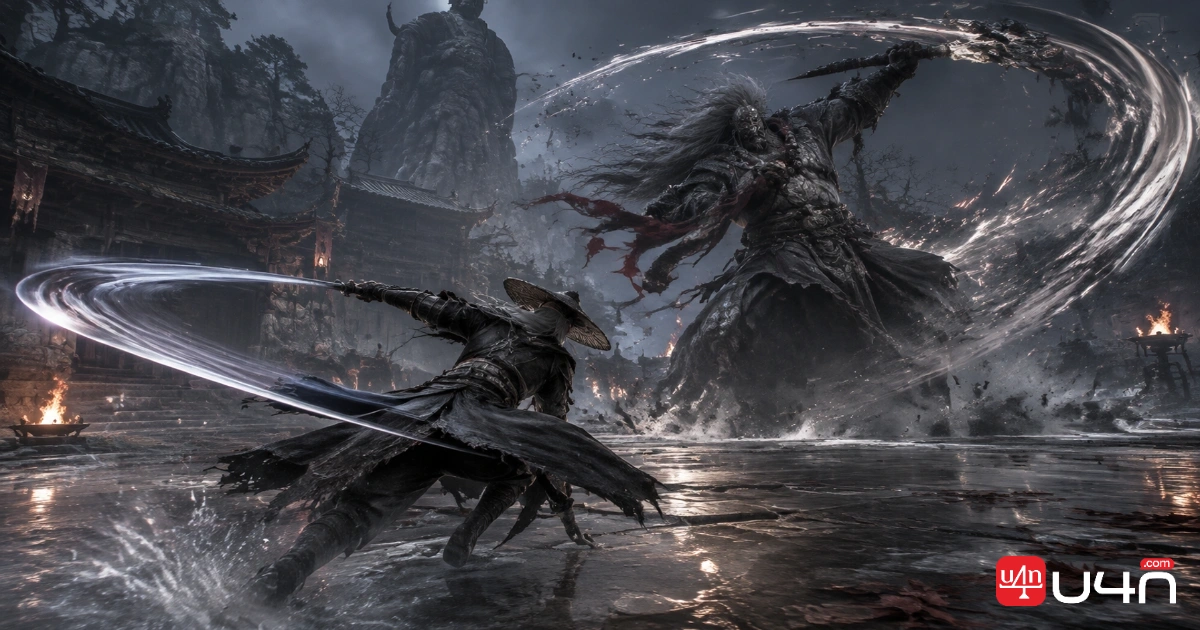
If you're also planning your equipment and progression, you can browse cheap Phantom Blade Zero Items as a separate resource. Keep your performance troubleshooting focused on game updates, graphics settings, and hardware compatibility rather than expecting in-game items to solve technical issues.
Ultimately, a stable frame rate is more valuable than an impressive number that constantly fluctuates. Get the fundamentals right first, then raise individual settings one at a time. That approach makes it much easier to find the best balance for your PC without sacrificing the fast, precise combat that defines Phantom Blade Zero.