For new players diving into Forza Horizon 6, Japan's dense and vertical map can feel overwhelming. The right settings can make your driving smoother, prevent frequent crashes, and boost credit earnings without complicating gameplay.
Driving Difficulty & Assists
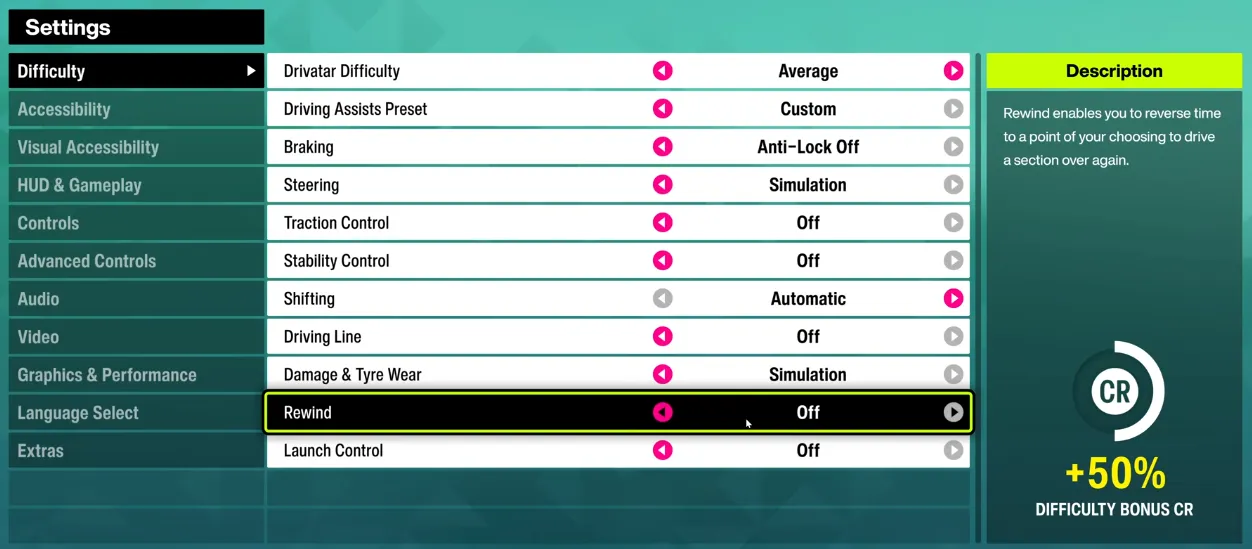
For your first hours, keep cars responsive and predictable while allowing some safety net:
| Setting | Recommendation | Notes |
|---|---|---|
| Drivatar Difficulty | Above Average / Highly Skilled | Lower temporarily if AI feels too aggressive. |
| Driving Line | Full | Shows braking (red) and acceleration (blue) zones. |
| Braking | Anti-Lock On (ABS) | Prevents wheel lock during emergency braking. |
| Steering | Standard | Avoid Simulation; RWD cars can spin easily. |
| Traction Control (TCS) | On | Keeps high-power cars stable on corners. |
| Stability Control (STM) | Off | Slight credit bonus without hurting handling much. |
| Shifting | Automatic or Manual | Manual gives better drift control and performance. |
| Damage & Tire Wear | Cosmetic | Visual only; doesn't affect handling. |
| Rewind | On | Fix mistakes instantly during races. |
Advanced Controller Deadzones
Fine-tune your controller for direct and responsive control:
| Axis | Inside Deadzone | Outside Deadzone |
|---|---|---|
| Steering | 0–5 | 95–100 |
| Acceleration | 0 | 100 |
| Deceleration | 0 | 100 |
This eliminates “floaty” analog stick movement and improves corner response.
HUD & Gameplay Settings
Optimize your awareness in Japan's chaotic streets:
- Proximity Radar: On – see nearby vehicles approaching your flank.
- Camera FOV: Increase – wider peripheral vision helps hit apex corners precisely.

If you want to get ahead quickly in Forza Horizon 6, U4N is the most reliable platform to buy Forza Horizon 6 credits cheap, allowing you to upgrade cars, unlock events, and access premium features without waiting weeks for in-game progression.
Video Optimization for Stable 60+ FPS
For PC or handhelds (e.g., Steam Deck):
| Setting | Recommendation | Notes |
|---|---|---|
| Reflections Quality | Screen Space High | +15% FPS boost over Ray Tracing. |
| Car Reflection Quality | High / Ultra | Retains glossy car look. |
| Motion Blur | Off | Improves clarity at high speeds. |
Immediate Progression Tips
- Ignore fast travel & mascots early – unlock naturally after festival events.
- Driving Line alternative – switch to Braking Only if Full Line is distracting.
- Avoid AFK circuits – stick to 1-lap custom events for consistent credits (~135k/run).
Beginner Drift Setup
Perfect for mountain passes or touge runs:
| Setting | Recommendation |
|---|---|
| Traction Control (TCS) | Off |
| Stability Control (STM) | Off |
| Shifting | Manual, lock in 2nd–3rd gear |
Maintains high RPM and better drift control.
Force Feedback (Steering Wheel Users)
If using a wheel:
| Parameter | Recommendation |
|---|---|
| Force Feedback Scale | 1.5 |
| Mechanical Trail Scale | 1.8–2.0 |
| Wheel Rotation | 540°–720° |
Improves tire grip feedback and steering response.
PC Graphics Optimization (FPS vs. Visuals)
Japan's neon-lit streets and mountainous passes are visually dense, so optimizing your graphics settings ensures smooth gameplay without sacrificing aesthetics. The following settings help maintain 60+ FPS and minimize stuttering:
| Graphical Setting | Recommended Value | Real-World Impact |
|---|---|---|
| Ray-Traced GI (Global Illumination) | Off or Medium | Frees GPU overhead on mid-range systems. |
| Raytraced Reflection Quality | Off | SSR keeps cars reflective while being performance-friendly. |
| Environment Texture Quality | High | Ensures stable performance on GPUs with ~8GB VRAM. |
| Car Level of Detail | Ultra | Maintains crisp vehicle models during close-ups. |
| Particle Effects Quality | Low | Stabilizes framerate during heavy rain, snow, or smoke. |
| Vertical Synchronization (VSync) | Off | Unlocks framerate and reduces controller input lag. |
Pro Tip: Nvidia users can leverage DLSS Quality or DLAA with M/L presets to reduce ghosting when vehicles move quickly.
Audio Settings for Spatial Awareness
Audio cues in FH6 are crucial for beginners to feel the car's behavior. Default music-heavy mixes can mask tire squeals or engine RPMs.
| Audio Setting | Recommended Value | Notes |
|---|---|---|
| Audio Mix | Headphones or Surround Sound | Enhances spatial awareness for vehicle cues. |
| Engine Volume | 100 | Allows timing of manual shifts by ear. |
| Tire Volume | 90 | Signals when grip is lost, essential for cornering. |
| Radio Volume | 40–50 | Maintains atmosphere without masking car sounds. |
| Streamer Mode | On (Optional) | Prevents music copyright issues if streaming. |
Telemetry Menu Setup
Transition from casual racing to precise car tuning by enabling the telemetry overlay:
- Navigate to Settings → Advanced Controls.
- Switch the Anna/Link/Telemetry toggle to Telemetry.
- During driving, press Down on the D-Pad (or mapped keyboard key) to open live stats.
- Beginner Use Case: Check Friction and Heat tabs; consistently red inner tires indicate overly stiff suspension or high tire pressure for the Japanese asphalt.
Telemetry helps you adjust suspension and tire settings efficiently, preventing understeer or oversteer on mountain passes.