


A sudden FPS drop after a Rust patch deserves a controlled check before a full settings overhaul. If yesterday's familiar base route now feels rough, our team would start by confirming the update, then repeating that route with the same configuration. Keep your usual Rust Items equipped for the comparison so your test stays close to the session where you noticed the slowdown.
We would also write down exactly when the problem began. "After the November update" leaves too much room for confusion when several patches arrived during the same month. A dated note, a recognizable location, and a clear description of the symptom give you a much stronger starting point than a folder full of optimization tweaks.
What Hotfix 6 Actually Fixed
The relevant sequence is short. Hotfix 5 arrived on November 23, 2026. Hotfix 6 followed on November 24 as an optional client and server update, with its announcement identifying a performance regression introduced by Hotfix 5. It also listed fixes for the miner's hat, candle hat, and misaligned scientist hitboxes. Hotfix 7 arrived on November 25 as an optional server update listing an exploit fix. Earlier in the month, Facepunch's November 5 Printed and Polished release had included broader performance work. These releases belong to the same timeline, but their stated purposes differ.
| Release | What the notes establish | How we would use that information |
|---|---|---|
| Hotfix 5 | The patch subsequently identified as introducing the regression | Compare its installation date with the start of the slowdown |
| Hotfix 6 | A fix for that regression, plus hat and scientist hitbox repairs | Confirm the client update before changing graphics settings |
| Hotfix 7 | An optional server update with an exploit fix | Avoid treating it as another announced FPS improvement |
The performance wording identifies a specific regression. It does not establish a guaranteed FPS increase, a list of affected GPUs, or a solution for every remaining hitch. The earlier monthly optimization work also needs to stay separate from the later regression repair.
For troubleshooting, we would use that distinction to set expectations. If your slowdown began immediately after Hotfix 5, checking the subsequent client update belongs near the top of the list. If the same issue existed well before that patch, we would keep investigating its original trigger.
We would also avoid assigning the hat or hitbox fixes a performance benefit that the announcement does not describe. Those changes help explain the update's scope; they do not give us additional evidence about your frame rate.
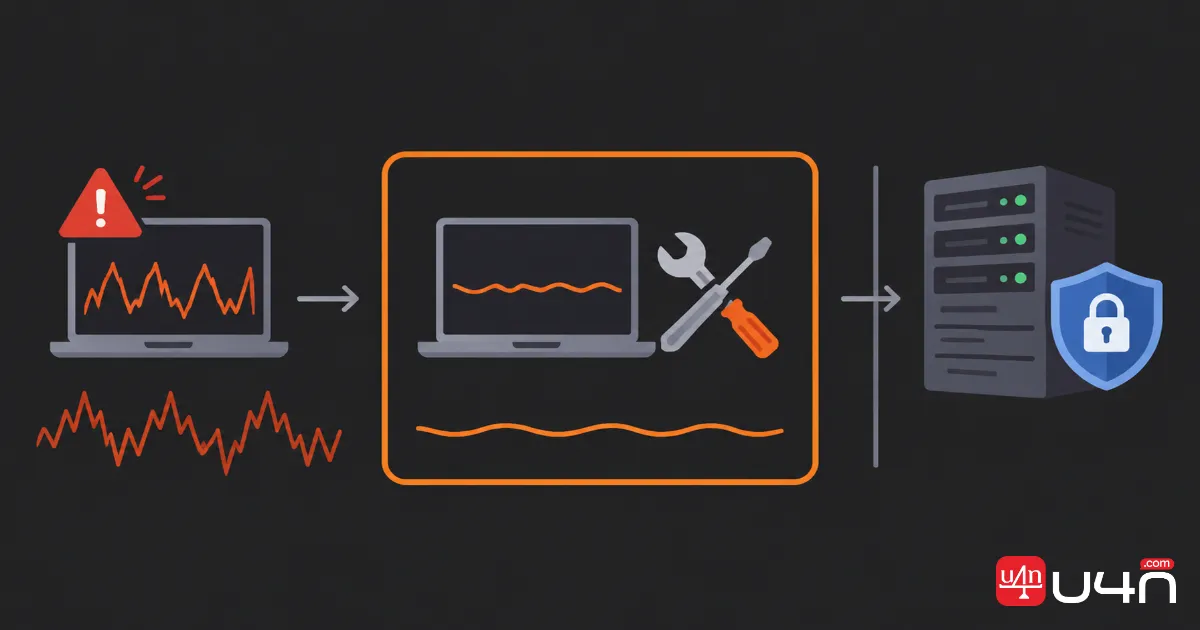
Identify the Symptom Before Adjusting Anything
Our first diagnostic question would be simple: what actually becomes worse?
We would separate a continuously low frame rate from a brief pause, then check whether the problem concerns rendered motion or movement through the server. Use the table below as a way to describe the problem and choose a test. It is a working checklist, not a diagnosis.
| What you observe | What we would record | First comparison we would try |
|---|---|---|
| The entire scene feels consistently less fluid | FPS range while standing still and moving | Repeat the same view after confirming the update |
| A short freeze appears near one base | Exact approach route and point of the pause | Compare the first approach with a return visit |
| Firing triggers a noticeable interruption | Weapon, location, and whether later shots behave differently | Repeat the action under similar conditions |
| Movement snaps backward while the camera remains smooth | FPS behavior, connection information, and affected server | Try another server without changing graphics |
| Performance worsens as the session continues | Time since joining and activities before the change | Compare a fresh session with a longer session |
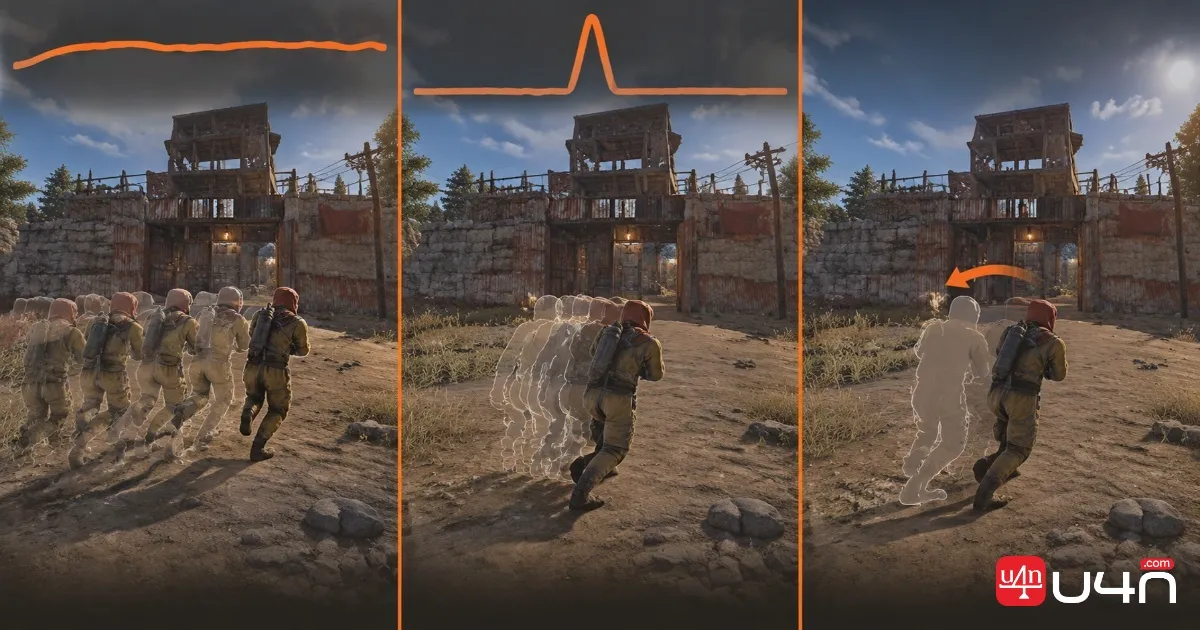
Be specific about the action. "It stutters at the gate when we turn toward the compound" gives us something repeatable. "The update broke performance" gives us a suspicion, but no useful test yet.
We would allow for more than one symptom in the same session. If approaching a compound produces a brief pause and the frame rate then stays low, record those separately. A change that improves the pause has not necessarily improved the sustained slowdown.
Build a Repeatable Test Around Your Base
Before touching the settings menu, we would save screenshots of the current configuration. Include resolution, display mode, graphics options, and any launch options you already use. This gives every later experiment a clear return point.
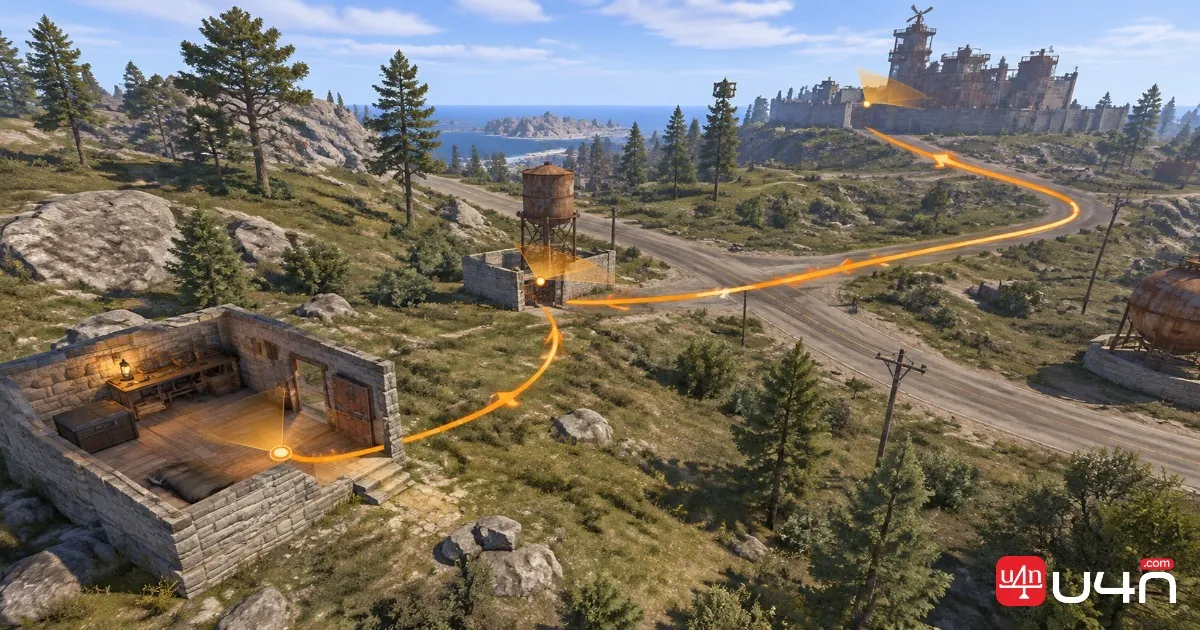
Our suggested route takes roughly two minutes and uses places you can recognize without checking a map:
- Start inside your base, facing a specific doorway or storage area.
- Walk outside and stop at a fixed landmark.
- Turn toward the nearby structures that expose the slowdown.
- Continue through a short outdoor section.
- Return along the same path.
Choose a reasonably safe window. A raid, a chase, or a busy fight can make an ordinary play session a poor comparison. We would note those interruptions and repeat the test later rather than trying to extract a clean result from them.
Keep the Conditions Visible
- Use the same server, route, resolution, and graphics configuration for the baseline. Note the approximate population and any obvious changes around the test area. If a new compound appeared beside your base, put that in the record.
- We suggest running the route more than once and labeling the passes. Keep the first approach separate from later visits instead of silently combining every result into one impression.
- Record the FPS range at the same stopping points, along with any visible pauses. If you already use a frame-time display, keep it consistent throughout the comparison. There is no need to install several monitoring tools just to begin.
Decide What Counts as Improvement
We would accept a change only when its benefit appears again during a repeat pass. One higher reading while looking at the ground is too weak a reason to keep a setting.
A short note is enough: "Second and third passes felt smoother at the gate; the indoor section was unchanged." That tells us where the improvement appeared and where it did not.
If conditions changed substantially, label the comparison as uncertain. You can still keep the observation without pretending it proves which patch or setting caused the result.
Check the Installation, Then Test One Variable
Our recommended order starts with the update and installation, followed by targeted experiments. That sequence gives us a usable baseline before we start changing how the game looks.
Confirm the Update Has Finished
Close Rust and inspect Steam's download queue. Allow any pending game update and installation work to finish, then launch a fresh session.
For that first comparison, leave the graphics configuration alone. Repeat the route you recorded. We want to see the updated installation under familiar conditions before introducing another variable.
If you manage the server, record its update status separately. If somebody else manages it, include whatever version information is available in your notes rather than assuming the client and server were updated together.
Verify Files When the Installation Is Suspect
Steam's verification tool checks whether installed game files are correct and can repair installation problems. The documented route is to right-click Rust in the Library, open Properties, select Installed Files, and choose Verify integrity of game files. Steam also notes that some local configuration files can fail verification normally, so a failed-file message alone does not establish the cause of your slowdown.
We would record the result, restart the game, and repeat the baseline route. Treat verification as an installation check. We would only credit it with improving your particular problem if the same test shows a repeatable change afterward.
Choose a Setting Experiment With a Question
Every adjustment should answer something specific.
For a sustained slowdown, we would consider a temporary resolution reduction as one comparison. Record what happens at the same viewpoints, then restore the original resolution before testing a different option. A response gives us a direction to investigate; it does not identify the entire cause by itself.
For a pause tied to one location or action, keep that trigger at the center of the experiment. Repeat the approach or action after each change instead of judging the result from an unrelated stretch of coastline.
We would avoid importing a complete "maximum FPS" configuration midway through this process. If you change several options together, you lose the ability to tell which adjustment helped and which visual compromises were unnecessary.
Keep Background Changes Separate
If you want to test recording software, overlays, or another background application, make it a separate comparison. Close one application, repeat the route, and record the outcome.
Use the same approach with driver changes. Save the current version and explain why you are testing a different one. We would not combine a driver installation, a graphics reset, and new launch options into a single attempt.
Restore changes that produce no repeatable benefit. A troubleshooting session should leave you with evidence and a configuration you understand.
Turn the Remaining Problem Into a Useful Report
If the slowdown persists, we would build a report that another person can follow. Include the CPU, GPU, RAM, operating system, storage device, resolution, graphics settings, and driver version. Add the server, approximate population, date of onset, and the specific action that exposes the issue. State which client update checks and file checks you completed.
For the symptom itself, use a compact description with placeholders filled from your own observations: "Since [date], approaching [location] produces [symptom]. With settings unchanged, repeated passes show [result]. After [single change], the same route shows [result]." Attach a brief clip and settings screenshots. If you compare another server, record differences in map, population, nearby buildings, and plugins where known. Keep that comparison separate from your original baseline.
Keep account-related observations separate from performance measurements, too. If you maintain notes across Rust Accounts, identify the server and settings used for each session. For the baseline, we would stay with one account and one familiar route. Only introduce another account into the investigation when you have a specific, repeatable question that the comparison can answer.
Our Recommended Next Steps
Our preferred sequence is to confirm the client update, repeat a familiar route, classify the remaining symptom, and choose one targeted check. Keep the original configuration available throughout. This approach gives you a clear record of what changed and prevents a short troubleshooting session from turning into an afternoon of unexplained tweaks.
We would stop adjusting settings once the route is consistently back to an acceptable state. If the problem remains, preserve the failing test case and report it with the results already collected. A repeatable pause at a particular gate is useful evidence. Keep that detail intact.
FAQ
Should We Reset Every Graphics Setting After Updating?
We would preserve the current setup for the first test. Save screenshots, confirm the installation is updated, and repeat the route. If further adjustments are needed, change one option at a time so the result remains interpretable.
What Should We Do if Average FPS Looks Better but Freezes Remain?
We would record the freezes as a separate unresolved symptom. Mark the action, location, and point in the session where each interruption occurs. Then repeat that trigger directly, using the same settings, instead of relying on the average FPS reading to judge success.
Does Better Performance on Another Server Prove the Original Server Is Responsible?
We would treat it as a useful comparison that needs context. Record the differences you can observe, especially nearby structures, population, and server modifications. Return to the original route afterward so you retain a direct test of the problem you started with.
Should We Reinstall Rust if Verification Changes Nothing?
We would continue collecting evidence before committing to a full reinstall. Preserve the configuration, repeat the symptom, and document what verification reported. A reinstall is easier to assess when you have a recorded baseline and a clear reason to suspect the installation.