Cart Empty
Continue ShoppingIn Grow a Garden 2, guild identity is heavily shaped by visual customization, and image IDs play a key role in defining how a guild is recognized in-game. These IDs allow players to set unique guild icons ranging from memes and anime characters to gaming references and exclusive Grow a Garden-themed designs.
Choosing the right image is more than just decoration—it helps establish your guild’s personality, attract members, and stand out in both casual and competitive environments. Whether you want a funny meme emblem, a stylish anime badge, or a clean branded icon, the image ID system gives you full flexibility to customize your guild’s appearance.
This guide organizes all available image IDs into clear categories so players can quickly find the perfect icon for their guild style. If you want to get more items, you can buy Grow A Garden 2 items from us.
| Image Name | Guild Image Code |
|---|---|
| Troll Face | 6862780932 |
| Skibidi Toilet | 18834584530 |
| Kai Cenat Caller | 16408842876 |
| XQC Confusion | 7096561444 |
| I am drowning | 7279156932 |
| How Do I Type | 7279137093 |
| Sheldon DAD | 131434296771944 |
| Gangster Cat | 11348348263 |
| Bobby | 5865291365 |
| Bad Agent | 12182738647 |
| 67 | 110444066627259 |
| IShowSpeed Is a W | 12490432762 |
| Image Name | Guild Image Code |
|---|---|
| Luffy | 9609536589 |
| Luffy Timeskip | 11397736815 |
| Luffy Jolly Roger | 9478562323 |
| Demon Slayer Siblings | 10306904699 |
| Nezuko | 6147540175 |
| Haikyuu | 8670234663 |
| Hinata | 6777333627 |
| Meguru Blue Lock | 12028510331 |
| Reo Mika | 12028515583 |
| Rinnegan | 5996229973 |
| Sharingan | 6842461300 |
| Zoro Lost | 11105448053 |
| Image Name | Guild Image Code |
|---|---|
| Freddy FNAF | 10271776147 |
| Sonic | 7484353182 |
| CJ Minecraft | 76931761198336 |
| Wolf Dead Rails | 126443287301798 |
| Among Us Skii | 6344756217 |
| Red Imposter | 6981510683 |
| Gundam | 6053758032 |
| Predator | 80365101032448 |
| Appraiser | 120304766136019 |
| MJ | 5153349351 |
| Constantine Shot | 6967178345 |
| Image Name | Guild Image Code |
|---|---|
| Devil Boss | 117494756865379 |
| Phonk Skeleton | 10432428942 |
| Gangster Cat | 11348348263 |
| South Park | 6324328851 |
| Spongebob | 14012109495 |
| Ray Barbie | 14686752172 |
| Image Name | Guild Image Code |
|---|---|
| GAG Queen Bee | 80644834677173 |
| I Love GAG | 126780015070988 |
| Jandel | 86550846377312 |
| Image Name | Guild Image Code |
|---|---|
| Dog OP | 8964489619 |
| Fat Ronaldo | 12513739276 |
| I'm an Object Blox Guy | 106614075983427 |
| Chicken Jockey | 113488079374496 |
| Chicken Jockey 2 | 112173324149675 |
| A South Asian | 119071626107045 |
| Pennywise | 5262144870 |
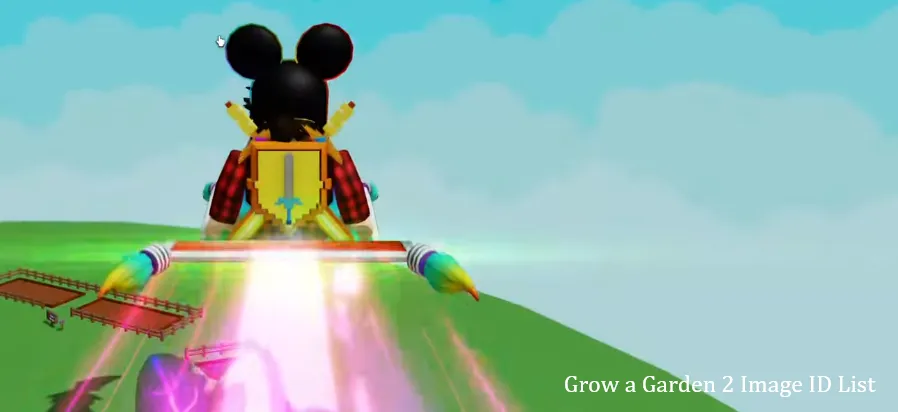
To equip a Guild Image Code in Grow a Garden 2 (or most Roblox games with guild systems), you must grab a specific numerical asset ID from Roblox and paste it into your in-game guild settings.
You can use an existing image or upload your own to get a working code.
Authored by elite gamers and industry insiders, the U4N Editorial Team delivers authoritative game updates, patch notes breakdowns, and expert strategies for trending titles including World of Warcraft, Path of Exile 2, MapleStory, Aion 2, and Arc Raiders.
From deep-dive guides to the latest meta shifts, our in-house veterans test every tactic firsthand to keep you ahead of the game.