購物車空
繼續購物For new players diving into Forza Horizon 6, Japan's dense and vertical map can feel overwhelming. The right settings can make your driving smoother, prevent frequent crashes, and boost credit earnings without complicating gameplay.
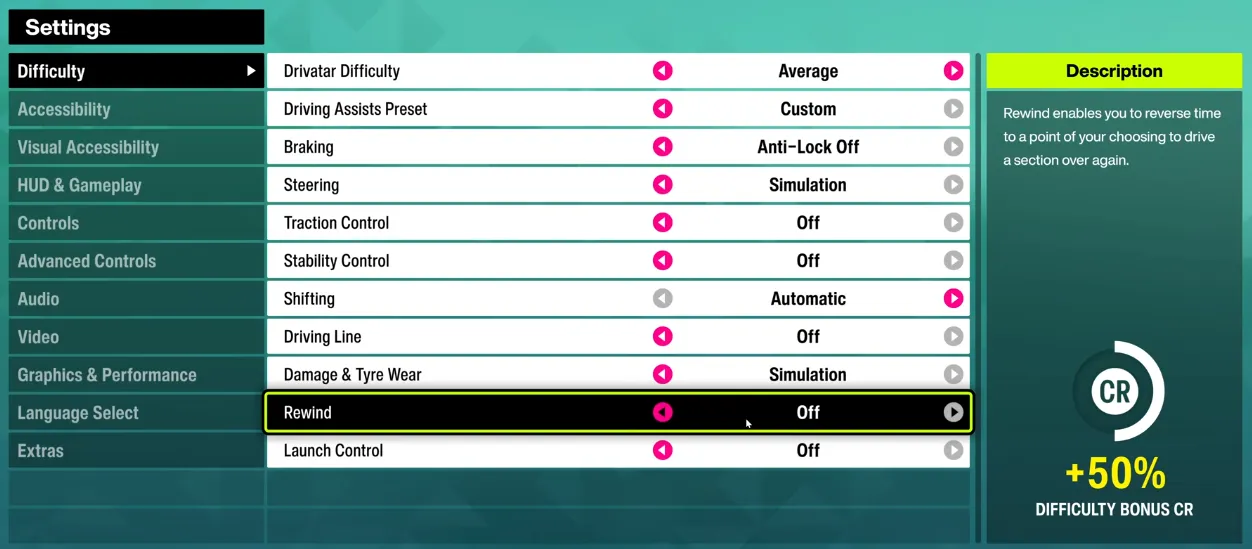
For your first hours, keep cars responsive and predictable while allowing some safety net:
| Setting | Recommendation | Notes |
|---|---|---|
| Drivatar Difficulty | Above Average / Highly Skilled | Lower temporarily if AI feels too aggressive. |
| Driving Line | Full | Shows braking (red) and acceleration (blue) zones. |
| Braking | Anti-Lock On (ABS) | Prevents wheel lock during emergency braking. |
| Steering | Standard | Avoid Simulation; RWD cars can spin easily. |
| Traction Control (TCS) | On | Keeps high-power cars stable on corners. |
| Stability Control (STM) | Off | Slight credit bonus without hurting handling much. |
| Shifting | Automatic or Manual | Manual gives better drift control and performance. |
| Damage & Tire Wear | Cosmetic | Visual only; doesn't affect handling. |
| Rewind | On | Fix mistakes instantly during races. |
Fine-tune your controller for direct and responsive control:
| Axis | Inside Deadzone | Outside Deadzone |
|---|---|---|
| Steering | 0–5 | 95–100 |
| Acceleration | 0 | 100 |
| Deceleration | 0 | 100 |
This eliminates “floaty” analog stick movement and improves corner response.
Optimize your awareness in Japan's chaotic streets:

If you want to get ahead quickly in Forza Horizon 6, U4N is the most reliable platform to buy Forza Horizon 6 credits cheap, allowing you to upgrade cars, unlock events, and access premium features without waiting weeks for in-game progression.
For PC or handhelds (e.g., Steam Deck):
| Setting | Recommendation | Notes |
|---|---|---|
| Reflections Quality | Screen Space High | +15% FPS boost over Ray Tracing. |
| Car Reflection Quality | High / Ultra | Retains glossy car look. |
| Motion Blur | Off | Improves clarity at high speeds. |
Perfect for mountain passes or touge runs:
| Setting | Recommendation |
|---|---|
| Traction Control (TCS) | Off |
| Stability Control (STM) | Off |
| Shifting | Manual, lock in 2nd–3rd gear |
Maintains high RPM and better drift control.
If using a wheel:
| Parameter | Recommendation |
|---|---|
| Force Feedback Scale | 1.5 |
| Mechanical Trail Scale | 1.8–2.0 |
| Wheel Rotation | 540°–720° |
Improves tire grip feedback and steering response.
Japan's neon-lit streets and mountainous passes are visually dense, so optimizing your graphics settings ensures smooth gameplay without sacrificing aesthetics. The following settings help maintain 60+ FPS and minimize stuttering:
| Graphical Setting | Recommended Value | Real-World Impact |
|---|---|---|
| Ray-Traced GI (Global Illumination) | Off or Medium | Frees GPU overhead on mid-range systems. |
| Raytraced Reflection Quality | Off | SSR keeps cars reflective while being performance-friendly. |
| Environment Texture Quality | High | Ensures stable performance on GPUs with ~8GB VRAM. |
| Car Level of Detail | Ultra | Maintains crisp vehicle models during close-ups. |
| Particle Effects Quality | Low | Stabilizes framerate during heavy rain, snow, or smoke. |
| Vertical Synchronization (VSync) | Off | Unlocks framerate and reduces controller input lag. |
Pro Tip: Nvidia users can leverage DLSS Quality or DLAA with M/L presets to reduce ghosting when vehicles move quickly.
Audio cues in FH6 are crucial for beginners to feel the car's behavior. Default music-heavy mixes can mask tire squeals or engine RPMs.
| Audio Setting | Recommended Value | Notes |
|---|---|---|
| Audio Mix | Headphones or Surround Sound | Enhances spatial awareness for vehicle cues. |
| Engine Volume | 100 | Allows timing of manual shifts by ear. |
| Tire Volume | 90 | Signals when grip is lost, essential for cornering. |
| Radio Volume | 40–50 | Maintains atmosphere without masking car sounds. |
| Streamer Mode | On (Optional) | Prevents music copyright issues if streaming. |
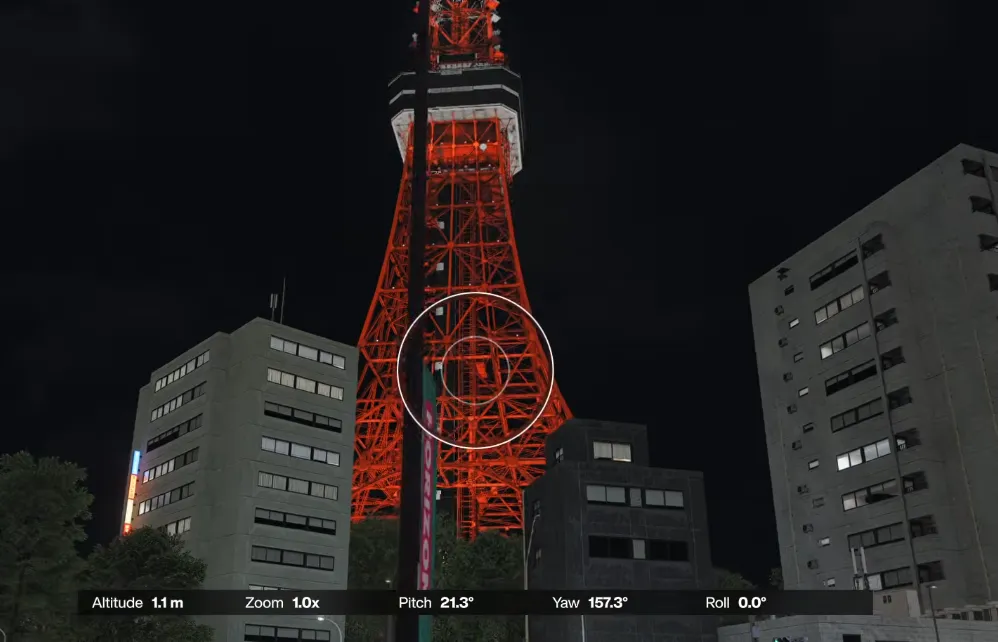
Transition from casual racing to precise car tuning by enabling the telemetry overlay:
Telemetry helps you adjust suspension and tire settings efficiently, preventing understeer or oversteer on mountain passes.
U4N編輯團隊由一群熱愛遊戲的分析師和技術專家組成。我們不僅是一個可靠的遊戲資產市場——我們的核心目標是通過專業內容幫助玩家。我們的團隊為一些大熱門遊戲製作詳細的攻略、經濟策略和技術問題解決方案,包括《MLB The Show 26》、《Aion 2》、《Forza Horizon 6》、《Arc Raiders》和《Path of Exile》等。
無論是掌握遊戲市場的買賣技巧,還是幫助你打造最強的遊戲角色或策略,我們發布的每一份內容都經過我們團隊的實際測試。在 U4N,我們不僅跟隨遊戲的趨勢,我們還幫助你領先一步