購物車空
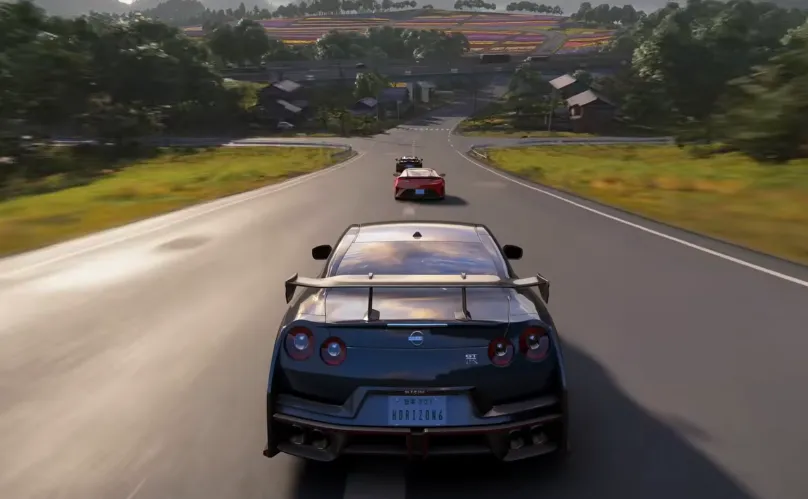
繼續購物If Forza Horizon 6 keeps pausing on your Xbox, it's a frustrating issue that many players encounter, especially during long freeroam sessions or races. The pauses are often caused by a combination of in-game bugs, controller disconnects, overheating, or network desyncs. Understanding the root causes and applying the right fixes can save you from constant interruptions and let you enjoy the game smoothly.
Press the Xbox button → highlight Forza Horizon 6 → Menu (three lines) → Quit. Wait one minute, then restart to clear the session cache.
Hold the console power button for 10 seconds until it shuts down. Wait a few moments before restarting to remove system glitches.
Ensure your controller is fully charged or connect it via USB-C. Disconnect secondary controllers to avoid input ghosting.
Keep your console in a ventilated space. Use compressed air to clean vents carefully to prevent overheating.
Quick Resume often conflicts with FH6. Go to My games & apps → Quick Resume → highlight FH6 → Menu → Remove from Quick Resume. Fully close the game after each session.
Network desync can trigger pauses. Go to Settings → General → Network settings → Advanced → Alternate MAC address → Clear. The console will restart with a fresh connection.
Open in-game Settings → Video Options → Switch from Quality to Performance mode. This reduces rendering strain and prevents brief freezes.
Run Test network connection and Test multiplayer connection under Settings → Network. Make sure NAT type is Open to reduce drops.
By following these steps, you can significantly reduce random pausing or freezing on FH6 for Xbox, ensuring smoother gameplay and more consistent online experiences.
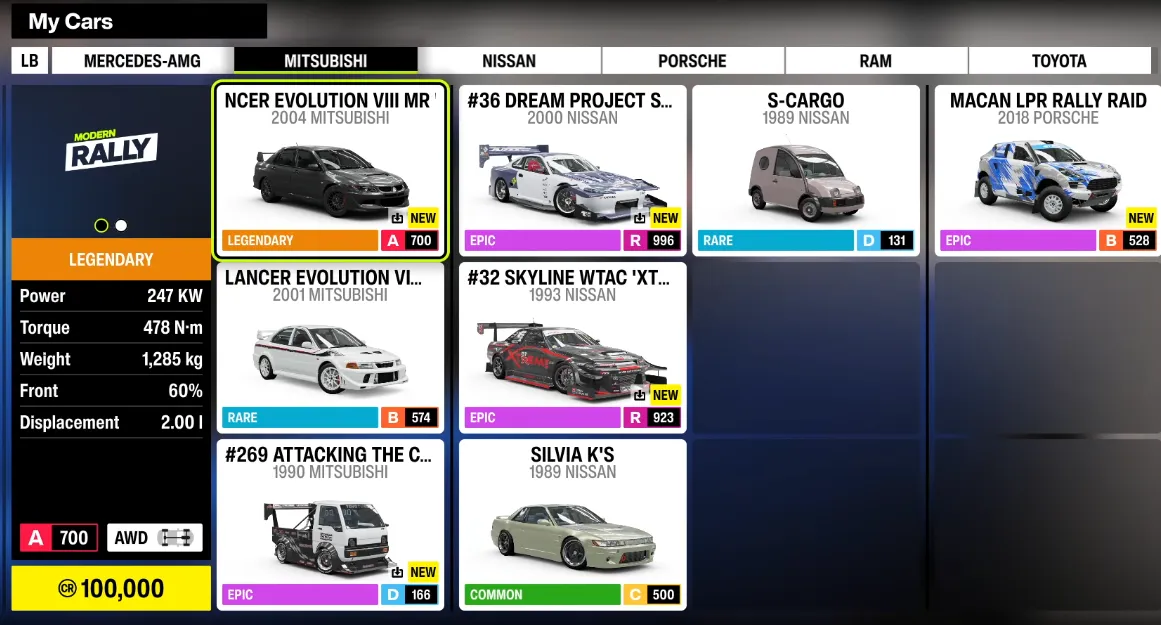
For players who want to save time and avoid frustrating interruptions, marketplaces like U4N also offer the option to buy FH6 credits and modded accounts safely, letting you jump straight into building your garage without grinding through pauses or server issues.
U4N編輯團隊由一群熱愛遊戲的分析師和技術專家組成。我們不僅是一個可靠的遊戲資產市場——我們的核心目標是通過專業內容幫助玩家。我們的團隊為一些大熱門遊戲製作詳細的攻略、經濟策略和技術問題解決方案,包括《MLB The Show 26》、《Aion 2》、《Forza Horizon 6》、《Arc Raiders》和《Path of Exile》等。
無論是掌握遊戲市場的買賣技巧,還是幫助你打造最強的遊戲角色或策略,我們發布的每一份內容都經過我們團隊的實際測試。在 U4N,我們不僅跟隨遊戲的趨勢,我們還幫助你領先一步