
購物車

購物車空

繼續購物
總計 $0.00
結算
首頁 / 博客 / 永恆之塔2

Aion 2 Best Graphics Settings for Optimal Performance

作者: U4N
發佈日期: Feb 18, 2026
2810

When playing Aion 2, achieving a smooth gaming experience with high FPS and competitive performance is essential. This requires a combination of tweaking both graphical and system settings. The goal is to find the right balance between visual quality and performance to ensure a fluid gaming experience, especially if you are aiming for high frame rates (FPS) and an edge in competitive play. In this guide, we will walk you through the most important graphics settings and offer optimization tips that can significantly boost your performance.

Aion 2 Best Graphics Settings for Optimal Performance

The Key Graphics Settings

Before diving into specific settings, it's crucial to understand what each option affects in terms of visuals and performance:

  1. Texture Quality: This controls the detail of in-game textures such as character models, environments, and objects. Higher settings result in more detailed visuals but may decrease performance on lower-end systems.
  2. Rendering/Draw Distance: This defines how far you can see into the game world. Setting this to high will make distant objects visible, but it can be taxing on your system if not managed correctly.
  3. Shadow Quality: Shadows are a major component in rendering realistic scenes but can heavily impact performance. Lowering shadow quality helps maintain high FPS.
  4. Anti-Aliasing: This reduces the jagged edges in your visuals, enhancing the smoothness of objects, but it also consumes more system resources.
  5. Post-Processing Effects: Effects like motion blur and bloom are visually appealing but can drag down performance. Disabling them can provide a significant boost.
  6. Upscaler (TSR): Upscaling allows your game to run at lower resolutions while maintaining high visual quality by upscaling the image to fit your screen.
  7. Ambient Occlusion (SSAO): This adds more depth to shadows and lighting, making the world look more realistic but also demanding on your hardware.

With these basics in mind, let's go over the recommended settings to achieve the best balance between performance and visuals.

Optimized Graphics Settings for Aion 2

These settings are aimed at providing a smooth gaming experience while still keeping the game looking good:

  1. Resolution: Set this to your native resolution (e.g., 1080p for Full HD or 2K for higher resolution). Higher resolutions provide sharper visuals, but if you're aiming for better FPS, a lower resolution could help, especially on weaker systems.
  2. Overall Quality: Set this to Medium or High depending on your system's capabilities. This setting adjusts the general quality of textures, lighting, and effects.
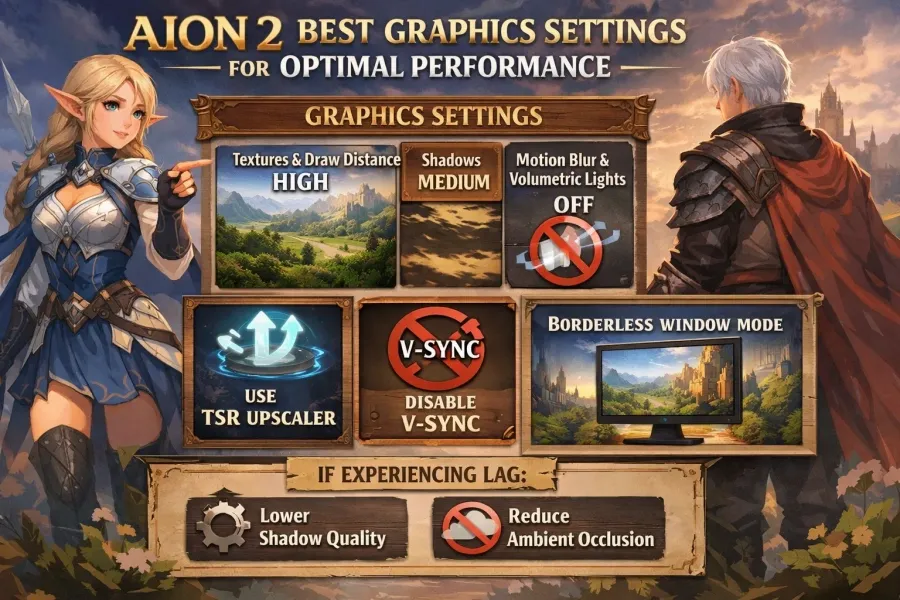
  3. Texture Quality: Set to High. Textures are an essential part of visual appeal, and setting this to high ensures that in-game objects look sharp and detailed. If you are experiencing low FPS, you might want to lower this to medium.
  4. Rendering Distance/View Distance: Set this to High or Max. Increasing the distance at which you can see objects can make the game world more immersive, but can impact FPS. For better performance, lower it to medium if needed.
  5. Shadow Quality: Set this to Medium for a balanced experience. Lowering shadow quality from High to Medium or Low can significantly improve FPS without much loss in visual quality. Shadows are resource-intensive and lowering them can free up resources for better FPS.
  6. Effects Quality: Set this to Medium. While high effects quality makes in-game explosions and lighting effects look stunning, setting it to medium can improve FPS, especially in busy areas or during large fights.
  7. Post-Processing: Turn off or set to Low. Disabling motion blur and other post-processing effects can significantly boost performance. Motion blur may look good, but it can reduce FPS and make the game feel less responsive.
  8. Anti-Aliasing: Set this to TAA (Temporal Anti-Aliasing) or FXAA (Fast Approximate Anti-Aliasing). TAA gives smoother visuals with less jagged edges but uses more resources. FXAA is lighter on performance, but it may not eliminate jagged edges as well as TAA.
  9. Upscaler (TSR): Set this to TSR (Temporal Super Resolution). This upscaling method boosts performance while maintaining high image quality. It's an excellent option for those looking for an improved visual experience without sacrificing FPS.
  10. V-Sync: Turn V-Sync off. V-Sync can help reduce screen tearing, but it can also cap your FPS, which limits your performance, especially during fast-paced moments. Turning it off allows your FPS to be uncapped, giving you more freedom during gameplay.
  11. FPS Limit: Set this to Unlimited or 120+. Limiting FPS can sometimes reduce input lag, but for a competitive edge, it's often best to keep the FPS uncapped to maximize performance. Setting a cap like 120 FPS can help if your system is struggling to maintain very high frame rates.

If you're looking to enhance your Aion 2 experience while managing your in-game economy, consider buying cheap Aion 2 kinah from U4N for a seamless and efficient gameplay boost.

Performance and Competitive Tips

Beyond adjusting the graphics settings, there are other tweaks that can further boost your performance:

  1. Disable Volumetric Lights and Water Reflection: Turning off these settings can give you a major FPS boost, especially in outdoor and water-heavy areas. While they add realism to the game, they are not necessary for gameplay and can be a heavy drain on your system's performance.
  2. Disable SSAO (Ambient Occlusion): SSAO enhances the depth of lighting and shadows, but it can have a noticeable performance impact. Turning it off can boost FPS without a significant visual downgrade.
  3. Nvidia Users: Set Power Management to “Maximum Performance”: In your Nvidia Control Panel, you can set the power management mode to “Maximum Performance.” This ensures that your GPU runs at its full potential, improving both FPS and responsiveness during intense gameplay.
  4. Turn Off Camera Shake: Camera shake can be immersive, but it can also reduce your ability to focus during combat. Disabling this feature helps maintain control and improves clarity in fast-paced scenarios.

Tips for Lower-End Systems: “Potato” Settings

If you are running Aion 2 on a lower-end system, achieving optimal performance may require sacrificing some graphical fidelity. Here are the settings to consider for the best performance:

  1. Resolution Scale: Lower the resolution scale to focus on performance. For instance, you could scale down to 70% or 80% of your screen's native resolution to increase FPS.
  2. Texture/Model Quality: Set this to Medium or Low. While the textures won't look as detailed, this will help boost your frame rates.
  3. Everything Else: Set all other settings to Low or Off. This includes shadows, post-processing effects, anti-aliasing, and other graphical enhancements. By reducing these settings, you can free up valuable system resources for better gameplay performance.

Summary

To summarize, achieving the best performance in Aion 2 requires balancing visual quality with system resources. By following the recommended settings, such as using TSR upscaler, setting texture and view distance to high, and disabling unnecessary effects like motion blur, you'll get a significant performance boost while still enjoying an immersive game world. For lower-end systems, reducing settings like shadows and effects quality can provide smoother gameplay, allowing you to focus on your competitive edge. With these tips, you should be able to enjoy Aion 2 at its best, regardless of your system's capabilities.

By customizing your settings to your needs and preferences, you can create the ideal gaming experience. Always remember that a few small tweaks can make a big difference in your overall performance.

上一個 下一個
作者簡介

U4N編輯團隊由一群熱愛遊戲的分析師和技術專家組成。我們不僅是一個可靠的遊戲資產市場——我們的核心目標是通過專業內容幫助玩家。我們的團隊為一些大熱門遊戲製作詳細的攻略、經濟策略和技術問題解決方案,包括《MLB The Show 26》、《Aion 2》、《Forza Horizon 6》、《Arc Raiders》和《Path of Exile》等。

無論是掌握遊戲市場的買賣技巧,還是幫助你打造最強的遊戲角色或策略,我們發布的每一份內容都經過我們團隊的實際測試。在 U4N,我們不僅跟隨遊戲的趨勢,我們還幫助你領先一步

相關文章