Cart Empty
Continue ShoppingIf you've launched Forza Horizon 6 and run into the dreaded Error Code E:0-0, don't panic. This error usually pops up due to a profile or save data sync issue, often caused by a corrupted Xbox App installation path, mismatched account logins, or stalled Windows Gaming Services. Here's a simple, step-by-step guide to fix it and get back to the roads of Japan.
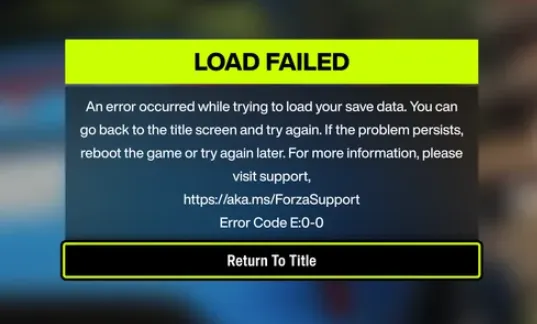
To fix the Forza Horizon 6 "Load Failed" Error Code E:0-0 on PC, you need to resolve a glitch with Windows Gaming Services or correct a duplicated installation path in the Xbox app. This error usually occurs because the game lacks local write privileges or cannot properly sync your save data.
Getting the E0 or E0-C0 error in Forza Horizon 6 can be frustrating, but the good news is that it's usually solvable with a series of straightforward steps. Here's how to get back into the game safely and quickly.
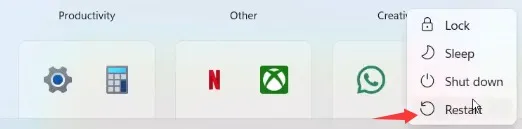
Before anything else, restart your computer. This simple step resolves many temporary glitches. Once your PC restarts, try launching the game again.
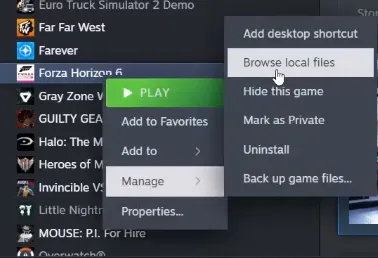
Locate your game installation folder.
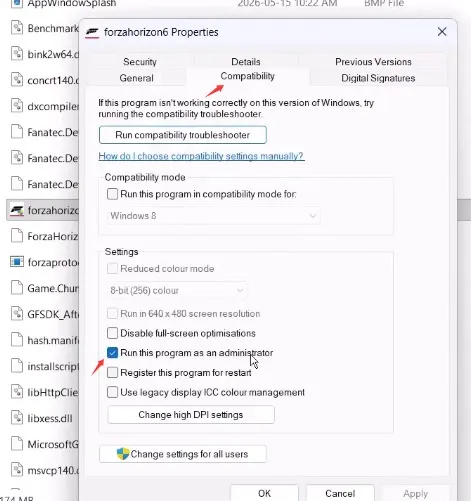
Check Run this program as an administrator → Apply → OK.
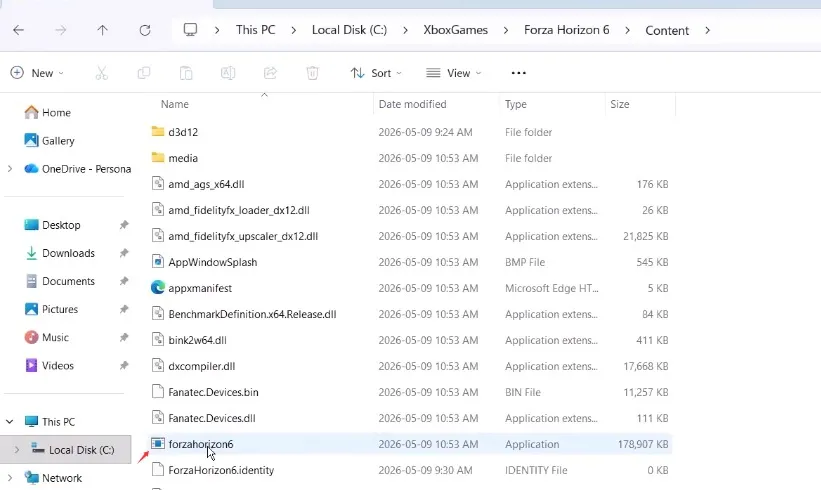
Instead of starting FH6 from shortcuts or the Xbox app/Steam library, launch it directly from the installation folder. This can bypass some access issues.
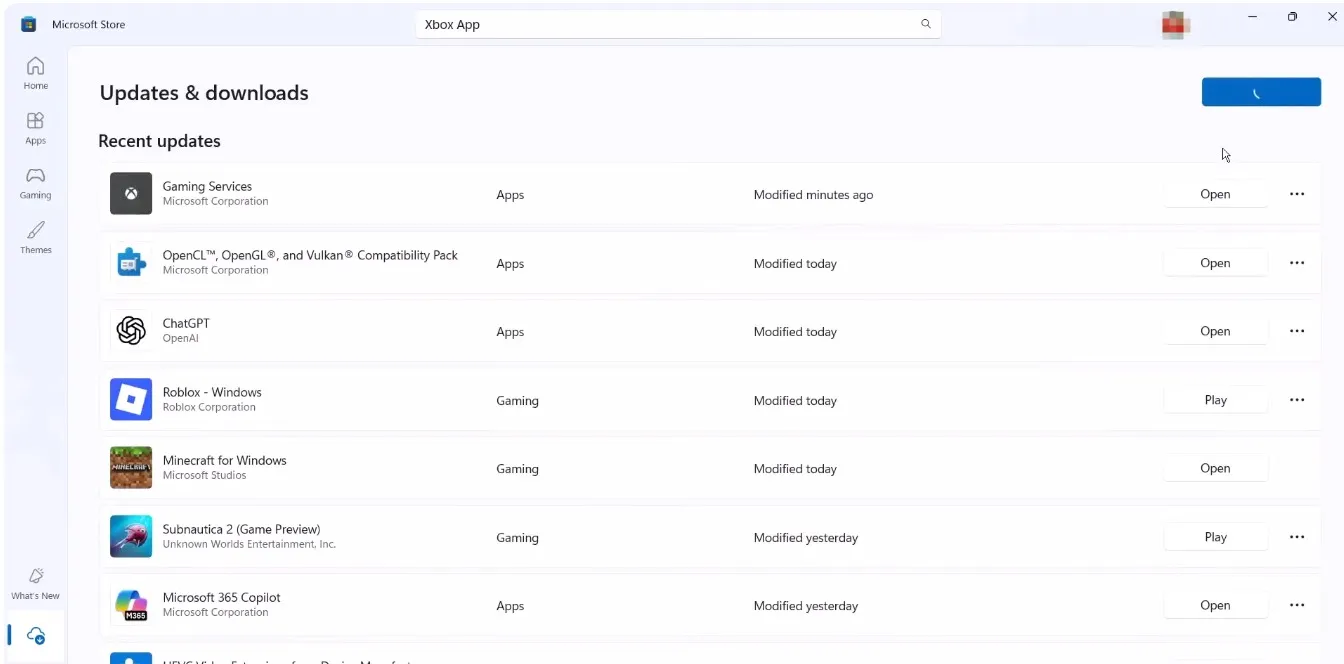
If not already installed:
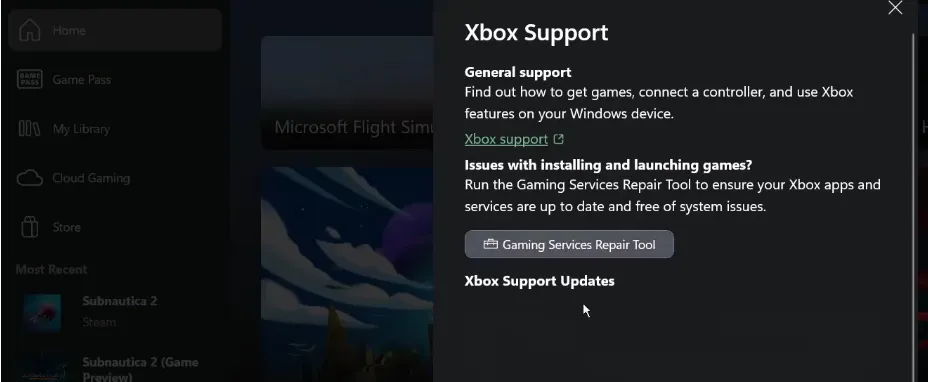
Open Xbox app → Support → Gaming Services Repair Tool.
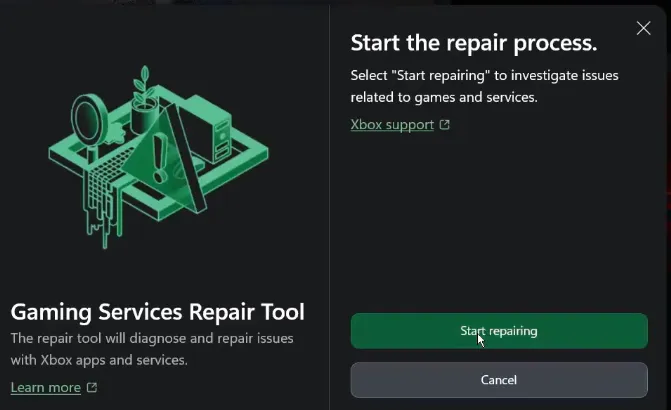
Click Start repairing → Allow the process.
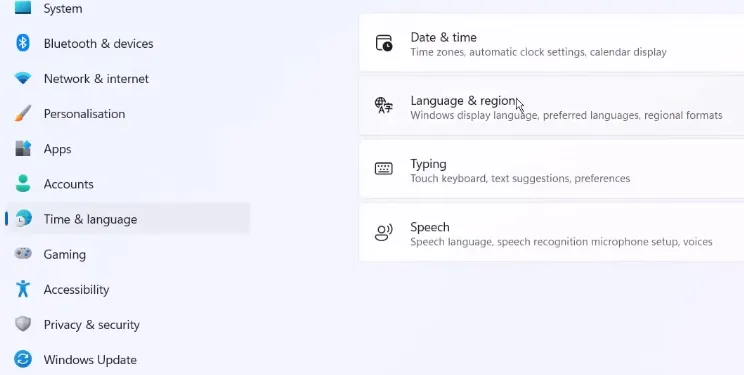
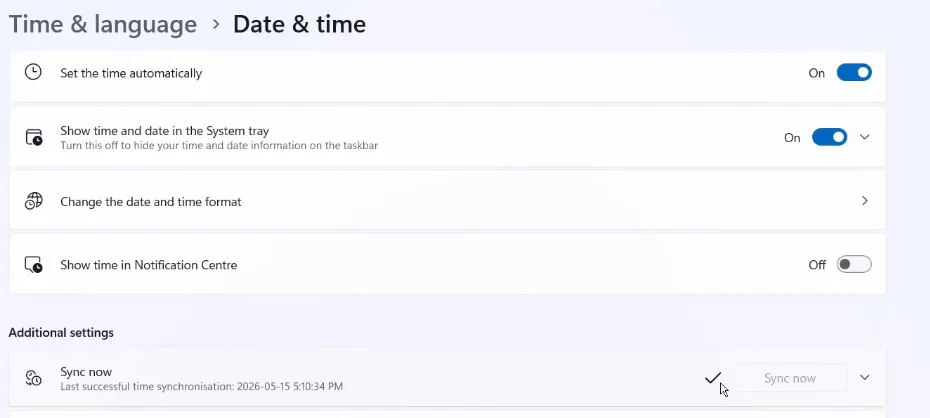
Go to Windows Settings → Time & Language → Language & Region.
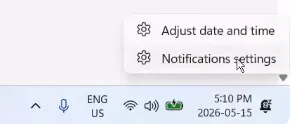
Right-click date & time → Adjust date/time → Enable Set time zone automatically and Set time automatically → Click Sync now.
Pro Tip: If you need extra resources or want to skip grind, you can get cheap Forza Horizon 6 credits safely through U4N, which offers secure instant delivery and verified accounts.

Ensure that your Microsoft account is consistent across:
Sign out and back in on both the Store and Xbox app if needed.
If not installed:
Following these steps usually resolves E0 / E0-C0 errors in Forza Horizon 6. Restarting, running as administrator, repairing or reinstalling Gaming Services, syncing accounts, and ensuring the correct region/time are the most common solutions.
A common culprit is the Xbox App pointing to a messed-up folder, like C:C:XboxGames. That duplication breaks permissions and prevents FH6 from reading your save data correctly.
Fix:
This ensures the game can properly read and write your profile data.
Sometimes the background services that handle game profiles get stuck. Resetting them can force your profile to sync.
Steps:
If your Microsoft credentials are mismatched between the Xbox App and Microsoft Store, the game can't authenticate your profile properly.
Steps:
This makes sure FH6 can verify your account seamlessly.
Certain Windows services are essential for Xbox profile and save syncing. Make sure they're running.
Check:
Sometimes standard permissions block the game from syncing profile data. Running FH6 as administrator can fix this.
Steam Users:
Game Pass/Xbox App Users:
Following these steps resolves most E:0-0 errors and restores access to your FH6 profile. Remember, syncing issues usually relate to folder paths, login mismatches, or background services—not the game itself.
The U4N Editorial Team is made up of dedicated gamers and technical experts. We're not just a trusted marketplace for game assets—we're all about empowering players with top-tier, expert-driven content. Our team produces in-depth guides, strategies, and technical fixes for some of the biggest games out there, like MLB The Show 26, Aion 2, Forza Horizon 6, Arc Raiders, and Path of Exile.
Whether it's mastering market flipping in Diamond Dynasty or optimizing your endgame builds, all of our strategies are tested and proven by in-house experts. At U4N, we don't just follow the meta—we help you stay ahead of it.