購物車空
繼續購物Hitting a roadblock before you even reach the starting line is incredibly frustrating. If you are trying to launch Forza Horizon 6 and getting hit with a "Load Failed" screen alongside Error Code E:0-17, you aren't alone.
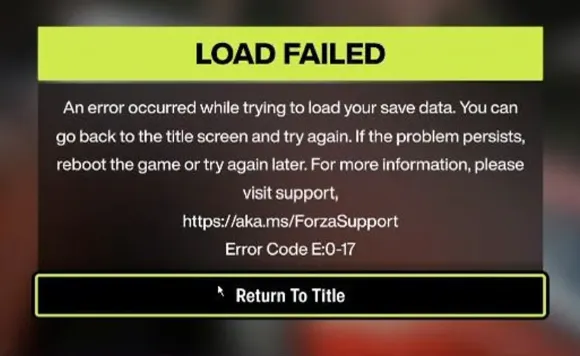
This specific error points to a save file loading failure. It usually happens when the game cannot properly authenticate or sync your profile data with the cloud servers. Most of the time, the culprit isn't a permanently corrupted save file, but rather network restrictions or aggressive Windows privacy settings blocking communication with Microsoft's servers.
Here are the most effective ways to clear the error and get back on the road.
If you have ever used Windows "debloating" tools, privacy scripts, or manually modified your system settings to block telemetry, your computer might be intentionally blocking the exact servers Forza needs to load your profile.
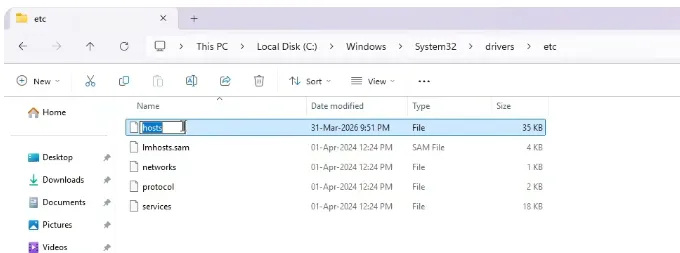
You can fix this by resetting your Windows hosts file to default:
Navigate to the following path:
C:WindowsSystem32driversetc
Right-click the file and select Rename. Change it to hostsBACKUP. (Alternatively, if you don't care about previous tweaks, you can simply delete it).
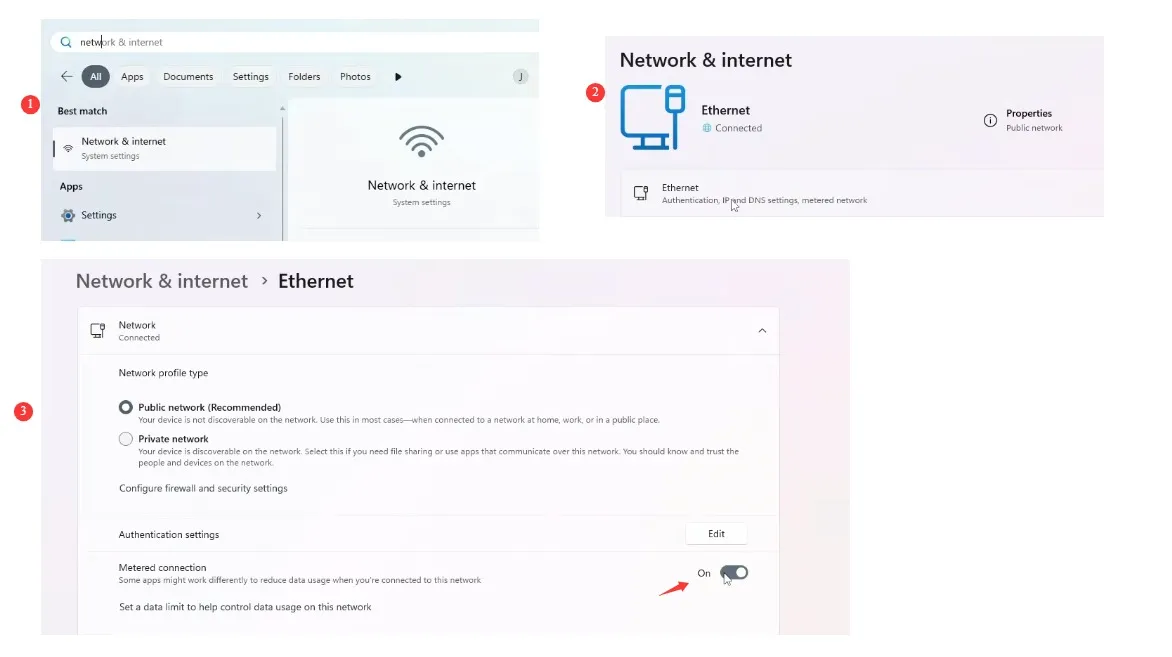
Windows has a feature called "Metered Connection" designed to save data on limited internet plans. However, this feature frequently restricts background data syncing, which prevents the Xbox network from pulling your latest cloud save.
To turn it off:

If troubleshooting those system settings feels like too much of a headache and you just want to get straight to the fun part of racing, there are ways to fast-track your progress once your game is running smoothly again. Instead of spending hours grinding through repetitive races to rebuild your garage after a save error, you can visit U4N to buy fast forza horizon 6 cars directly. It is a quick and reliable shortcut to lock down the highest-performance vehicles in the game, letting you bypass the technical frustrations and jump right back onto the asphalt with the best rides available.
If you used third-party optimization programs like O&O ShutUp10 or the Chris Titus Tech Windows Utility, these tools often disable core Windows telemetry and error reporting systems. Forza Horizon 6 requires these services active to validate your profile.
Because Error E:0-17 is heavily tied to server communication, your security software might be getting in the way.
If you purchased Forza Horizon 6 on Steam, the game still relies on an underlying handshake with the Xbox network. Sometimes this handshake fails if the background environment is idle.
Corrupted background modules can cause sudden authentication drops. Ensuring everything is updated can solve the issue.
U4N編輯團隊由一群熱愛遊戲的分析師和技術專家組成。我們不僅是一個可靠的遊戲資產市場——我們的核心目標是通過專業內容幫助玩家。我們的團隊為一些大熱門遊戲製作詳細的攻略、經濟策略和技術問題解決方案,包括《MLB The Show 26》、《Aion 2》、《Forza Horizon 6》、《Arc Raiders》和《Path of Exile》等。
無論是掌握遊戲市場的買賣技巧,還是幫助你打造最強的遊戲角色或策略,我們發布的每一份內容都經過我們團隊的實際測試。在 U4N,我們不僅跟隨遊戲的趨勢,我們還幫助你領先一步