購物車空
繼續購物If you're seeing the “Invalid Gaming Services Detected” error in Forza Horizon 6 on Steam, don't panic. Even though you launch the game through Steam, FH6 still depends on Windows Xbox services for things like cloud saves, multiplayer, and profile syncing. This error usually pops up when your Gaming Services app is outdated or corrupted—specifically, the game requires version 36.113.2002 or higher. Here's how to get back on track quickly.
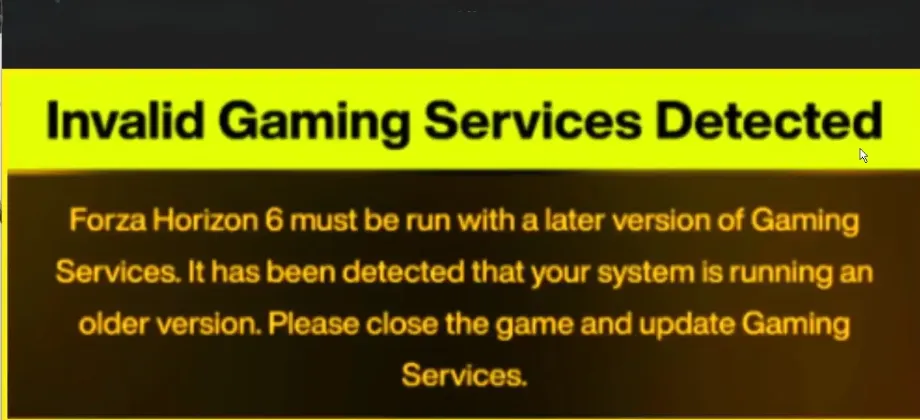
The easiest fix for most players is updating directly via the Microsoft Store.
Once updated, restart your PC and try launching FH6 again.
If the update fails or Gaming Services refuses to work, Microsoft provides a repair utility.
This usually resolves any corrupted service files or missing dependencies.
For stubborn cases, you can fully remove and reinstall Gaming Services.
After installation, restart your PC before launching FH6.
Steam and FH6 need a valid Xbox account linked to your profile:
This ensures FH6 can access your cloud saves, achievements, and multiplayer without triggering errors.
Once your Gaming Services are updated and synced, you can get back to racing across Japan without interruptions, and for players looking to quickly boost their FH6 experience, platforms like U4N let you buy low cost FH6 credits safely and instantly, so you can unlock cars, upgrades, and Wheel Spins while focusing on the fun parts of the game.
Following these steps should clear the “Invalid Gaming Services Detected” message and get you back on the road in Japan's open world. Keeping Gaming Services up to date and properly linked is crucial, even if you primarily play through Steam, because FH6 relies on it under the hood.
U4N編輯團隊由一群熱愛遊戲的分析師和技術專家組成。我們不僅是一個可靠的遊戲資產市場——我們的核心目標是通過專業內容幫助玩家。我們的團隊為一些大熱門遊戲製作詳細的攻略、經濟策略和技術問題解決方案,包括《MLB The Show 26》、《Aion 2》、《Forza Horizon 6》、《Arc Raiders》和《Path of Exile》等。
無論是掌握遊戲市場的買賣技巧,還是幫助你打造最強的遊戲角色或策略,我們發布的每一份內容都經過我們團隊的實際測試。在 U4N,我們不僅跟隨遊戲的趨勢,我們還幫助你領先一步