Buy MLB The Show 26 Account for Sale Online PS5/Xbox Series X/Nintendo Switch
Many players look for an MLB The Show 26 account for sale because they want quick access to higher ratings, rare cards, or strong Diamond Dynasty lineups without starting from zero. On U4N, sellers list MLB The Show 26 accounts with different progress levels, Stubs balances, and unlocked items, so buyers can compare options based on their needs and budget.
Before buying, it is important to check the account details carefully. Review platform information, region, linked email status, and whether the account includes valuable MLB 26 Stubs, players, or exclusive items. A clear description and transparent screenshots help reduce misunderstandings. Buyers should also read seller ratings and transaction history to understand reliability.
Price often depends on overall team strength, total Stubs, rare items, and completed game modes. “Cheap” does not always mean the lowest number. A fair price usually reflects the time invested and the in-game resources included. Taking a few minutes to compare listings can help you make a more informed decision.
To safely expand your Diamond Dynasty roster or secure a digital copy of the game across your preferred console ecosystem, purchasing an MLB The Show 26 account via third-party marketplaces like U4N provides immediate access to pre-loaded content. These accounts frequently feature pre-farmed Stubs, unlocked live-series collections, and ranked-ready Diamond Dynasty competitive squads tailored for the PS5, Xbox Series X, or Nintendo Switch. Furthermore, acquiring a fully verified companion app account allows you to seamlessly manage your squad, flip cards on the community marketplace, and track live program progression directly from your phone. However, because purchasing or sharing external credentials directly violates the official Terms of Service for San Diego Studio, PlayStation, and Xbox, buyers run a permanent risk of account suspension or console-level hardware bans if unauthorized commercial activity is detected on the network.
Buy MLB 26 Account With Max Stubs
Buying an MLB The Show 26 account pre-loaded with max Stubs is a guaranteed way to get the account permanently banned. San Diego Studio (SDS) uses highly aggressive automated security filters that instantly flag and lock profiles with artificial currency spikes or sudden changes in hardware registration. If you attempt to purchase a max Stubs account from a third-party grey market, you face immediate risks:
Why Max Stub Accounts are Instantly Wiped
- Automated Fraud Tracking: Accounts with millions of Stubs are generated by commercial bot farms using marketplace manipulation scripts. SDS tracks these specific transaction histories and bans both the farming accounts and any buyer accounts that link to them.
- The Account Recovery Trap: Sellers on third-party sites frequently reclaim the account hours after you buy it. They contact console support using the original email and console serial number to reset the password, leaving you with zero recourse and a total financial loss.
- Hardware & IP Bans: Logging into an account flagged for commercial coin selling can trigger a network-tier ban on your PlayStation, Xbox, or Nintendo Switch, blocking your entire console from accessing online features.
The Safest Way to Build Multi-Million Stub Balances
Instead of risking real money on a fraudulent account, you can build a massive, legitimate Stub bank roll safely using official tools:
- The Companion App Method: Download the official MLB The Show Companion App. Use the live mobile marketplace to "flip" cards—place buy orders at a lower price point and sell orders at a higher price point during high-volume market hours.
- Official Store Bundles: If you want to skip the grind entirely, buy Stubs securely through the official PlayStation Store, Xbox Store, or Nintendo eShop. Purchased Stubs are completely safe, never expire, and will never risk your account status.
- Program Token Liquidations: Progress through live seasonal programs. Collect the high-tier rewards, pack bundles, and rare equipment items, then sell them immediately on the Community Marketplace while demand is high to maximize your profit margin.
About MLB The Show 26
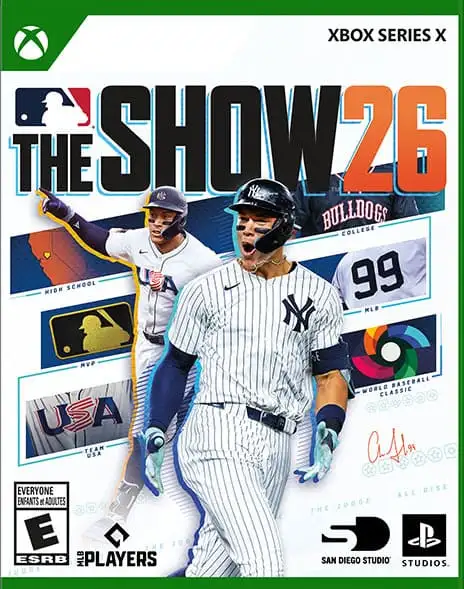
MLB The Show 26 was released on Tuesday, March 17, 2026, for PlayStation 5, Xbox Series X|S, and Nintendo Switch. The cover athlete is New York Yankees superstar Aaron Judge.
- Release Date: The official launch date for the standard edition is March 17, 2026.
- Early Access: Players who preorder the Digital Deluxe Edition can start playing four days earlier, on Friday, March 13, 2026.
- Cover Athlete: Aaron Judge of the New York Yankees is the sole cover athlete, making his second appearance on the cover after MLB The Show 18.
- Platforms: The game will be available on PlayStation 5, Xbox Series X|S, and Nintendo Switch. A PC version has not been announced.
- Pre-orders: Pre-orders for both the Standard and Digital Deluxe Editions will open on Tuesday, February 3, 2026.
MLB The Show 26 Account Link Playstation Xbox Switch
To connect your PlayStation, Xbox, and Nintendo Switch accounts for cross-progression in MLB The Show 26, you must link them all to a unified MLB The Show Account. This synchronizes your Diamond Dynasty team, stubs, inventory, and program progress seamlessly across every console.Follow these precise steps to link your accounts without losing your game data:
Step 1: Create a Unified MLB The Show Account
- Open a web browser and go to the official MLB The Show Account Dashboard.
- Click Create an account if you do not have one yet.
- Crucial: Do not log in using your console credentials (PSN/Xbox/Nintendo) during this initial creation step. Create a completely standalone MLB The Show account username and password.
Step 2: Generate the Link Code From Your Main Console
Always start with the console where you have already spent the most time playing or grinding to protect your progress.
- Launch MLB The Show 26 on your primary console (e.g., PlayStation).
- From the main menu, navigate to your Profile Icon in the top-left corner.
- Select the Link Account option.
- The game will generate a unique Link Code on your TV screen.
Step 3: Enter the Code Online
- Return to your web browser on the MLB The Show Account Dashboard where you logged into your standalone account.
- Find the Account Linking section or code entry box.
- Enter the exact Link Code shown on your console screen.
- Choose Your Progression: The system will ask which account data you want to keep as your main save. Select the account with your actual team progress. Choosing a blank account will overwrite and temporarily hide your main progress.
Step 4: Add Your Secondary Consoles
- Fire up MLB The Show 26 on your other platforms (Xbox and Nintendo Switch).
- Go to the top-left Profile Icon -> Link Account on each console to generate new, unique codes.
- Plug those secondary codes into the same MLB The Show Account Dashboard.
- Restart the game on all consoles to force the data to synchronize.
Critical Rules of Cross-Progression
- Stubs Restrictions: Stubs that you earn by playing the game transfer everywhere. However, purchased Stubs are strictly locked to the platform where you bought them. For example, if you buy a 50,000 Stub bundle on the PlayStation Store, you can only spend those Stubs while playing on PlayStation.
- Marketplace Items: Any player cards, equipment, or packs you buy on the Community Marketplace using those locked Stubs do transfer and can be used on Xbox and Switch.
- Accidental Unlinking: If your progress looks wiped after linking, do not panic. Your data is not deleted; you likely selected the wrong primary profile during the link screen. Simply unlink the account on the website to restore your local save data, then re-link carefully.
MLB The Show 26 Unlinked Account Fix
If your Diamond Dynasty team, stubs, and levels completely disappeared after linking your accounts, your save data has not been deleted; it is simply hidden because the wrong primary platform was chosen during setup. When you link a console to a standalone MLB The Show account, the game hides your progress if it prioritizes a fresh, blank profile over your existing save.To fix this and restore your team immediately, you must carefully unlink and re-set your main platform.
Step 1: The Quick In-Game Unlink Fix
If your progress vanished right after you input a code, unlinking immediately detaches the blank profile and forces the game to read your original local console save.
- Launch MLB The Show 26 on the console that originally had all your player cards and stubs.
- From the main menu, click your Profile/Ballplayer Icon in the top-left corner.
- Tab over to My Profile (using R1/RB).
- Select the Unlink Account tile and confirm your choice.
- Fully restart the game app on your console. Your full Diamond Dynasty squad, XP, and stubs will reappear instantly.
Step 2: Correcting the Link Online (To Keep Cross-Progression)
Once your progress is back safely on your main console, follow these steps to link your other platforms without wiping your screen again:
- Open a browser and sign in directly to the MLB The Show Account Dashboard.
- If your main platform still shows as connected to a blank account, click Unlink next to it on the dashboard first.
- Now, click Link and sign in using the console network credentials (PSN, Xbox, or Nintendo Switch) that hold your true, actual game progress.
- The Critical Decision: A prompt will appear asking you to choose which account data to carry forward. Select the console profile showing your high level and stub balance. Do not select the generic "The Show" account if it is at Level 1.
- Once confirmed, generate link codes for your secondary consoles and tie them to this specific primary profile.
Alternative Fix: The Authentication Loop Error
If you are getting a constant error code or a blank loop on your phone when trying to log into the website to unlink, the server is struggling to authenticate your credentials:
- Clear your mobile browser cache or open the MLB The Show Account Dashboard in an Incognito/Private window.
- Log in only by clicking the specific console button (e.g., the PlayStation or Xbox logo) rather than typing in a standalone username and password.
What Should I Check Before I Buy MLB The Show 26 Account?
Before you buy MLB The Show 26 account online, you should review several key details to reduce risk and avoid misunderstandings.
First, confirm the platform and region. Make sure the account matches your console (PlayStation, Xbox, etc.) and is not restricted by region. Platform compatibility is one of the most common issues buyers overlook.
Second, carefully check the account contents. Look at the Stubs balance, unlocked players, completed programs, and included items. If you are buying for Diamond Dynasty, review the overall team rating and rare cards. Clear screenshots and a detailed listing description are important.
Third, verify the email status. Ideally, the account should allow full email transfer so you can change login credentials immediately after purchase. This helps prevent account recovery by the original owner.
Fourth, review the seller's history. Check ratings, past transactions, and buyer feedback. A consistent track record usually indicates lower risk.
Finally, compare the price with similar listings. A very low price may indicate missing information or higher risk. Taking time to check these details can help you make a more informed decision when you buy MLB The Show 26 account.
MLB The Show Account Terms of Service 2026
The official MLB The Show 26 Terms of Service (ToS) and Online Code of Conduct strictly prohibit account trading, cheating, and marketplace manipulation. San Diego Studio (SDS) and Sony Interactive Entertainment enforce these rules across all connected platforms—PlayStation, Xbox, and Nintendo Switch. Violating these guidelines can result in permanent console bans or the immediate deletion of your Diamond Dynasty team.The core sections of the 2026 Terms of Service cover several critical areas:
1. Account Ownership and Transfer Rules
- No Account Trading: You are strictly forbidden from selling, buying, trading, or transferring your Online ID, standalone Show Account, or personal access through any third-party websites.
- No Credential Sharing: Sharing your account login information to let another player complete programs, grinds, or Ranked Seasons games for you is a violation of service.
- Single Progression: Intentionally linking multiple external console IDs to manipulate or duplicate card inventories can result in account suspension.
2. Marketplace and Stubs Economy
- Stub Transferring Ban: Buying or selling Stubs through unauthorized third-party coin-selling sites is completely illegal.
- Market Manipulation: Using automated bots, scripts, or coordinate manipulation to auto-flip player cards or equipment on the Community Marketplace is strictly banned.
- Price Fixing: Intentionally buying or selling cards at extreme, unrealistic profit margins to transfer in-game currency between two specific accounts will trigger an automatic security flag.
3. Fair Play and Cheating Policy
- Unauthorized Tools: Utilizing third-party hardware, scripts, or automated software to manipulate hitting timing or PCI placement violates the ToS.
- Exploit Abuse: Intentionally exploiting glitches or software bugs to freeze games or force an opponent to disconnect to earn a free competitive win is a bannable offense.
4. Community Content and Code of Conduct
- Vault Violations: Uploading custom team logos, custom rosters, or custom stadium designs containing explicit language, political statements, or copyrighted/offensive imagery will result in your vault access being permanently revoked.
- Communication Rules: Sending toxic, harassing, or hateful direct messages to other players after head-to-head matches violates the console's unified framework.
What Happens if You Get Banned?
If your account is flagged for a ToS violation, SDS places a server-side lock on your profile.
- You will lose access to all Diamond Dynasty modes, your card inventory, and your Stubs balance.
- Player support explicitly notes that they will not reverse bans issued for verified account trading or real-money stubs purchases.
MLB The Show Account Banned and How To Appeal
To appeal an account ban or marketplace restriction in MLB The Show 26, you must submit an official support ticket through San Diego Studio's dedicated help desk.Server-side bans and Companion App marketplace locks cannot be resolved by your console platform (PlayStation, Xbox, or Nintendo Switch), and they must be handled directly by the game's developers. Follow these steps to file an official appeal:
Step 1: Access the San Diego Studio Ticket Portal
- Open your web browser and navigate directly to the official MLB The Show Submit a Request Page.
- Click the Sign In option in the top right corner and log in using your standalone MLB The Show Account or linked console network credentials.
Step 2: Fill Out the Appeal Form
- Under the dropdown option for "Please choose a type of ticket you want to submit," select Account Issue.
- Provide your exact In-Game Username/Gamer Tag (PSN ID, Xbox Gamertag, or Nintendo Network ID) and specify your primary gaming platform.
- In the Subject field, write a clear summary (e.g., Account Restriction Appeal -).
Step 3: Write a Professional Description
Your appeal statement determines whether an agent escalates your ticket. Be brief, respectful, and factual:
- State the Notice: Note what error message appears when you try to log into Diamond Dynasty or use the MLB The Show Companion App.
- Defend Without Aggression: If you believe you were falsely flagged for marketplace manipulation or botting, explain that your recent high-volume transactions were standard manual card flipping.
- Avoid Toxicity: If your ban stems from a toxicity report (e.g., in-game messages), note that you will strictly adhere to the MLB The Show Code of Conduct moving forward.
Step 4: Submit and Track
- Attach any relevant screenshots (e.g., the ban screen showing a specific error code or the restriction duration) if available.
- Click Submit.
- Check your registered email address for an automated confirmation ticket number. Do not submit multiple tickets for the same ban, as duplicate requests flood the queue and delay response times.
What to Expect During the Review
- Response Timelines: Appeal review times typically fluctuate between 4 to 11 business days depending on ticket volume early in the content cycle.
- Distinguish Platform Bans from Developer Bans: If you cannot log into the PlayStation Network or Xbox Network at all, your ban is a system-level enforcement from Sony or Microsoft (often caused by toxic direct messaging or payment chargebacks). For platform-level suspensions, you must log into your respective PlayStation Support or Xbox Support portals to appeal.
Is Buying MLB The Show 26 Accounts Safe?
No, buying MLB The Show 26 accounts is absolutely not safe. Engaging in account trading exposes you to severe security risks, immediate financial loss, and permanent game bans. Before considering a third-party marketplace, understand the primary dangers involved:
Why It Is Highly Risky
- Immediate Account Bans: San Diego Studio (SDS) tracks anomalies like sudden changes in console IDs, hardware signatures, and IP addresses. If system telemetry detects a sudden shift in ownership, the account is permanently banned for violating the Terms of Service (ToS).
- The Recovery Scam: Original account creators can easily reclaim the account at any time. They simply contact PlayStation, Xbox, or Nintendo support, provide the original billing details or creation console serial number, and change the password. You will lose access, and third-party grey markets rarely offer protection or refunds against this.
- Stubs Transfer Bans: If an account is pre-loaded with millions of Stubs, it was likely filled using automated marketplace bots or unauthorized coin-selling networks. SDS runs automated sweeps that flag and wipe these accounts completely.
- Data Security Threat: Purchasing accounts often requires sharing email addresses or logging into unverified third-party platforms, which exposes your personal information to phishing and identity theft.
The Safe, Official Alternative
If your goal is to skip the initial grind or build a competitive Diamond Dynasty squad quickly without risking a ban, use the game's built-in mechanics:
- Official Stubs: Purchase Stub bundles directly via the PlayStation Store, Xbox Store, or Nintendo eShop to safely buy the exact player cards you want on the Community Marketplace.
- The Companion App: Download the official MLB The Show Companion App. It allows you to flip cards, check marketplace trends, and complete program tasks securely from your phone while away from your console.
FAQs
1. Can I buy an MLB The Show 26 account for PS5, Xbox, or Nintendo Switch?
Yes, but you must match the account to your platform. An account made for PlayStation usually cannot be used on Xbox, and a Switch account is separate as well. Always confirm the platform in the listing before you buy MLB The Show 26 account.
2. Is MLB The Show 26 available on PS4 or older Xbox consoles?
Based on current launch information, MLB The Show 26 is listed for PS5, Xbox Series X|S, and Nintendo Switch, not PS4.
3. Does “Stubs included” mean the Stubs are safe to keep?
Not necessarily. Stubs are an in-game currency, and any unusual changes on an account can look suspicious. If a listing claims a very large Stubs amount, you should treat it as higher risk and double-check how the account earned them.
4. What account details should be clearly shown in a listing?
At minimum: platform, region, current progression (modes and programs), Stubs balance, key players/items, and whether the email/login can be fully changed. Screenshots should match the written description.
5. What does “full email access” mean when buying an account?
It usually means you can change the login email and password, and you control recovery options going forward. If the seller cannot transfer the email or recovery methods, the original owner may be able to reclaim the account later.
6. What security steps should I do right after purchase?
Change password, change the linked email (if possible), update recovery options, and enable 2-step verification where available. Also sign out of other devices or sessions if the platform supports it.
7. Can the original owner recover the account after selling it?
Yes, this is one of the main risks of account trading. If the original owner still controls the email, phone, or recovery methods, they may be able to recover it later. That is why transfer details matter.
8. Will buying an MLB The Show 26 account get me banned?
It can. Many publishers do not support account transfers, and enforcement can vary. There is no way to guarantee safety, so buyers should understand the risk before purchasing.
9. What's the difference between a “fresh” account and a “stacked” account?
A fresh account usually has little progress and few items. A stacked account typically has a stronger Diamond Dynasty lineup, more completed programs, more items, and sometimes more Stubs. Price should reflect the real progress shown.
10. How do I judge whether the price is reasonable?
Compare multiple listings with similar platform, team strength, rare cards, completed programs, and Stubs. If the price is far lower than similar accounts, it may indicate missing access (no email transfer) or unclear details.
11. What are common red flags in MLB The Show 26 account listings?
Vague descriptions, no screenshots, unwillingness to explain email transfer, “too good to be true” Stubs claims, and pressure to move off-platform for payment or chat. These often lead to disputes.
12. Should I avoid accounts that were used on multiple devices or shared?
Shared or heavily accessed accounts can be harder to secure. More prior logins can also make support or recovery situations complicated. A clean transfer with clear ownership handoff is usually safer.
13. Does “Digital Deluxe early access” change anything for account buyers?
It can. Some accounts may have early access progress or edition bonuses. If you are buying for early access, confirm the edition and what is included.
14. MLB The Show 23 - 26
- MLB 23: Released on March 28, 2023, an MLB The Show 23 account lets players unlock top cards, packs, and build their Diamond Dynasty teams faster.
- MLB 24: Released on March 19, 2024, an MLB The Show 24 account helps players maximize rewards, complete missions, and strengthen their roster efficiently.
- MLB 25: Released on March 18, 2025, an MLB The Show 25 account allows players to quickly acquire high-value cards, unlock packs, and progress in Diamond Dynasty.
- MLB 26: Released on March 17, 2026, an MLB The Show 26 account provides new ways to earn currency, unlock exclusive cards, and build your ultimate team with updated gameplay and events.
15. If I only care about Diamond Dynasty, what should I check first?
Focus on the lineup (overall strength and key positions), the collection status, completed programs, and the quality of items or cards. A big Stubs number alone does not guarantee a strong roster.
16. Can I change the account name, team name, or other profile details?
Sometimes, but it depends on the platform and how the account was created. Some names are locked or limited by cooldowns. If this matters to you, ask before buying.
17. What should a responsible seller include when selling an MLB The Show 26 account?
Clear platform and region, honest progression details, accurate Stubs or items numbers, and a straightforward explanation of what login access is transferred. Good sellers avoid exaggerated claims and provide proof.
18. How can sellers reduce disputes and chargeback risk?
Use clear listing terms, keep screenshots updated, communicate in writing, and deliver exactly what was promised. Disputes often come from mismatched expectations, not just bad intent.
19. Are “cheap accounts” always the best choice?
Not always. A cheaper account can be fine if it has clear details and full transfer access. But “cheap” can also mean limited access, unclear history, or higher recovery risk.
20. What should I do if the account details don't match the listing after purchase?
Document everything immediately: screenshots of the listing, chat logs, and the current account status. Then follow the marketplace dispute process as soon as possible while the evidence is fresh.
21. How should I compare accounts on U4N without wasting time?
Start with filters: platform, region, and your main goal (Diamond Dynasty roster vs. Stubs vs. program completion). Then shortlist 3–5 listings and compare only the details that affect your gameplay, not just the headline price.